> ## Documentation Index
> Fetch the complete documentation index at: https://docs.ruleinside.com/llms.txt
> Use this file to discover all available pages before exploring further.
# Connections
> Connect your store, and let your own systems send contacts, events and do-not-call numbers.
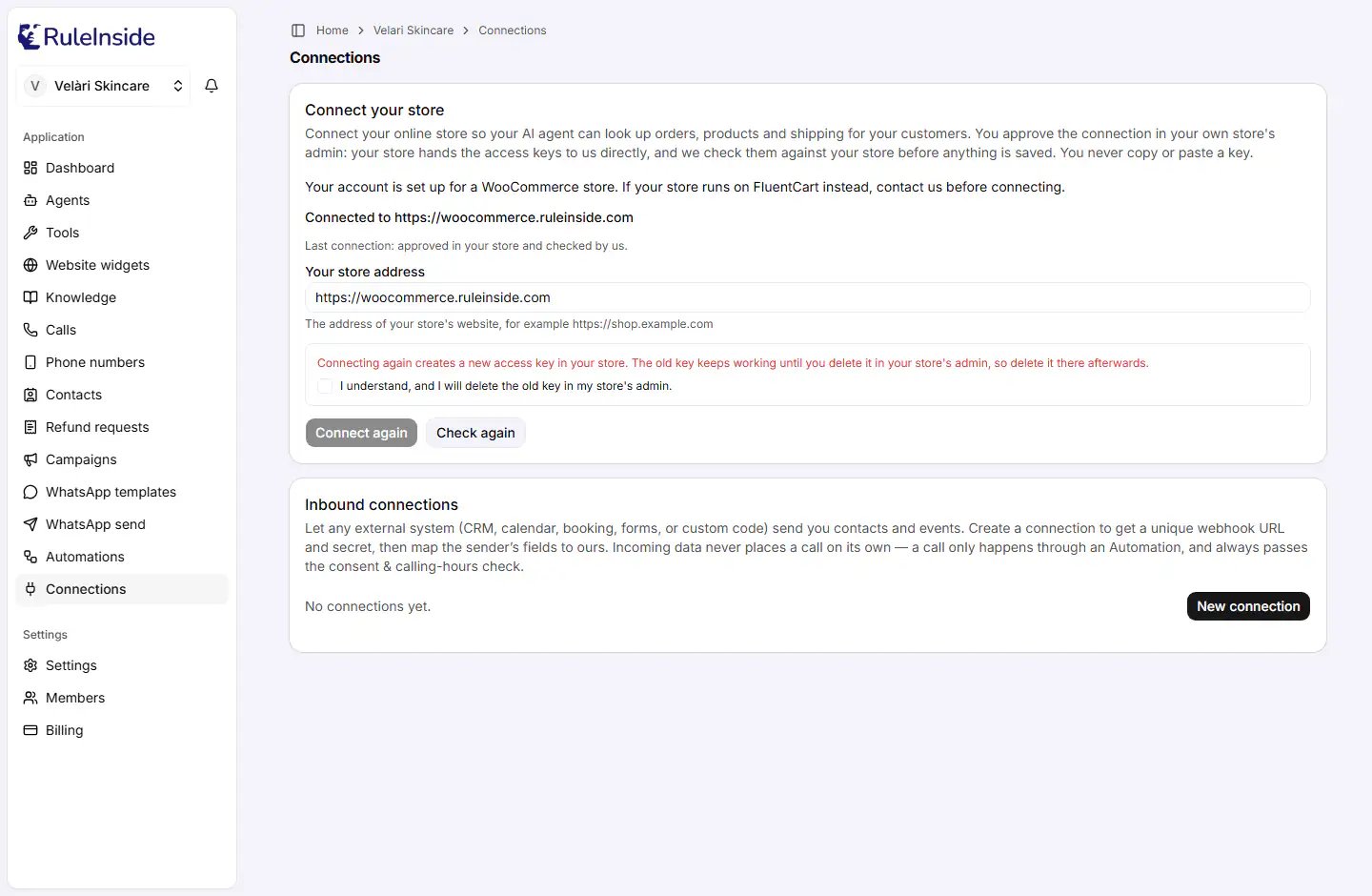
Open **Connections** in the sidebar. The page has two cards:
* **Connect your store**: lets your agent look up orders, products and shipping in your online store.
* **Inbound connections**: lets your other systems (a CRM, a calendar, a booking or form tool, or your own code)
send contacts and events **into** RuleInside.
To send data **out** of RuleInside to your own systems, use [Webhooks](/webhooks) instead.
 ## Who can do what
* **Everyone on your team** can see whether the store is connected, see the inbound connections, and use **Copy
URL**.
* **Only the owner** can connect the store and create, switch on or off, change the secret of, or delete an inbound
connection. Members see a note that only an account owner can do this.
See [Who can do what](/roles).
## Connect your store
You never copy or paste a key. You approve the connection in your own store's admin, your store hands the access
keys to us directly, and we check them against your store before anything is saved.
The first line of the card says which kind of store your account is set up for. This is set when we set up your
account; there is no store type to choose on this card.
| What the card says | What it means |
| - | - |
| "Your account is set up for a WooCommerce store." | You can connect your store yourself, as below. If your store runs on FluentCart instead, contact us before connecting. |
| "Your account is set up for a FluentCart store." | For now our team connects FluentCart stores. Contact us and we connect yours with you. |
| "Store connection is available for WooCommerce and FluentCart stores." | Contact us to connect a store on another platform. |
### Fields and buttons
| Item | What it does |
| - | - |
| Status line | "Connected to" and your store's checked address, or "No store is connected yet." |
| Last attempt line | The result of your latest connection attempt. See [What the last attempt says](#what-the-last-attempt-says). |
| **Your store address** | Your store's public address, for example `https://shop.example.com`. Up to 2,048 characters. Filled in with the connected address when there is one. |
| **Connect your store** | Starts the connection (the first time). Available once an address is typed. While it works it reads "Opening your store...". |
| **Connect again** | Replaces **Connect your store** once a store is connected. Available once you tick the warning box below. |
| **Check again** | Reloads the card to show the latest status. It does not contact your store. |
### Connect a WooCommerce store
Use the public `https` address of your store.
Your store's own WooCommerce approval page opens in a new tab. Approve the app named RuleInside (followed by
your account id) with **read and write** access. WooCommerce offers no narrower choice, and your agent makes
some changes in your store.
Your store sends the access keys straight to us, and we test them against your store before saving. The card
shows the result.
The approval page is valid for **10 minutes**. You can start at most **5 connections in 10 minutes**.
### Connecting again
**Connect again** creates a new access key in your store, and the old key keeps working until you delete it in
your store's admin. Before you can connect again, tick "I understand, and I will delete the old key in my store's
admin." Then delete the old key in WooCommerce afterwards.
### What the last attempt says
| On the card | What it means |
| - | - |
| "Last connection: approved in your store and checked by us." | Connected and checked. |
| "Waiting for you to approve the connection in your store. The approval page stays valid for 10 minutes." | You started but have not approved yet. |
| "You approved the connection. We are checking it against your store now." | Our check is running. You cannot start again meanwhile; click **Check again** in a minute. |
| "The last approval page expired before it was used. Start again when you are ready." | The 10 minutes passed. |
| "The connection was approved on a different website than the store address entered here. Check the address and start again." | You approved it on another site. |
| "Your store did not give us the access we asked for. Start again and approve the access your store asks you about." | The access was refused, or less than read and write was approved. |
| "We could not reach your store to check the connection. Check that your store is online, then start again." | Your store was offline or did not answer as expected. |
| "Your store did not send the access details. Start again and complete the approval in your store." | The approval was not finished. |
| "Your store is not the kind your account is set up for. Contact us." | The store is a different platform from the one your account is set up for. |
| "This store is already connected to another RuleInside account, so it was not connected here. Contact us if it is yours." | Another account has this store. |
| "Something went wrong on our side while connecting. Start again, or contact us if it happens again." | The problem was on our side. |
| "We could not load your store connection. Refresh the page to try again." | The status could not be read. You cannot connect until it can; refresh the page. |
### Messages when you click Connect
| Message | What to do |
| - | - |
| "Enter your store's address." | Type your store's address. |
| "Confirm the warning about the old key first." | Tick the warning box. |
| "That store address cannot be used. Enter the public https address of your store." | Use your store's public `https` address. |
| "We could not find that store address right now. Check it and try again in a minute." | Check the address for typing mistakes, then try again. |
| "You already approved a connection and we are still checking it. Press Check again in a minute." | Wait, then click **Check again**. |
| "Too many attempts in a short time. Wait ten minutes, then try again." | Wait ten minutes. |
| "Your store is not the kind your account is set up for. Contact us." | Contact us. |
| "For now our team connects this kind of store. Contact us and we will connect it with you." | Contact us. |
| "Store connection is not available for your store's platform." | Contact us. |
| "We could not check your store connection. Please try again." | Try again in a moment. |
| "This store is already connected to another RuleInside account. Contact us if it is yours." | Contact us. |
| "We could not start the connection. Please try again." | Try again; contact us if it keeps happening. |
## Inbound connections
An inbound connection gives another system its own web address (a **webhook URL**) and a **secret** to send you
contacts and events. You then say where each field is in the data that system sends.
Incoming data never places a call on its own and never gives calling consent. A call only happens through an
[Automation](/automations), and always passes the consent and calling-hours checks.
There is no fixed list of systems to choose from: any system that can send a secure (HTTPS) request with JSON data
and a custom header can send you data. You name each connection yourself, and the field mapping adapts it to the
system that sends.
### Create a connection
## Who can do what
* **Everyone on your team** can see whether the store is connected, see the inbound connections, and use **Copy
URL**.
* **Only the owner** can connect the store and create, switch on or off, change the secret of, or delete an inbound
connection. Members see a note that only an account owner can do this.
See [Who can do what](/roles).
## Connect your store
You never copy or paste a key. You approve the connection in your own store's admin, your store hands the access
keys to us directly, and we check them against your store before anything is saved.
The first line of the card says which kind of store your account is set up for. This is set when we set up your
account; there is no store type to choose on this card.
| What the card says | What it means |
| - | - |
| "Your account is set up for a WooCommerce store." | You can connect your store yourself, as below. If your store runs on FluentCart instead, contact us before connecting. |
| "Your account is set up for a FluentCart store." | For now our team connects FluentCart stores. Contact us and we connect yours with you. |
| "Store connection is available for WooCommerce and FluentCart stores." | Contact us to connect a store on another platform. |
### Fields and buttons
| Item | What it does |
| - | - |
| Status line | "Connected to" and your store's checked address, or "No store is connected yet." |
| Last attempt line | The result of your latest connection attempt. See [What the last attempt says](#what-the-last-attempt-says). |
| **Your store address** | Your store's public address, for example `https://shop.example.com`. Up to 2,048 characters. Filled in with the connected address when there is one. |
| **Connect your store** | Starts the connection (the first time). Available once an address is typed. While it works it reads "Opening your store...". |
| **Connect again** | Replaces **Connect your store** once a store is connected. Available once you tick the warning box below. |
| **Check again** | Reloads the card to show the latest status. It does not contact your store. |
### Connect a WooCommerce store
Use the public `https` address of your store.
Your store's own WooCommerce approval page opens in a new tab. Approve the app named RuleInside (followed by
your account id) with **read and write** access. WooCommerce offers no narrower choice, and your agent makes
some changes in your store.
Your store sends the access keys straight to us, and we test them against your store before saving. The card
shows the result.
The approval page is valid for **10 minutes**. You can start at most **5 connections in 10 minutes**.
### Connecting again
**Connect again** creates a new access key in your store, and the old key keeps working until you delete it in
your store's admin. Before you can connect again, tick "I understand, and I will delete the old key in my store's
admin." Then delete the old key in WooCommerce afterwards.
### What the last attempt says
| On the card | What it means |
| - | - |
| "Last connection: approved in your store and checked by us." | Connected and checked. |
| "Waiting for you to approve the connection in your store. The approval page stays valid for 10 minutes." | You started but have not approved yet. |
| "You approved the connection. We are checking it against your store now." | Our check is running. You cannot start again meanwhile; click **Check again** in a minute. |
| "The last approval page expired before it was used. Start again when you are ready." | The 10 minutes passed. |
| "The connection was approved on a different website than the store address entered here. Check the address and start again." | You approved it on another site. |
| "Your store did not give us the access we asked for. Start again and approve the access your store asks you about." | The access was refused, or less than read and write was approved. |
| "We could not reach your store to check the connection. Check that your store is online, then start again." | Your store was offline or did not answer as expected. |
| "Your store did not send the access details. Start again and complete the approval in your store." | The approval was not finished. |
| "Your store is not the kind your account is set up for. Contact us." | The store is a different platform from the one your account is set up for. |
| "This store is already connected to another RuleInside account, so it was not connected here. Contact us if it is yours." | Another account has this store. |
| "Something went wrong on our side while connecting. Start again, or contact us if it happens again." | The problem was on our side. |
| "We could not load your store connection. Refresh the page to try again." | The status could not be read. You cannot connect until it can; refresh the page. |
### Messages when you click Connect
| Message | What to do |
| - | - |
| "Enter your store's address." | Type your store's address. |
| "Confirm the warning about the old key first." | Tick the warning box. |
| "That store address cannot be used. Enter the public https address of your store." | Use your store's public `https` address. |
| "We could not find that store address right now. Check it and try again in a minute." | Check the address for typing mistakes, then try again. |
| "You already approved a connection and we are still checking it. Press Check again in a minute." | Wait, then click **Check again**. |
| "Too many attempts in a short time. Wait ten minutes, then try again." | Wait ten minutes. |
| "Your store is not the kind your account is set up for. Contact us." | Contact us. |
| "For now our team connects this kind of store. Contact us and we will connect it with you." | Contact us. |
| "Store connection is not available for your store's platform." | Contact us. |
| "We could not check your store connection. Please try again." | Try again in a moment. |
| "This store is already connected to another RuleInside account. Contact us if it is yours." | Contact us. |
| "We could not start the connection. Please try again." | Try again; contact us if it keeps happening. |
## Inbound connections
An inbound connection gives another system its own web address (a **webhook URL**) and a **secret** to send you
contacts and events. You then say where each field is in the data that system sends.
Incoming data never places a call on its own and never gives calling consent. A call only happens through an
[Automation](/automations), and always passes the consent and calling-hours checks.
There is no fixed list of systems to choose from: any system that can send a secure (HTTPS) request with JSON data
and a custom header can send you data. You name each connection yourself, and the field mapping adapts it to the
system that sends.
### Create a connection
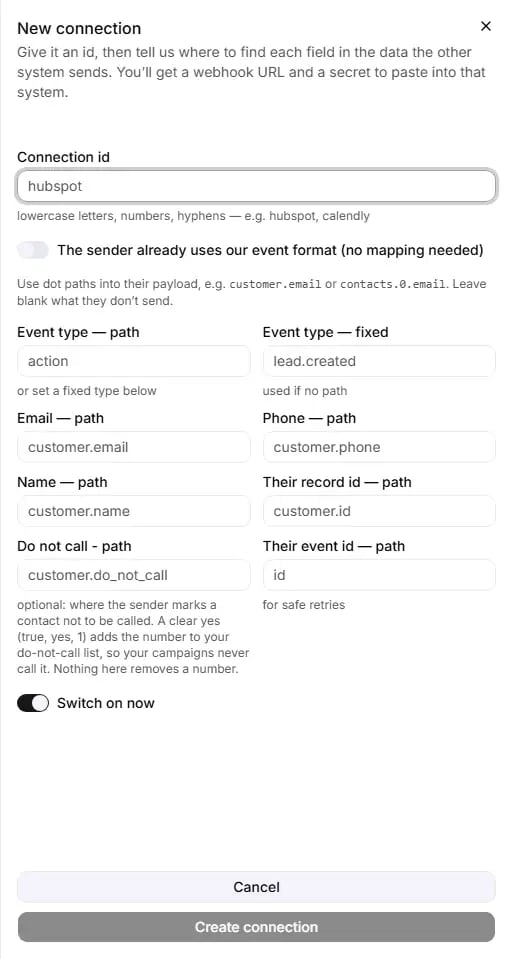 Click **New connection** (owner only). Fill in:
| Field | Rules | What it does |
| - | - | - |
| **Connection id** | Required. Lowercase letters, numbers and hyphens, starting with a letter or number, up to 40 characters. Must be unique in your account. | Names the connection, for example `hubspot` or `calendly`, and becomes the end of its webhook URL. It cannot be changed later. |
| "The sender already uses our event format (no mapping needed)" | Off by default | Switch it on if the sender already sends events in RuleInside's own format (see [Our event format](#our-event-format)). The mapping fields are then hidden, except **Do not call - path**. |
| "Switch on now" | On by default | Whether the connection accepts data as soon as it is created. |
With the format switch off, tell us where each value is in the sender's data, using **dot paths**. `customer.email`
means "the email inside customer"; `contacts.0.email` means "the email of the first contact". Leave blank what the
sender does not send. Each path can be up to 200 characters.
| Field | Example | What it does |
| - | - | - |
| **Event type - path** | `action` | Where the sender's data says what kind of event it is. If filled in, the fixed type is ignored. |
| **Event type - fixed** | `lead.created` | One event type used for every message, when the sender does not say. Used only if there is no path. |
| **Email - path** | `customer.email` | Where the contact's email address is. |
| **Phone - path** | `customer.phone` | Where the contact's phone number is. |
| **Name - path** | `customer.name` | Where the contact's name is. |
| **Their record id - path** | `customer.id` | The contact's id in the sender's system, used to recognise the same person next time. |
| **Do not call - path** | `customer.do_not_call` | Where the sender marks a contact not to be called. See [Do-not-call from your own system](#do-not-call-from-your-own-system). |
| **Their event id - path** | `id` | The sender's own id for each event, so a message sent twice is recorded once. |
Click **Create connection** (available once a **Connection id** is typed). If the format switch is off and every
mapping field is blank, you are asked to map at least one field or switch on the format option. If the id is
already used, you see that a connection with that name already exists.
On success you see "Connection created." and the credentials panel.
### Copy the URL and the secret
After you create a connection, or after **New secret**, a yellow panel shows:
* **Webhook URL**, with a **Copy** button;
* **Header (X-RI-Ingest-Secret)**: the secret, with a **Copy** button. The sending system must send it in an HTTP
header named `X-RI-Ingest-Secret` with every request.
Put both into the system that will send you data, then click **Done**.
The secret is shown only once. After you click **Done** it cannot be shown again; the only way to get a usable secret
is **New secret**.
### Each connection on the list
The card shows how many connections you have. Each one shows:
* its **Connection id** and a badge: **Active** (switched on) or **Off**;
* its webhook URL;
* an **On** / **Off** switch (owner only). It takes effect straight away, with no save button. If the change
fails, the switch flips back and you see "Could not update the connection.";
* **Copy URL** (everyone): copies the webhook URL;
* **New secret** (owner only);
* **Delete** (owner only).
**New secret** asks you to confirm ("Replace the secret?"), then replaces the secret at once. The old secret stops working immediately,
and the sending system is refused until you update its `X-RI-Ingest-Secret` header with the new secret. This cannot
be undone.
**Delete** asks you to confirm ("Delete this connection?"); choose **Delete** or **Keep it**. The webhook URL stops
accepting data, and this cannot be undone. Contacts and events it already delivered are kept. You can create a
connection with the same **Connection id** again later; it gets a new secret.
If you see "Couldn’t load your connections. Refresh to try again.", the list could not be loaded at that moment,
even if the count says you have none. Refresh the page.
### Do-not-call from your own system
A connection can say where the sender marks a contact **not to be called** (**Do not call - path**). A clear yes
adds the number to your do-not-call list, so your campaigns never call it. These values count as yes, in any mix
of capital and small letters: `true`, `yes`, `y`, `1`, `si`, `sì`, `sí`.
The number blocked is the one in the message, together with every number already stored for a contact matched by
their record id or email.
Nothing sent this way removes a number from your do-not-call list. A connection can only add numbers.
### Our event format
If you switch on "The sender already uses our event format (no mapping needed)", each message must be a JSON object
like this one:
```json Event theme={null}
{
"type": "lead.created",
"event_id": "evt-123",
"contact": {
"email": "name@example.com",
"phone": "+15555550100",
"external_id": "crm-456",
"name": "Sample Customer"
},
"payload": { "source": "contact form" }
}
```
```bash Sending it theme={null}
curl -X POST "https://your-webhook-url-from-the-portal" \
-H "Content-Type: application/json" \
-H "X-RI-Ingest-Secret: your-secret" \
-d @event.json
```
* `type` is required: 1 to 64 letters, digits, `.`, `_` or `-`.
* `event_id`, `occurred_at` and `payload` are optional.
* `contact` needs at least one of `email`, `phone` or `external_id`. It can also carry `name` and `attributes`.
The same rules apply to a mapped message once it has been mapped: it needs an event type and at least one of email,
phone or record id.
### What the sending system gets back
| Answer | Meaning |
| - | - |
| Success | The event was recorded. |
| **401** | Unauthorized: the connection is unknown or switched **Off**, or the secret is wrong or missing. All of these look the same on purpose, so outsiders cannot find out which connections exist. |
| **400** | The data is not valid JSON, or after mapping the event type is missing or not valid, or the contact has no email, phone or record id. |
| **408** | The message arrived incomplete. It is safe to send it again. |
| **413** | The message is larger than 128 KB. |
| **502** | A do-not-call instruction could not be recorded. The sender should try again. |
## Common questions
No. You approve the connection in your store, and your store sends the access to us directly.
That is expected: the old key is not removed automatically. Delete the older one in your store's admin.
You have not approved the connection yet, or you closed the approval tab. The approval page is valid for 10
minutes; start again if it has expired.
For now our team connects FluentCart stores. Contact us and we connect yours with you.
Any system that can send a secure (HTTPS) request with JSON data and a custom header. There is no fixed list.
Check, in order: the connection is **Active**; the header name is exactly `X-RI-Ingest-Secret`; the secret is
the latest one (after **New secret** the old one no longer works); and the whole URL was copied.
Click **New secret** and update the sending system with the new one. The old secret cannot be shown again.
No. Calls only happen through an [Automation](/automations), after the consent and calling-hours checks.
No. A connection can only add numbers to it.
This documentation is built and hosted on [Mintlify](https://mintlify.com), a developer documentation platform.
Click **New connection** (owner only). Fill in:
| Field | Rules | What it does |
| - | - | - |
| **Connection id** | Required. Lowercase letters, numbers and hyphens, starting with a letter or number, up to 40 characters. Must be unique in your account. | Names the connection, for example `hubspot` or `calendly`, and becomes the end of its webhook URL. It cannot be changed later. |
| "The sender already uses our event format (no mapping needed)" | Off by default | Switch it on if the sender already sends events in RuleInside's own format (see [Our event format](#our-event-format)). The mapping fields are then hidden, except **Do not call - path**. |
| "Switch on now" | On by default | Whether the connection accepts data as soon as it is created. |
With the format switch off, tell us where each value is in the sender's data, using **dot paths**. `customer.email`
means "the email inside customer"; `contacts.0.email` means "the email of the first contact". Leave blank what the
sender does not send. Each path can be up to 200 characters.
| Field | Example | What it does |
| - | - | - |
| **Event type - path** | `action` | Where the sender's data says what kind of event it is. If filled in, the fixed type is ignored. |
| **Event type - fixed** | `lead.created` | One event type used for every message, when the sender does not say. Used only if there is no path. |
| **Email - path** | `customer.email` | Where the contact's email address is. |
| **Phone - path** | `customer.phone` | Where the contact's phone number is. |
| **Name - path** | `customer.name` | Where the contact's name is. |
| **Their record id - path** | `customer.id` | The contact's id in the sender's system, used to recognise the same person next time. |
| **Do not call - path** | `customer.do_not_call` | Where the sender marks a contact not to be called. See [Do-not-call from your own system](#do-not-call-from-your-own-system). |
| **Their event id - path** | `id` | The sender's own id for each event, so a message sent twice is recorded once. |
Click **Create connection** (available once a **Connection id** is typed). If the format switch is off and every
mapping field is blank, you are asked to map at least one field or switch on the format option. If the id is
already used, you see that a connection with that name already exists.
On success you see "Connection created." and the credentials panel.
### Copy the URL and the secret
After you create a connection, or after **New secret**, a yellow panel shows:
* **Webhook URL**, with a **Copy** button;
* **Header (X-RI-Ingest-Secret)**: the secret, with a **Copy** button. The sending system must send it in an HTTP
header named `X-RI-Ingest-Secret` with every request.
Put both into the system that will send you data, then click **Done**.
The secret is shown only once. After you click **Done** it cannot be shown again; the only way to get a usable secret
is **New secret**.
### Each connection on the list
The card shows how many connections you have. Each one shows:
* its **Connection id** and a badge: **Active** (switched on) or **Off**;
* its webhook URL;
* an **On** / **Off** switch (owner only). It takes effect straight away, with no save button. If the change
fails, the switch flips back and you see "Could not update the connection.";
* **Copy URL** (everyone): copies the webhook URL;
* **New secret** (owner only);
* **Delete** (owner only).
**New secret** asks you to confirm ("Replace the secret?"), then replaces the secret at once. The old secret stops working immediately,
and the sending system is refused until you update its `X-RI-Ingest-Secret` header with the new secret. This cannot
be undone.
**Delete** asks you to confirm ("Delete this connection?"); choose **Delete** or **Keep it**. The webhook URL stops
accepting data, and this cannot be undone. Contacts and events it already delivered are kept. You can create a
connection with the same **Connection id** again later; it gets a new secret.
If you see "Couldn’t load your connections. Refresh to try again.", the list could not be loaded at that moment,
even if the count says you have none. Refresh the page.
### Do-not-call from your own system
A connection can say where the sender marks a contact **not to be called** (**Do not call - path**). A clear yes
adds the number to your do-not-call list, so your campaigns never call it. These values count as yes, in any mix
of capital and small letters: `true`, `yes`, `y`, `1`, `si`, `sì`, `sí`.
The number blocked is the one in the message, together with every number already stored for a contact matched by
their record id or email.
Nothing sent this way removes a number from your do-not-call list. A connection can only add numbers.
### Our event format
If you switch on "The sender already uses our event format (no mapping needed)", each message must be a JSON object
like this one:
```json Event theme={null}
{
"type": "lead.created",
"event_id": "evt-123",
"contact": {
"email": "name@example.com",
"phone": "+15555550100",
"external_id": "crm-456",
"name": "Sample Customer"
},
"payload": { "source": "contact form" }
}
```
```bash Sending it theme={null}
curl -X POST "https://your-webhook-url-from-the-portal" \
-H "Content-Type: application/json" \
-H "X-RI-Ingest-Secret: your-secret" \
-d @event.json
```
* `type` is required: 1 to 64 letters, digits, `.`, `_` or `-`.
* `event_id`, `occurred_at` and `payload` are optional.
* `contact` needs at least one of `email`, `phone` or `external_id`. It can also carry `name` and `attributes`.
The same rules apply to a mapped message once it has been mapped: it needs an event type and at least one of email,
phone or record id.
### What the sending system gets back
| Answer | Meaning |
| - | - |
| Success | The event was recorded. |
| **401** | Unauthorized: the connection is unknown or switched **Off**, or the secret is wrong or missing. All of these look the same on purpose, so outsiders cannot find out which connections exist. |
| **400** | The data is not valid JSON, or after mapping the event type is missing or not valid, or the contact has no email, phone or record id. |
| **408** | The message arrived incomplete. It is safe to send it again. |
| **413** | The message is larger than 128 KB. |
| **502** | A do-not-call instruction could not be recorded. The sender should try again. |
## Common questions
No. You approve the connection in your store, and your store sends the access to us directly.
That is expected: the old key is not removed automatically. Delete the older one in your store's admin.
You have not approved the connection yet, or you closed the approval tab. The approval page is valid for 10
minutes; start again if it has expired.
For now our team connects FluentCart stores. Contact us and we connect yours with you.
Any system that can send a secure (HTTPS) request with JSON data and a custom header. There is no fixed list.
Check, in order: the connection is **Active**; the header name is exactly `X-RI-Ingest-Secret`; the secret is
the latest one (after **New secret** the old one no longer works); and the whole URL was copied.
Click **New secret** and update the sending system with the new one. The old secret cannot be shown again.
No. Calls only happen through an [Automation](/automations), after the consent and calling-hours checks.
No. A connection can only add numbers to it.
This documentation is built and hosted on [Mintlify](https://mintlify.com), a developer documentation platform.