> ## Documentation Index
> Fetch the complete documentation index at: https://docs.ruleinside.com/llms.txt
> Use this file to discover all available pages before exploring further.
# Dashboard
> What each figure and chart on your dashboard counts, over which period, and what a notice or error means.
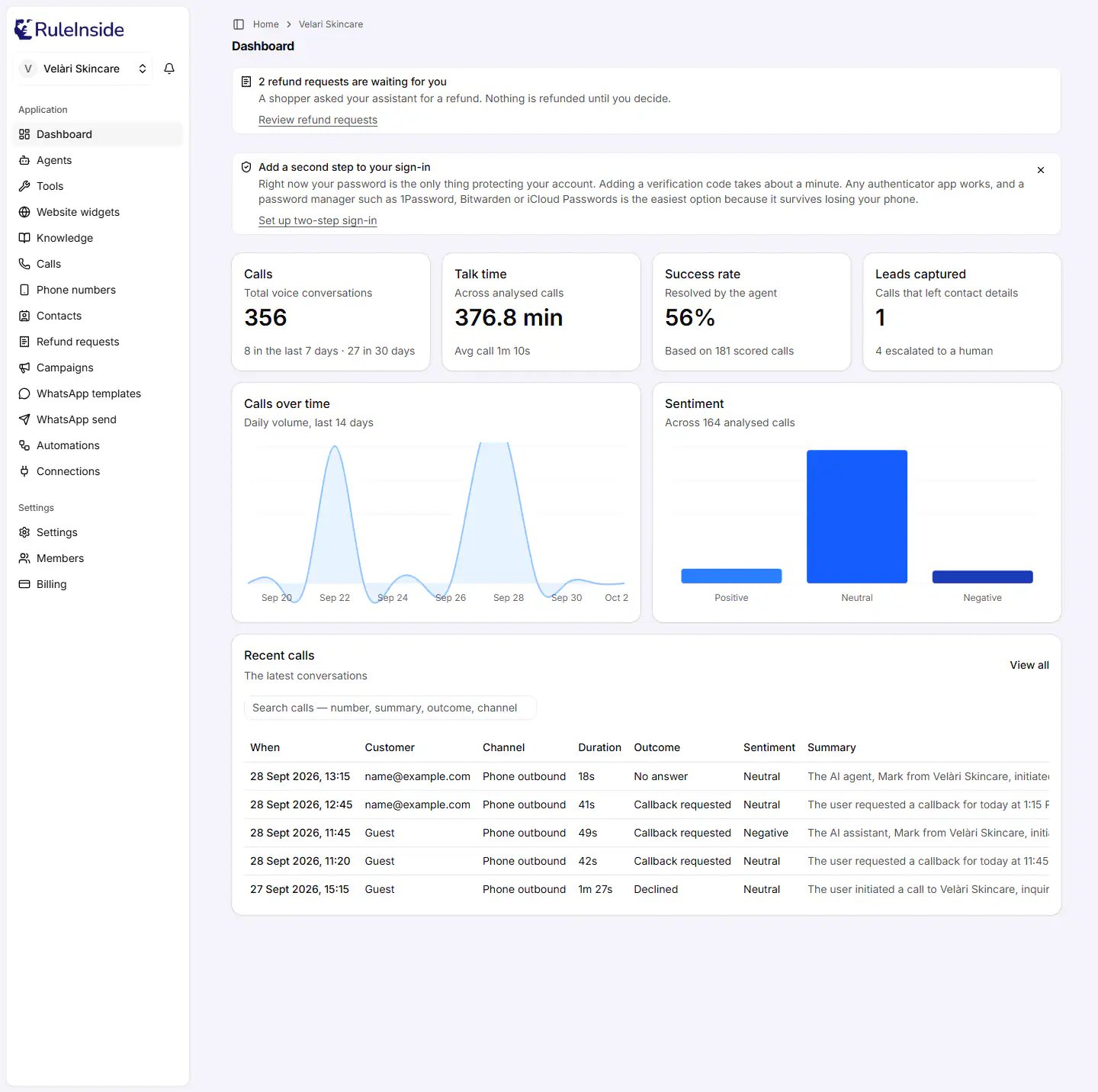
The **Dashboard** is the first page you see when you open your portal. It sums up what your AI voice agent has done:
how many calls it took, how long they lasted, how often it succeeded, the leads it captured, how customers felt, a
14-day chart and your five most recent calls. It is also where notices that need your attention appear first.
 ## Who can see it
Every member of your team can see the Dashboard. Nothing on it changes your settings or your data: it only shows
figures and links to other pages.
The figures cover **your whole store, all agents together**. Unlike the Calls and Phone numbers pages, the Dashboard
has no **Agent** selector.
## Before your agent is live
Until your subscription is active and your agent is set up, the Dashboard shows a single card instead of the figures.
| What you see | What it means | What to do |
| - | - | - |
| **"Subscribe to activate your AI agent"** | Your account has no subscription yet. | Press **Choose a plan** to go to Billing. |
| **"Complete payment to activate your AI agent"**, with the text "Your voice agent is set up and ready..." | Your agent is ready, but the subscription payment is not confirmed. | Press **Complete payment**. |
| **"Complete payment to activate your AI agent"**, with the text "Choose a plan and complete payment..." | No plan is active yet and no agent has been set up. | Press **Choose a plan**. |
| **"Setting up your AI agent"** | Your subscription is active and our team is setting up your voice agent. | Nothing. The figures appear here as soon as the agent is live. |
Once the subscription is active and your agent is set up, the full Dashboard below appears.
## Notices at the top
Notices appear above the figures in a fixed order: first anything that has stopped, then work waiting for you, then a
suggestion.
**"Outbound calling is paused"** (red) means your account cannot place automated calls until you confirm you have
a lawful basis for calling the people you want contacted. Nothing is sent in the meantime. Press **Review and
confirm** to go to the calling consent confirmation in Settings. This notice cannot be dismissed: it disappears
once you have confirmed.
**"Please re-confirm"** (neutral) means the wording of the calling consent confirmation has changed. Your calls
are still running. Press **Review and confirm** to read the new wording and confirm again. See
[How calling rules protect your customers](/outbound-rules).
**"A refund request is waiting for you"** (or "N refund requests are waiting for you") appears when at least one
shopper has asked your assistant for a refund that you have not decided yet. Nothing is refunded until you
decide. Press **Review refund requests**. See [Refund requests](/refunds).
**"Add a second step to your sign-in"** suggests protecting your login with a second step. Press **Set up
two-step sign-in** to do it, or the **X** to hide the suggestion. Hiding it is remembered only in that browser,
so it can appear again on another computer.
## The four figures
The four figures count every call RuleInside has recorded for your store, for all agents and all time.
### Calls
* **Title:** **"Calls"**, subtitle **"Total voice conversations"**.
* **Big figure:** the total number of calls.
* **Line underneath:** for example **"12 in the last 7 days · 48 in 30 days"**.
* **Period:** the 7 and 30 days are rolling. They count back exactly 7 x 24 hours and 30 x 24 hours from the moment
you opened the page, not from the start of the week or month.
### Talk time
* **Title:** **"Talk time"**, subtitle **"Across analysed calls"**.
* **Big figure:** for example **"84.5 min"**: the total length of your analysed calls in minutes, with one decimal
place.
* **Line underneath:** for example **"Avg call 1m 10s"** or **"Avg call 45s"**: the average length of a call.
* **How it is counted:** only calls with a recorded length between zero and one day count. When no call has a
recorded length, the figure shows a dash.
### Success rate
* **Title:** **"Success rate"**, subtitle **"Resolved by the agent"**.
* **Big figure:** a whole-number percentage.
* **Line underneath:** "No scored calls yet", "Based on 1 scored call" or "Based on 181 scored calls".
* **How it is counted:** after each call, the call is automatically scored as success, failure or unknown. The rate
is the number of successful calls divided by the number of calls scored success or failure. Calls scored unknown,
and calls not scored, are left out of both. When there are no scored calls, the figure shows a dash.
The success rate measures whether the agent achieved the goal of the call. It is not a count of sales.
### Leads captured
* **Title:** **"Leads captured"**, subtitle **"Calls that left an e-mail address"**.
* **Big figure:** the number of calls in which the agent captured an **email address**.
* **Line underneath:** for example **"3 escalated to a human"**: the number of calls whose outcome was "escalated", meaning
the call was handed to a person or transferred.
**Leads captured counts email addresses only.** A call in which the agent captured only a phone number, or only what
the customer was interested in, is not counted here, even though the subtitle says "contact details". You can see
every detail the agent collected on each call's page, under **Data collected** (see [Calls](/conversations)).
## The two charts
### Calls over time
* **Title:** **"Calls over time"**, subtitle **"Daily volume, last 14 days"**.
* **What it shows:** an area chart with one point per day for the last 14 days, including today. Hover over a day to
see its number of **Calls**. Days with no calls show 0. When space is short, not every day label is printed.
* **How days are counted:** calls are grouped by calendar day in **UTC** (Coordinated Universal Time), not in your
local time. A call made just after midnight in your time zone can therefore appear on the previous day.
### Sentiment
* **Title:** **"Sentiment"**, subtitle "No analysed calls yet", "Across 1 analysed call" or "Across N analysed calls".
* **What it shows:** three bars, **"Positive"**, **"Neutral"** and **"Negative"**: how many calls the agent judged in
each mood after the call.
* **How it is counted:** the subtitle number is the sum of the three bars. Calls with no sentiment are left out.
This is the agent's overall judgement of each call. It is a different measure from the **Sentiment over the call**
strip on a call's own page, which follows the customer's mood message by message.
## Recent calls
Title **"Recent calls"**, subtitle **"The latest conversations"**. It lists the **5** most recent calls of your store,
all agents together, newest first. Press **View all** to open the [Calls](/conversations) page, or a call's date to
open that call.
It has the same columns as the Calls page (**When**, **Customer**, **Channel**, **Duration**, **Outcome**,
**Sentiment**, **Summary**) and a search box, with a few differences:
| Column | On the Dashboard |
| - | - |
| **Customer** | The customer's email address, if the agent has one for them. Otherwise **"Guest"**. |
| **Channel** | Widget, Phone inbound, Phone outbound, Whatsapp or Whatsapp outbound. |
| **Duration** | The analysed length of the call; if that is missing, the time between the call's start and end. |
The search box filters only these five rows. Calls are not grouped into visits here, and there are no **Newer** or
**Older** buttons.
## Errors and notices
| What you see | What it means | What to do |
| - | - | - |
| A full-page error, "500", **"Something went wrong"** and a **Try Again** button | The figures could not be read. The Dashboard never shows a figure it could not read as zero, and never guesses your subscription state. | Press **Try Again**. If it keeps happening, contact support. |
| A red-bordered notice: "Call analysis for the recent calls is temporarily unavailable..." | Only the details of the five recent calls could not be read: their outcome, sentiment, summary, customer and channel are blank and their durations may show as 0. | Nothing to fix: the four figures and the two charts come from a separate count and are correct. Reload later. |
| A full-page loader | The page is loading. | Wait a moment. |
## Common questions
They count different things. The Dashboard counts every call RuleInside has recorded for your store, **all
agents together**, over all time. The [Calls](/conversations) page reads the live call log for **the one agent
selected** at the top, and groups calls into customer visits. It also shows no total. The two will not match
exactly. For your total number of calls, use the Dashboard's **Calls** figure.
**Leads captured** counts the calls that left an **email address**. A call in which the agent captured only a
phone number, or only what the customer was interested in, is not counted. Open a call and look under **Data
collected** to see everything the agent captured.
No. It is the last 7 x 24 hours, counted back from the moment you opened the page. The same applies to 30 days.
The chart groups calls by UTC calendar day, not by your local day. A call made shortly after midnight in your time
zone can appear on the previous day.
Only calls scored success or failure count. Calls scored unknown, and calls that were not scored, are left out.
The line under the figure tells you how many calls it is based on.
The calls whose outcome was "escalated": the agent handed the customer to a person or transferred the call.
A figure could not be read at that moment, and the Dashboard does not show zeros in its place. Press **Try
Again**. If the error persists, contact support.
No. It disappears once you confirm the calling consent in Settings, using **Review and confirm**.
Either you hid it with the **X** in this browser, or you have set up a second sign-in step.
Not on the Dashboard: it always covers all your agents together. To look at one agent's calls, use the
[Calls](/conversations) page and choose the agent at the top.
This documentation is built and hosted on [Mintlify](https://mintlify.com), a developer documentation platform.
## Who can see it
Every member of your team can see the Dashboard. Nothing on it changes your settings or your data: it only shows
figures and links to other pages.
The figures cover **your whole store, all agents together**. Unlike the Calls and Phone numbers pages, the Dashboard
has no **Agent** selector.
## Before your agent is live
Until your subscription is active and your agent is set up, the Dashboard shows a single card instead of the figures.
| What you see | What it means | What to do |
| - | - | - |
| **"Subscribe to activate your AI agent"** | Your account has no subscription yet. | Press **Choose a plan** to go to Billing. |
| **"Complete payment to activate your AI agent"**, with the text "Your voice agent is set up and ready..." | Your agent is ready, but the subscription payment is not confirmed. | Press **Complete payment**. |
| **"Complete payment to activate your AI agent"**, with the text "Choose a plan and complete payment..." | No plan is active yet and no agent has been set up. | Press **Choose a plan**. |
| **"Setting up your AI agent"** | Your subscription is active and our team is setting up your voice agent. | Nothing. The figures appear here as soon as the agent is live. |
Once the subscription is active and your agent is set up, the full Dashboard below appears.
## Notices at the top
Notices appear above the figures in a fixed order: first anything that has stopped, then work waiting for you, then a
suggestion.
**"Outbound calling is paused"** (red) means your account cannot place automated calls until you confirm you have
a lawful basis for calling the people you want contacted. Nothing is sent in the meantime. Press **Review and
confirm** to go to the calling consent confirmation in Settings. This notice cannot be dismissed: it disappears
once you have confirmed.
**"Please re-confirm"** (neutral) means the wording of the calling consent confirmation has changed. Your calls
are still running. Press **Review and confirm** to read the new wording and confirm again. See
[How calling rules protect your customers](/outbound-rules).
**"A refund request is waiting for you"** (or "N refund requests are waiting for you") appears when at least one
shopper has asked your assistant for a refund that you have not decided yet. Nothing is refunded until you
decide. Press **Review refund requests**. See [Refund requests](/refunds).
**"Add a second step to your sign-in"** suggests protecting your login with a second step. Press **Set up
two-step sign-in** to do it, or the **X** to hide the suggestion. Hiding it is remembered only in that browser,
so it can appear again on another computer.
## The four figures
The four figures count every call RuleInside has recorded for your store, for all agents and all time.
### Calls
* **Title:** **"Calls"**, subtitle **"Total voice conversations"**.
* **Big figure:** the total number of calls.
* **Line underneath:** for example **"12 in the last 7 days · 48 in 30 days"**.
* **Period:** the 7 and 30 days are rolling. They count back exactly 7 x 24 hours and 30 x 24 hours from the moment
you opened the page, not from the start of the week or month.
### Talk time
* **Title:** **"Talk time"**, subtitle **"Across analysed calls"**.
* **Big figure:** for example **"84.5 min"**: the total length of your analysed calls in minutes, with one decimal
place.
* **Line underneath:** for example **"Avg call 1m 10s"** or **"Avg call 45s"**: the average length of a call.
* **How it is counted:** only calls with a recorded length between zero and one day count. When no call has a
recorded length, the figure shows a dash.
### Success rate
* **Title:** **"Success rate"**, subtitle **"Resolved by the agent"**.
* **Big figure:** a whole-number percentage.
* **Line underneath:** "No scored calls yet", "Based on 1 scored call" or "Based on 181 scored calls".
* **How it is counted:** after each call, the call is automatically scored as success, failure or unknown. The rate
is the number of successful calls divided by the number of calls scored success or failure. Calls scored unknown,
and calls not scored, are left out of both. When there are no scored calls, the figure shows a dash.
The success rate measures whether the agent achieved the goal of the call. It is not a count of sales.
### Leads captured
* **Title:** **"Leads captured"**, subtitle **"Calls that left an e-mail address"**.
* **Big figure:** the number of calls in which the agent captured an **email address**.
* **Line underneath:** for example **"3 escalated to a human"**: the number of calls whose outcome was "escalated", meaning
the call was handed to a person or transferred.
**Leads captured counts email addresses only.** A call in which the agent captured only a phone number, or only what
the customer was interested in, is not counted here, even though the subtitle says "contact details". You can see
every detail the agent collected on each call's page, under **Data collected** (see [Calls](/conversations)).
## The two charts
### Calls over time
* **Title:** **"Calls over time"**, subtitle **"Daily volume, last 14 days"**.
* **What it shows:** an area chart with one point per day for the last 14 days, including today. Hover over a day to
see its number of **Calls**. Days with no calls show 0. When space is short, not every day label is printed.
* **How days are counted:** calls are grouped by calendar day in **UTC** (Coordinated Universal Time), not in your
local time. A call made just after midnight in your time zone can therefore appear on the previous day.
### Sentiment
* **Title:** **"Sentiment"**, subtitle "No analysed calls yet", "Across 1 analysed call" or "Across N analysed calls".
* **What it shows:** three bars, **"Positive"**, **"Neutral"** and **"Negative"**: how many calls the agent judged in
each mood after the call.
* **How it is counted:** the subtitle number is the sum of the three bars. Calls with no sentiment are left out.
This is the agent's overall judgement of each call. It is a different measure from the **Sentiment over the call**
strip on a call's own page, which follows the customer's mood message by message.
## Recent calls
Title **"Recent calls"**, subtitle **"The latest conversations"**. It lists the **5** most recent calls of your store,
all agents together, newest first. Press **View all** to open the [Calls](/conversations) page, or a call's date to
open that call.
It has the same columns as the Calls page (**When**, **Customer**, **Channel**, **Duration**, **Outcome**,
**Sentiment**, **Summary**) and a search box, with a few differences:
| Column | On the Dashboard |
| - | - |
| **Customer** | The customer's email address, if the agent has one for them. Otherwise **"Guest"**. |
| **Channel** | Widget, Phone inbound, Phone outbound, Whatsapp or Whatsapp outbound. |
| **Duration** | The analysed length of the call; if that is missing, the time between the call's start and end. |
The search box filters only these five rows. Calls are not grouped into visits here, and there are no **Newer** or
**Older** buttons.
## Errors and notices
| What you see | What it means | What to do |
| - | - | - |
| A full-page error, "500", **"Something went wrong"** and a **Try Again** button | The figures could not be read. The Dashboard never shows a figure it could not read as zero, and never guesses your subscription state. | Press **Try Again**. If it keeps happening, contact support. |
| A red-bordered notice: "Call analysis for the recent calls is temporarily unavailable..." | Only the details of the five recent calls could not be read: their outcome, sentiment, summary, customer and channel are blank and their durations may show as 0. | Nothing to fix: the four figures and the two charts come from a separate count and are correct. Reload later. |
| A full-page loader | The page is loading. | Wait a moment. |
## Common questions
They count different things. The Dashboard counts every call RuleInside has recorded for your store, **all
agents together**, over all time. The [Calls](/conversations) page reads the live call log for **the one agent
selected** at the top, and groups calls into customer visits. It also shows no total. The two will not match
exactly. For your total number of calls, use the Dashboard's **Calls** figure.
**Leads captured** counts the calls that left an **email address**. A call in which the agent captured only a
phone number, or only what the customer was interested in, is not counted. Open a call and look under **Data
collected** to see everything the agent captured.
No. It is the last 7 x 24 hours, counted back from the moment you opened the page. The same applies to 30 days.
The chart groups calls by UTC calendar day, not by your local day. A call made shortly after midnight in your time
zone can appear on the previous day.
Only calls scored success or failure count. Calls scored unknown, and calls that were not scored, are left out.
The line under the figure tells you how many calls it is based on.
The calls whose outcome was "escalated": the agent handed the customer to a person or transferred the call.
A figure could not be read at that moment, and the Dashboard does not show zeros in its place. Press **Try
Again**. If the error persists, contact support.
No. It disappears once you confirm the calling consent in Settings, using **Review and confirm**.
Either you hid it with the **X** in this browser, or you have set up a second sign-in step.
Not on the Dashboard: it always covers all your agents together. To look at one agent's calls, use the
[Calls](/conversations) page and choose the agent at the top.
This documentation is built and hosted on [Mintlify](https://mintlify.com), a developer documentation platform.