> ## Documentation Index
> Fetch the complete documentation index at: https://docs.ruleinside.com/llms.txt
> Use this file to discover all available pages before exploring further.
# Importing contacts
> Bring your customer list in from a CSV, with or without a lawful basis, and use your own columns in your agent.
You bring customers into **Contacts** from a CSV file. There are two ways to do it, and the difference is whether
the people in the file can be called straight away.
| | **Import contacts** | **Import with consent** |
| - | - | - |
| What it does | Adds the people in the file, or updates the ones you already have | Adds or updates them **and** records the lawful basis to call you choose, for everyone in the file |
| Badge they arrive with | **Calls: no consent** | **Calls: callable** |
| Can they be called? | No, not until you record a lawful basis | Yes, subject to the other checks (opt-outs, do-not-call, calling hours, limits) |
| Phone numbers | Stored as written in the file | Converted to international format; a number that cannot be converted is skipped |
| Who can use it | Owners | Owners |
Both buttons are at the top of the **Contacts** page. They are greyed out until a store is linked to your
workspace. **Import with consent** is also greyed out if the list of lawful bases could not be loaded; refresh the
page and try again.
**Import with consent** always records consent to **call**. There is no bulk import that records WhatsApp
consent. You record WhatsApp consent one contact at a time with the **Consent** button. See
[Contacts](/contacts#recording-consent-for-one-contact).
Members who are not owners see this note instead of the buttons: "Only account owners can import contacts or change
consent - ask an owner of your team." See [Who can do what](/roles).
## Before you import
Write every phone number in international format: a `+`, the country code, then the number, with **no spaces**.
For example `+15551234567`. Numbers written this way can be called, granted consent and opted out without
surprises. **Import with consent** skips any number without a country code.
* **The file must be a CSV.** The upload accepts `.csv` files only. If your list is in Excel, save it as CSV first.
* **At most 1,000 contacts per import.** Split a longer list into several files.
* **One email per contact.** An email address can belong to only one contact in your store. A row whose email
already belongs to a different contact is skipped.
## Import step by step
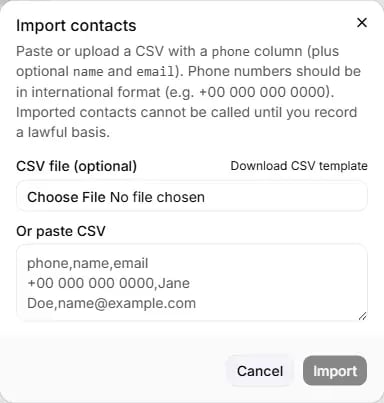 On **Contacts**, click **Import contacts** or **Import with consent**. The dialog asks you to "Paste or upload a
CSV with a phone column (plus optional name and email). Phone numbers should be in international format (e.g.
+15551234567)."
Either choose a file under **CSV file (optional)**, or paste the CSV text into **Or paste CSV**. A file you
choose is loaded into the paste box, so you can check it before importing. Need a starting point? Click
**Download CSV template**.
As soon as there is text in the box, the dialog shows how many contacts are ready, how many rows will be
skipped because they have no phone, which custom fields it found, and which column names it will ignore.
Pick the basis under **Lawful basis to call**. For two of the bases you must also tick **I confirm the statement
above.** See [Import with consent](#import-with-consent).
Click **Import** (or **Import + record consent**). The button shows "Importing…" while it runs, and a message
tells you the result.
## Every field in the dialog
| Field | What it does | Values and limits |
| - | - | - |
| **CSV file (optional)** | Upload a file instead of pasting. Its text appears in the paste box. | `.csv` only. Excel files are not accepted here. |
| **Download CSV template** | Downloads `contacts-import-template.csv`, a ready-made file with two example rows. | Columns: `phone,name,email,city,order_number,language`. Everything after `email` is an example of a custom field. |
| **Or paste CSV** | Paste CSV text directly. The box shows an example: a header line `phone,name,email` and one row. | Any CSV text. |
| **Lawful basis to call** | Import with consent only. The basis that applies to **every** contact in the file. Starts as "Choose a basis…". | One of the calling bases (see below). |
| **I confirm the statement above.** | Import with consent only. Appears under a fixed statement for **Existing customer relationship** and **Purchased marketing list**. | Must be ticked to import. Changing the basis clears the tick, so a tick you gave for one statement never covers another. |
**Buttons:**
* **Cancel** closes the dialog. Nothing is imported.
* **Import** (or **Import + record consent**) runs the import. It stays greyed out until at least one contact is
ready, the file is within the 1,000 limit, and, for Import with consent, a basis is chosen and any required
statement is ticked.
## How your CSV is read
**The header row.** If the first row names a phone column, it is treated as a header. Columns can be in any order.
Names are matched ignoring upper and lower case, and spaces or hyphens count as underscores, so "Phone Number",
"E-mail" and "First Name" all work.
| Column | Header names recognised |
| - | - |
| Phone (required) | phone, phone\_number, phone\_no, number, telephone, tel, mobile, mobile\_number, mobile\_phone, cell, cellphone, cell\_phone, contact\_number, msisdn |
| Name (optional) | name, full\_name, fullname, first\_name, firstname, contact, contact\_name, customer, customer\_name |
| Email (optional) | email, email\_address, emailaddress, e\_mail, mail |
**No header row.** If the first row does not name a phone column, the columns are read as phone, name, email, in
that order. No custom fields are imported, because there is nothing to name them.
**Other details:**
* Values in quotes can contain commas, line breaks and doubled quotes.
* Fully blank lines are ignored.
* A row with no phone value is skipped and counted.
* If the same contact is in the file twice, it counts once when you import with consent.
### A sample file
```csv theme={null}
phone,name,email,order_number
+15551234567,Jane,name@example.com,1042
```
This imports one contact with a custom field called `order_number`.
## Custom fields
Every column that is not phone, name or email becomes a **custom field**, named after its header. Your agent can use
it on an outbound call as a variable: a column called `order_number` is available as `{{order_number}}`. The
preview lists the custom fields it found, and reminds you that re-importing a contact replaces its custom fields.
**Naming rules for a custom field:**
* letters, numbers and underscores only;
* must start with a letter or an underscore;
* at most 64 characters;
* must not start with `system__` or `_ri_`;
* must not be `customer_name` or a small number of other reserved names.
A column with a name that breaks these rules is listed in red as "Ignored (invalid field names)" and is not
imported.
**Other limits:**
* A value can be at most 512 characters. A longer value is rejected, not shortened.
* A contact can hold at most 30 custom fields.
* Fields that are rejected are counted in the result message ("custom field(s) ignored").
* A second column that is just another name for phone, name or email (for example a "Mobile" column next to "Phone")
is ignored, so phone numbers never end up in a custom field.
* If two headers have the same name, the first one is used.
* Blank cells are skipped.
New field names from an import are added to your workspace's columns automatically, up to 30 columns in total.
## What happens to contacts you already have
A contact is matched by phone number. Importing a number you already have **updates** that contact rather than
creating a second one.
* **Name and email** are written only when the file has a value. A blank cell never erases a name or email you
already have.
* **Custom fields:** if the row has at least one custom value, the contact's custom fields are **replaced** by the
row's set. If the row has no custom values, the stored ones are left alone.
* **Opt-outs and the do-not-call list are never touched** by an import. Someone who opted out stays opted out, even if
you import their number again.
* A plain import never changes consent. An import with consent records the basis you chose, replacing any earlier
calling basis for those numbers.
## Import with consent
On **Contacts**, click **Import contacts** or **Import with consent**. The dialog asks you to "Paste or upload a
CSV with a phone column (plus optional name and email). Phone numbers should be in international format (e.g.
+15551234567)."
Either choose a file under **CSV file (optional)**, or paste the CSV text into **Or paste CSV**. A file you
choose is loaded into the paste box, so you can check it before importing. Need a starting point? Click
**Download CSV template**.
As soon as there is text in the box, the dialog shows how many contacts are ready, how many rows will be
skipped because they have no phone, which custom fields it found, and which column names it will ignore.
Pick the basis under **Lawful basis to call**. For two of the bases you must also tick **I confirm the statement
above.** See [Import with consent](#import-with-consent).
Click **Import** (or **Import + record consent**). The button shows "Importing…" while it runs, and a message
tells you the result.
## Every field in the dialog
| Field | What it does | Values and limits |
| - | - | - |
| **CSV file (optional)** | Upload a file instead of pasting. Its text appears in the paste box. | `.csv` only. Excel files are not accepted here. |
| **Download CSV template** | Downloads `contacts-import-template.csv`, a ready-made file with two example rows. | Columns: `phone,name,email,city,order_number,language`. Everything after `email` is an example of a custom field. |
| **Or paste CSV** | Paste CSV text directly. The box shows an example: a header line `phone,name,email` and one row. | Any CSV text. |
| **Lawful basis to call** | Import with consent only. The basis that applies to **every** contact in the file. Starts as "Choose a basis…". | One of the calling bases (see below). |
| **I confirm the statement above.** | Import with consent only. Appears under a fixed statement for **Existing customer relationship** and **Purchased marketing list**. | Must be ticked to import. Changing the basis clears the tick, so a tick you gave for one statement never covers another. |
**Buttons:**
* **Cancel** closes the dialog. Nothing is imported.
* **Import** (or **Import + record consent**) runs the import. It stays greyed out until at least one contact is
ready, the file is within the 1,000 limit, and, for Import with consent, a basis is chosen and any required
statement is ticked.
## How your CSV is read
**The header row.** If the first row names a phone column, it is treated as a header. Columns can be in any order.
Names are matched ignoring upper and lower case, and spaces or hyphens count as underscores, so "Phone Number",
"E-mail" and "First Name" all work.
| Column | Header names recognised |
| - | - |
| Phone (required) | phone, phone\_number, phone\_no, number, telephone, tel, mobile, mobile\_number, mobile\_phone, cell, cellphone, cell\_phone, contact\_number, msisdn |
| Name (optional) | name, full\_name, fullname, first\_name, firstname, contact, contact\_name, customer, customer\_name |
| Email (optional) | email, email\_address, emailaddress, e\_mail, mail |
**No header row.** If the first row does not name a phone column, the columns are read as phone, name, email, in
that order. No custom fields are imported, because there is nothing to name them.
**Other details:**
* Values in quotes can contain commas, line breaks and doubled quotes.
* Fully blank lines are ignored.
* A row with no phone value is skipped and counted.
* If the same contact is in the file twice, it counts once when you import with consent.
### A sample file
```csv theme={null}
phone,name,email,order_number
+15551234567,Jane,name@example.com,1042
```
This imports one contact with a custom field called `order_number`.
## Custom fields
Every column that is not phone, name or email becomes a **custom field**, named after its header. Your agent can use
it on an outbound call as a variable: a column called `order_number` is available as `{{order_number}}`. The
preview lists the custom fields it found, and reminds you that re-importing a contact replaces its custom fields.
**Naming rules for a custom field:**
* letters, numbers and underscores only;
* must start with a letter or an underscore;
* at most 64 characters;
* must not start with `system__` or `_ri_`;
* must not be `customer_name` or a small number of other reserved names.
A column with a name that breaks these rules is listed in red as "Ignored (invalid field names)" and is not
imported.
**Other limits:**
* A value can be at most 512 characters. A longer value is rejected, not shortened.
* A contact can hold at most 30 custom fields.
* Fields that are rejected are counted in the result message ("custom field(s) ignored").
* A second column that is just another name for phone, name or email (for example a "Mobile" column next to "Phone")
is ignored, so phone numbers never end up in a custom field.
* If two headers have the same name, the first one is used.
* Blank cells are skipped.
New field names from an import are added to your workspace's columns automatically, up to 30 columns in total.
## What happens to contacts you already have
A contact is matched by phone number. Importing a number you already have **updates** that contact rather than
creating a second one.
* **Name and email** are written only when the file has a value. A blank cell never erases a name or email you
already have.
* **Custom fields:** if the row has at least one custom value, the contact's custom fields are **replaced** by the
row's set. If the row has no custom values, the stored ones are left alone.
* **Opt-outs and the do-not-call list are never touched** by an import. Someone who opted out stays opted out, even if
you import their number again.
* A plain import never changes consent. An import with consent records the basis you chose, replacing any earlier
calling basis for those numbers.
## Import with consent
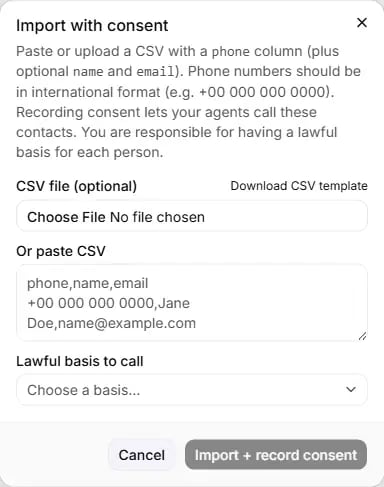 Use this when you already have a lawful basis to call everyone in the file. The dialog reminds you: "Recording
consent lets your agents call these contacts. You are responsible for having a lawful basis for each person."
**The bases you can choose under Lawful basis to call:**
| Basis | Statement to confirm? |
| - | - |
| Web / checkout opt-in | No |
| Explicit written consent | No |
| Verbal consent (recorded call) | No |
| Existing customer relationship | Yes |
| Purchased marketing list | Yes |
The meaning of each basis, and the full text of the two statements, are on [Contacts](/contacts#lawful-bases).
**What happens when you import with consent:**
* Each phone number is converted to international format. A leading `00` counts as `+`, and spaces, dashes and
brackets are removed.
* A number that cannot be converted, including a number with no country code, is skipped and counted as "invalid
number".
* Each contact is added or updated, and the basis is recorded with today's date.
* One record of the import is kept: who did it, which basis, how many contacts and, for the two bases with a
statement, the exact statement you confirmed.
* If no number in the file can be used, the import is refused.
RuleInside does not check that the basis you choose is true. You are responsible for it.
## Result messages
| Message | Meaning |
| - | - |
| "Imported 12 contact(s)." | Plain import finished. It may add how many rows were skipped and how many custom fields were ignored. |
| "Consent recorded for 12 contact(s)." | Import with consent finished. It may add "skipped (invalid number)" and how many custom fields were ignored. |
| A red note in the preview saying the file is over the limit and to split it into smaller files | The file has more than 1,000 contacts and cannot be imported as it is. |
| "Could not import the contacts." | The plain import failed. Nothing to undo; try again. |
| "Could not record consent." | The import with consent failed. |
## Showing, hiding and adding columns
Use this when you already have a lawful basis to call everyone in the file. The dialog reminds you: "Recording
consent lets your agents call these contacts. You are responsible for having a lawful basis for each person."
**The bases you can choose under Lawful basis to call:**
| Basis | Statement to confirm? |
| - | - |
| Web / checkout opt-in | No |
| Explicit written consent | No |
| Verbal consent (recorded call) | No |
| Existing customer relationship | Yes |
| Purchased marketing list | Yes |
The meaning of each basis, and the full text of the two statements, are on [Contacts](/contacts#lawful-bases).
**What happens when you import with consent:**
* Each phone number is converted to international format. A leading `00` counts as `+`, and spaces, dashes and
brackets are removed.
* A number that cannot be converted, including a number with no country code, is skipped and counted as "invalid
number".
* Each contact is added or updated, and the basis is recorded with today's date.
* One record of the import is kept: who did it, which basis, how many contacts and, for the two bases with a
statement, the exact statement you confirmed.
* If no number in the file can be used, the import is refused.
RuleInside does not check that the basis you choose is true. You are responsible for it.
## Result messages
| Message | Meaning |
| - | - |
| "Imported 12 contact(s)." | Plain import finished. It may add how many rows were skipped and how many custom fields were ignored. |
| "Consent recorded for 12 contact(s)." | Import with consent finished. It may add "skipped (invalid number)" and how many custom fields were ignored. |
| A red note in the preview saying the file is over the limit and to split it into smaller files | The file has more than 1,000 contacts and cannot be imported as it is. |
| "Could not import the contacts." | The plain import failed. Nothing to undo; try again. |
| "Could not record consent." | The import with consent failed. |
## Showing, hiding and adding columns
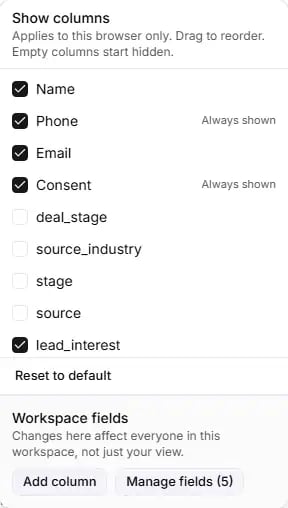 The **Columns** button on the Contacts page opens a panel with two halves. When some columns are hidden, the button
shows how many (for example "Columns -2").
### Show columns (your own view)
Anyone in the workspace can use this half. It appears once you have contacts.
* Tick or untick a column to show or hide it. **Phone**, **Consent** and **Actions** are marked "Always shown" and
cannot be hidden.
* Drag a row to change the order. **Actions** always stays last. Dragging works with a mouse; it does not work on
touch screens or with the keyboard.
* **Reset to default** clears your choices and your order.
* By default, the built-in columns are shown, and a custom column is shown only when at least one contact on the
current page has a value in it. Your own ticks override this either way.
These choices apply **to this browser only**. A colleague, or you on another device, sees their own view.
### Workspace fields (owners only)
The bottom half changes the columns for everyone: "Changes here affect everyone in this workspace, not just your
view." It is there even before your first import.
**Add column** opens the **Add a column** dialog.
* Type a name under **Column name** (for example `order_number`). The same naming rules as custom fields apply.
* If the name is not allowed you see "Use only letters, numbers, and underscores (and not a reserved name)."; if it
is already a column, "That column already exists."
* Click **Add column**. You see "Column added." and the new column is switched on in your browser.
* If the name is refused, for example because it is reserved or you already have 30 columns, you see "That name is
not a valid column and was ignored."
The new column is a variable you can use in your agent's prompt on outbound calls, for example `{{order_number}}`.
You fill in its value per contact with **Edit** on the Contacts page, or with a new import.
**Manage fields** (with the number of fields, for example "Manage fields (3)") opens the **Columns** dialog, listing every workspace field.
* Click **Remove** next to a field, then **Save**. Nothing changes until you save. You see "Columns updated."
* Removing a column **does not delete** the values stored on your contacts. Adding the column back shows them again.
While a column is removed, its values are **not sent to your agent** on outbound campaign calls. If your agent's
prompt uses that variable, add the column back before you launch a campaign.
A workspace can have at most 30 columns.
## Common questions
Not on the Contacts page. Save it as CSV first. (The recipient list you upload when you create a campaign does
accept Excel files. See [Campaigns](/campaigns).)
Only a phone column. Name and email are optional. Any other column becomes a custom field. Download the template
from the dialog to start from a working file.
1,000 per import. Split a longer list into several files and import them one after another.
With **Import contacts**: the row had no phone number, or its email already belongs to another contact. With
**Import with consent**: also any number that could not be put in international format, usually because it has
no country code. These are counted as "invalid number".
A plain import adds people as **Calls: no consent**. Record a lawful basis for them, with **Import with
consent** or the **Consent** button on each contact. If the badges already say **Calls: callable**, check
[Settings, Calling consent](/calling-hours): nothing is sent until an owner has confirmed it.
A row with at least one custom value replaces the contact's whole set of custom fields. If you want to keep a
field, include its column and value in the new file. A row with no custom values leaves them alone.
No. An import never touches opt-outs or your do-not-call list. See [Contacts](/contacts#opting-a-contact-out).
No. **Import with consent** records consent to call. Record WhatsApp consent per contact with the **Consent**
button.
It switches on automatically in the browser you added it from. In another browser, an empty custom column starts
hidden: tick it in **Columns**.
No. The values stay stored on your contacts and come back when you add the column again. While the column is
removed, those values are not sent to your agent on outbound calls.
No. Importing, recording consent and changing workspace fields are for owners. Any member can still choose their
own visible columns, and can opt a contact out.
This documentation is built and hosted on [Mintlify](https://mintlify.com), a developer documentation platform.
The **Columns** button on the Contacts page opens a panel with two halves. When some columns are hidden, the button
shows how many (for example "Columns -2").
### Show columns (your own view)
Anyone in the workspace can use this half. It appears once you have contacts.
* Tick or untick a column to show or hide it. **Phone**, **Consent** and **Actions** are marked "Always shown" and
cannot be hidden.
* Drag a row to change the order. **Actions** always stays last. Dragging works with a mouse; it does not work on
touch screens or with the keyboard.
* **Reset to default** clears your choices and your order.
* By default, the built-in columns are shown, and a custom column is shown only when at least one contact on the
current page has a value in it. Your own ticks override this either way.
These choices apply **to this browser only**. A colleague, or you on another device, sees their own view.
### Workspace fields (owners only)
The bottom half changes the columns for everyone: "Changes here affect everyone in this workspace, not just your
view." It is there even before your first import.
**Add column** opens the **Add a column** dialog.
* Type a name under **Column name** (for example `order_number`). The same naming rules as custom fields apply.
* If the name is not allowed you see "Use only letters, numbers, and underscores (and not a reserved name)."; if it
is already a column, "That column already exists."
* Click **Add column**. You see "Column added." and the new column is switched on in your browser.
* If the name is refused, for example because it is reserved or you already have 30 columns, you see "That name is
not a valid column and was ignored."
The new column is a variable you can use in your agent's prompt on outbound calls, for example `{{order_number}}`.
You fill in its value per contact with **Edit** on the Contacts page, or with a new import.
**Manage fields** (with the number of fields, for example "Manage fields (3)") opens the **Columns** dialog, listing every workspace field.
* Click **Remove** next to a field, then **Save**. Nothing changes until you save. You see "Columns updated."
* Removing a column **does not delete** the values stored on your contacts. Adding the column back shows them again.
While a column is removed, its values are **not sent to your agent** on outbound campaign calls. If your agent's
prompt uses that variable, add the column back before you launch a campaign.
A workspace can have at most 30 columns.
## Common questions
Not on the Contacts page. Save it as CSV first. (The recipient list you upload when you create a campaign does
accept Excel files. See [Campaigns](/campaigns).)
Only a phone column. Name and email are optional. Any other column becomes a custom field. Download the template
from the dialog to start from a working file.
1,000 per import. Split a longer list into several files and import them one after another.
With **Import contacts**: the row had no phone number, or its email already belongs to another contact. With
**Import with consent**: also any number that could not be put in international format, usually because it has
no country code. These are counted as "invalid number".
A plain import adds people as **Calls: no consent**. Record a lawful basis for them, with **Import with
consent** or the **Consent** button on each contact. If the badges already say **Calls: callable**, check
[Settings, Calling consent](/calling-hours): nothing is sent until an owner has confirmed it.
A row with at least one custom value replaces the contact's whole set of custom fields. If you want to keep a
field, include its column and value in the new file. A row with no custom values leaves them alone.
No. An import never touches opt-outs or your do-not-call list. See [Contacts](/contacts#opting-a-contact-out).
No. **Import with consent** records consent to call. Record WhatsApp consent per contact with the **Consent**
button.
It switches on automatically in the browser you added it from. In another browser, an empty custom column starts
hidden: tick it in **Columns**.
No. The values stay stored on your contacts and come back when you add the column again. While the column is
removed, those values are not sent to your agent on outbound calls.
No. Importing, recording consent and changing workspace fields are for owners. Any member can still choose their
own visible columns, and can opt a contact out.
This documentation is built and hosted on [Mintlify](https://mintlify.com), a developer documentation platform.