> ## Documentation Index
> Fetch the complete documentation index at: https://docs.ruleinside.com/llms.txt
> Use this file to discover all available pages before exploring further.
# Members
> Invite your team, manage pending invitations, change roles, remove people and transfer ownership.
The **Members** page shows who belongs to your organization and which invitations are still waiting. Open it from
the left sidebar, under the **Settings** heading. Everyone in the organization can open it. What each person can do
on it depends on their role: see [Who can do what](/roles).
 ## Organization Members
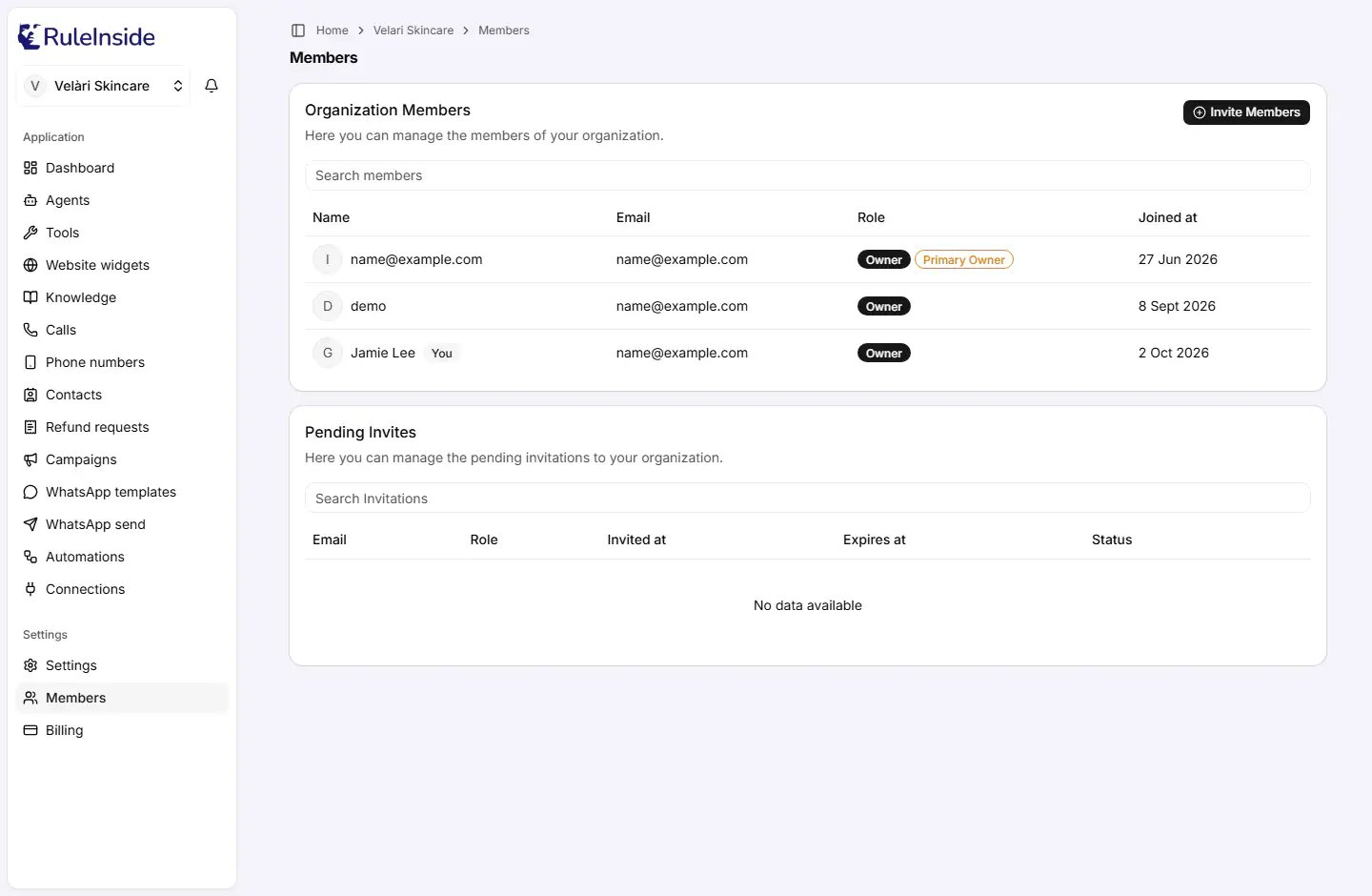
The first card, **Organization Members**, lists everyone with access.
**Search members** filters the list as you type. It matches a person's name and their role (type `owner` to see
the owners), and ignores upper and lower case. It does not match the part of an email after the `@`.
| Column | What it shows |
| - | - |
| **Name** | The person's picture and name. If they have not set a name, the part of their email before the `@`. Your own row carries a **You** badge. |
| **Email** | The email they sign in with. |
| **Role** | **Owner** or **Member**. The primary owner also carries an amber **Primary Owner** badge. |
| **Joined at** | The day they joined, in your browser's date format. |
Owners are listed before members. When there is nobody to show, the table reads **No data available**.
### The actions menu
The **...** button at the end of a row opens the actions you are allowed to take on that person. It never appears
on your own row or on the primary owner's row, and it does not appear at all if you may take none of the actions.
| Menu item | Who sees it |
| - | - |
| **Update Role** | The primary owner, on anyone. Any other owner, on members only. |
| **Transfer Ownership** (red) | Only the primary owner. |
| **Remove from Account** (red) | The primary owner, on anyone. Any other owner, on members only. |
## Inviting people
## Organization Members
The first card, **Organization Members**, lists everyone with access.
**Search members** filters the list as you type. It matches a person's name and their role (type `owner` to see
the owners), and ignores upper and lower case. It does not match the part of an email after the `@`.
| Column | What it shows |
| - | - |
| **Name** | The person's picture and name. If they have not set a name, the part of their email before the `@`. Your own row carries a **You** badge. |
| **Email** | The email they sign in with. |
| **Role** | **Owner** or **Member**. The primary owner also carries an amber **Primary Owner** badge. |
| **Joined at** | The day they joined, in your browser's date format. |
Owners are listed before members. When there is nobody to show, the table reads **No data available**.
### The actions menu
The **...** button at the end of a row opens the actions you are allowed to take on that person. It never appears
on your own row or on the primary owner's row, and it does not appear at all if you may take none of the actions.
| Menu item | Who sees it |
| - | - |
| **Update Role** | The primary owner, on anyone. Any other owner, on members only. |
| **Transfer Ownership** (red) | Only the primary owner. |
| **Remove from Account** (red) | The primary owner, on anyone. Any other owner, on members only. |
## Inviting people
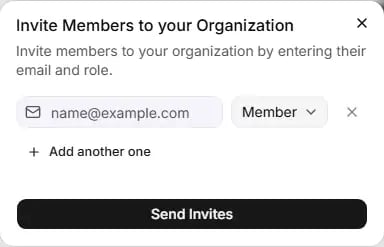 Everyone in the organization sees the **Invite Members** button, at the top right of the members card.
Click **Invite Members**. The dialog **Invite Members to your Organization** opens. It may show "Loading.
Please wait..." for a moment first.
Type the person's email and choose their role. Click **Add another one** for each extra person, up to 5 in one
go. Remove a row with its **X** button (**Remove invite**).
Click **Send Invites**. You see "Members invited successfully", and each person receives an email with a link
to join.
| Field | What it does | Allowed values | Default |
| - | - | - | - |
| Email | The address the invitation goes to. It is saved in lower case, without spaces. | Any valid email. Required. | Empty |
| Role | The role the person gets when they accept. | **Member** or **Owner**. You can only offer roles up to your own, so a member can invite only members. | **Member** |
Good to know:
* The same address twice in one form is refused with "Duplicate emails are not allowed".
* If **any** address in the form already belongs to a member of your organization, the whole form is refused and
nobody is invited. You see "Sorry, members could not be invited. Please try again." Take that address out and
send again.
* An address that already has a pending invitation to your organization cannot be invited again. Remove the old
invitation first, or renew it if it has expired.
* An invitation is valid for **7 days**.
* The person must accept with the same email you invited (upper and lower case do not matter). If they sign in
with a different address, the link tells them the invitation was not found. See
[Accepting an invitation](/your-account#accepting-an-invitation).
## Pending Invites
The second card, **Pending Invites**, lists invitations that have not been accepted yet. Everyone can see it.
**Search Invitations** matches the part of the email before the `@`, and the role.
| Column | What it shows |
| - | - |
| **Email** | Who was invited. |
| **Role** | The role they will get. |
| **Invited at** | When the invitation was sent. |
| **Expires at** | When the link stops working. |
| **Status** | **Active** (green): the link still works. **Expired** (amber): the 7 days have passed. |
An accepted invitation disappears from the list. An expired one stays until someone renews or removes it.
### Managing an invitation
Owners see a **...** menu on each invitation. Members do not.
* **Update Invitation** changes the role the person will get. The dialog is titled **Update Member's Role**, and
you save with **Update Role**.
* **Renew Invitation** appears only on an **Expired** invitation. It makes the link the person already has work
again for 7 days from now. **It does not send a new email**: tell the person to use the email they already
received.
* **Remove Invitation** opens **Delete Invitation**. Press **Delete Invitation** to confirm. The emailed link stops
working at once. This cannot be undone: to let the person in later, invite them again.
Only the primary owner can change or renew an invitation for the **Owner** role, or turn a member invitation
into an owner one. Any other owner manages member invitations only.
## Changing someone's role
On the person's row, open the **...** menu and choose **Update Role**. The dialog **Update Member's Role**
opens.
In **Role**, choose **Owner** or **Member**. Their current role is greyed out. Picking the same role shows
"Role must be different from the current one".
Click **Update Role**, or **Cancel** to close without saving.
The change takes effect at once. A member you promote to owner can immediately manage billing and every other
owner-only control. Nobody can change their own role, and nobody can give a role higher than their own.
## Removing someone
On the person's row, open the **...** menu and choose **Remove from Account**. The dialog **You are removing this
user** asks you to confirm. Click **Remove User from Organization**.
* The person loses access to this organization straight away.
* Their login is **not** deleted. They can still sign in, and they keep any other organizations they belong to.
* To bring them back, invite them again.
* The primary owner cannot be removed.
## Transferring ownership
Only the primary owner can do this. Use it to hand the organization to someone else, or before you leave or delete
your own login.
On their row, open the **...** menu and choose **Transfer Ownership**.
Click **Send Verification Code**. We email a 6-digit code to your own address. Type it in and click
**Verify Code**. If the email does not arrive, click **Request New Code**. You get at most 5 tries per code.
A red box names the person you are transferring to. Click **Transfer Ownership** to finish, or **Cancel** to
stop.
What changes:
* The person you chose becomes the primary owner, and gets the **Owner** role if they did not have it.
* You keep the **Owner** role and stay in the organization. You can now leave it if you wish.
* Only the new primary owner can transfer ownership back.
## Common questions
Ask them to check their junk folder first. If the email still has not arrived, remove the invitation and invite
them again. There is no resend button, and **Renew Invitation** does not send an email.
The invitation is more than 7 days old, was removed, or was already used. It also happens when the person signs
in with a different email from the one you invited. If the invitation shows **Expired**, an owner can click
**Renew Invitation** and the same link works again. Otherwise, invite the address they actually sign in with.
Yes, but only with the **Member** role. Members cannot change or remove invitations afterwards.
As primary owner, use **Transfer Ownership** (you will need the emailed code). Afterwards you can leave from
[Organization settings](/organization-settings#leaving-the-organization).
No limit, and no extra cost. No plan is billed per person.
Invite them again. Their login still exists, so they can accept straight away.
You may not act on that person. The menu never shows on your own row or on the primary owner's row, and an
owner who is not the primary owner sees it only on members.
This documentation is built and hosted on [Mintlify](https://mintlify.com), a developer documentation platform.
Everyone in the organization sees the **Invite Members** button, at the top right of the members card.
Click **Invite Members**. The dialog **Invite Members to your Organization** opens. It may show "Loading.
Please wait..." for a moment first.
Type the person's email and choose their role. Click **Add another one** for each extra person, up to 5 in one
go. Remove a row with its **X** button (**Remove invite**).
Click **Send Invites**. You see "Members invited successfully", and each person receives an email with a link
to join.
| Field | What it does | Allowed values | Default |
| - | - | - | - |
| Email | The address the invitation goes to. It is saved in lower case, without spaces. | Any valid email. Required. | Empty |
| Role | The role the person gets when they accept. | **Member** or **Owner**. You can only offer roles up to your own, so a member can invite only members. | **Member** |
Good to know:
* The same address twice in one form is refused with "Duplicate emails are not allowed".
* If **any** address in the form already belongs to a member of your organization, the whole form is refused and
nobody is invited. You see "Sorry, members could not be invited. Please try again." Take that address out and
send again.
* An address that already has a pending invitation to your organization cannot be invited again. Remove the old
invitation first, or renew it if it has expired.
* An invitation is valid for **7 days**.
* The person must accept with the same email you invited (upper and lower case do not matter). If they sign in
with a different address, the link tells them the invitation was not found. See
[Accepting an invitation](/your-account#accepting-an-invitation).
## Pending Invites
The second card, **Pending Invites**, lists invitations that have not been accepted yet. Everyone can see it.
**Search Invitations** matches the part of the email before the `@`, and the role.
| Column | What it shows |
| - | - |
| **Email** | Who was invited. |
| **Role** | The role they will get. |
| **Invited at** | When the invitation was sent. |
| **Expires at** | When the link stops working. |
| **Status** | **Active** (green): the link still works. **Expired** (amber): the 7 days have passed. |
An accepted invitation disappears from the list. An expired one stays until someone renews or removes it.
### Managing an invitation
Owners see a **...** menu on each invitation. Members do not.
* **Update Invitation** changes the role the person will get. The dialog is titled **Update Member's Role**, and
you save with **Update Role**.
* **Renew Invitation** appears only on an **Expired** invitation. It makes the link the person already has work
again for 7 days from now. **It does not send a new email**: tell the person to use the email they already
received.
* **Remove Invitation** opens **Delete Invitation**. Press **Delete Invitation** to confirm. The emailed link stops
working at once. This cannot be undone: to let the person in later, invite them again.
Only the primary owner can change or renew an invitation for the **Owner** role, or turn a member invitation
into an owner one. Any other owner manages member invitations only.
## Changing someone's role
On the person's row, open the **...** menu and choose **Update Role**. The dialog **Update Member's Role**
opens.
In **Role**, choose **Owner** or **Member**. Their current role is greyed out. Picking the same role shows
"Role must be different from the current one".
Click **Update Role**, or **Cancel** to close without saving.
The change takes effect at once. A member you promote to owner can immediately manage billing and every other
owner-only control. Nobody can change their own role, and nobody can give a role higher than their own.
## Removing someone
On the person's row, open the **...** menu and choose **Remove from Account**. The dialog **You are removing this
user** asks you to confirm. Click **Remove User from Organization**.
* The person loses access to this organization straight away.
* Their login is **not** deleted. They can still sign in, and they keep any other organizations they belong to.
* To bring them back, invite them again.
* The primary owner cannot be removed.
## Transferring ownership
Only the primary owner can do this. Use it to hand the organization to someone else, or before you leave or delete
your own login.
On their row, open the **...** menu and choose **Transfer Ownership**.
Click **Send Verification Code**. We email a 6-digit code to your own address. Type it in and click
**Verify Code**. If the email does not arrive, click **Request New Code**. You get at most 5 tries per code.
A red box names the person you are transferring to. Click **Transfer Ownership** to finish, or **Cancel** to
stop.
What changes:
* The person you chose becomes the primary owner, and gets the **Owner** role if they did not have it.
* You keep the **Owner** role and stay in the organization. You can now leave it if you wish.
* Only the new primary owner can transfer ownership back.
## Common questions
Ask them to check their junk folder first. If the email still has not arrived, remove the invitation and invite
them again. There is no resend button, and **Renew Invitation** does not send an email.
The invitation is more than 7 days old, was removed, or was already used. It also happens when the person signs
in with a different email from the one you invited. If the invitation shows **Expired**, an owner can click
**Renew Invitation** and the same link works again. Otherwise, invite the address they actually sign in with.
Yes, but only with the **Member** role. Members cannot change or remove invitations afterwards.
As primary owner, use **Transfer Ownership** (you will need the emailed code). Afterwards you can leave from
[Organization settings](/organization-settings#leaving-the-organization).
No limit, and no extra cost. No plan is billed per person.
Invite them again. Their login still exists, so they can accept straight away.
You may not act on that person. The menu never shows on your own row or on the primary owner's row, and an
owner who is not the primary owner sees it only on members.
This documentation is built and hosted on [Mintlify](https://mintlify.com), a developer documentation platform.