> ## Documentation Index
> Fetch the complete documentation index at: https://docs.ruleinside.com/llms.txt
> Use this file to discover all available pages before exploring further.
# Organization settings
> Your organization's name and logo, how renaming changes your web address, and leaving an organization.
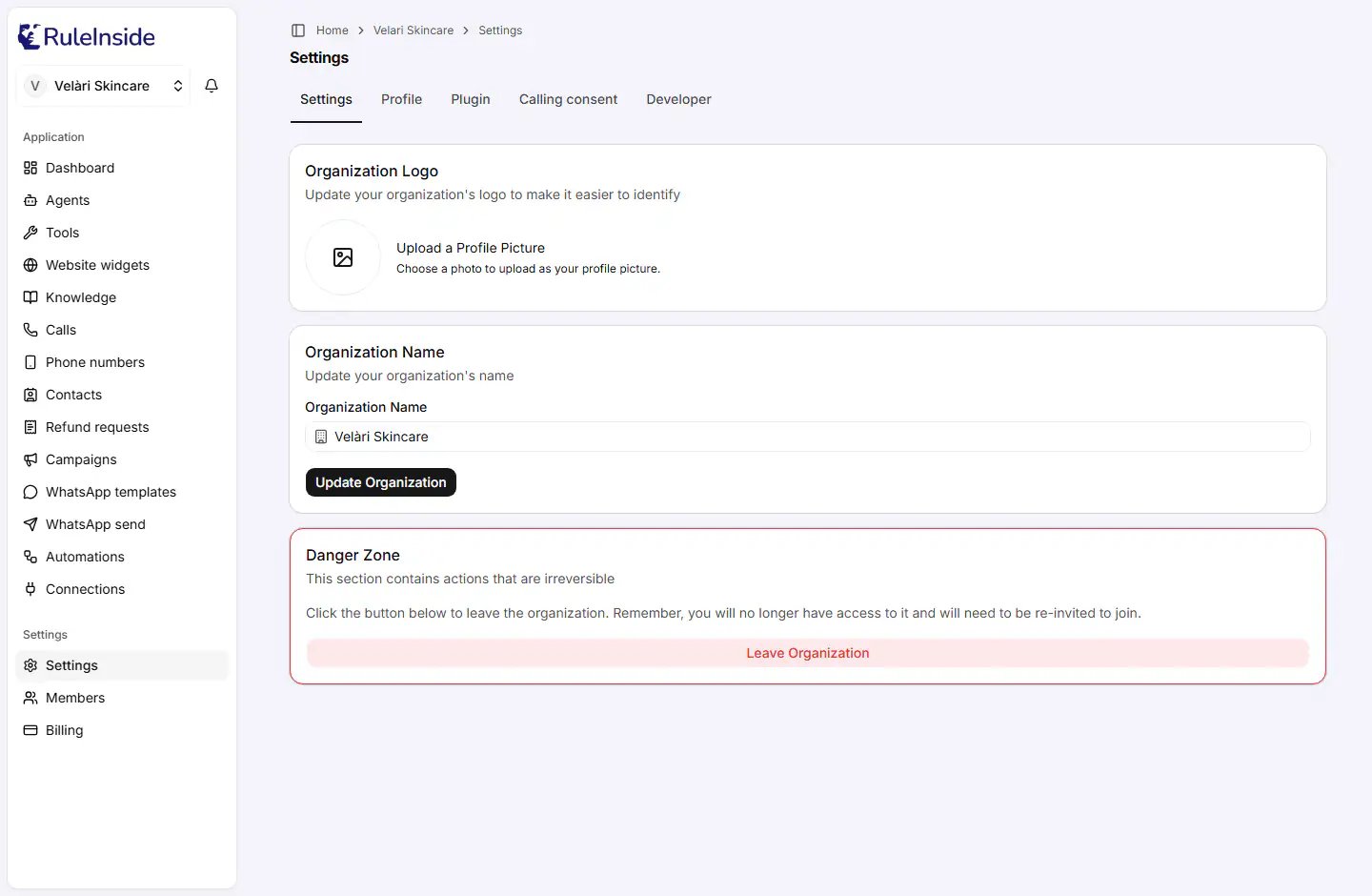
Open **Settings** from the left sidebar, under the **Settings** heading. The tabs along the top read **Settings**,
**Profile**, **Plugin**, **Calling consent** and **Developer**. This page covers the first tab, **Settings**, which
holds your organization's logo and name and the option to leave. Your personal details are on the **Profile** tab:
see [Your account](/your-account).
 ## Who can change these settings
* Everyone in the organization can open this tab.
* **Only the primary owner can save a new name or logo.** Anyone else can type in the form, but saving shows
"Could not update Organization. Please try again." See [Who can do what](/roles).
* Leaving is open to everyone **except** the primary owner.
## Organization Logo
The **Organization Logo** card sets the picture that identifies your organization. It appears, for example, on
the page where an invited colleague accepts their invitation.
* Click the uploader and choose an image file. The uploader's text reads **Upload a Profile Picture**: it is the
same control as on your personal profile, but here it sets the organization's logo.
* Choosing a new image replaces the old one. Clearing it removes the logo.
* You see "Updating Organization..." and then "Organization successfully updated".
## Organization Name
The **Organization Name** card holds one field, **Organization Name**, and the **Update Organization** button.
| Rule | What you see if it is broken |
| - | - |
| 2 to 50 characters. Required. | A message about the length. |
| None of these characters: `! @ # $ % ^ & * ( ) + = [ ] { } ; ' : " \ \| , . < > / ?` | "This name cannot contain special characters. Please choose a different one." |
| Not `settings` or `billing`, in any mix of upper and lower case. | "This name is reserved. Please choose a different one." |
Accented letters such as é or ü are fine.
### Names in other scripts
If the name contains Cyrillic, Hebrew, Arabic, Thai, Korean, Japanese or Chinese characters, a second field
appears: **Organization URL**. It sets the short name used in your web address, and it is required in that case.
* Only lowercase English letters (a to z), numbers (0 to 9) and single hyphens, 2 to 50 characters. Example:
`my-organization-name`.
* It cannot be `settings` or `billing`.
* It must not already be taken. Otherwise you see "This URL is already taken. Please choose a different one."
### Renaming changes your web address
Your organization's web address is built from its name, for example `/home/my-store/...`. **When you rename the
organization, the web address changes too.** After you save, the portal moves you to the new address. Bookmarks
and links to the old address stop working, so update them and tell your team.
If the new address is already used by another organization, a number is added to the end of it.
## Danger Zone
The **Danger Zone** card holds actions that cannot be undone. What you see depends on your role.
### Leaving the organization
Owners and members who are not the primary owner see **Leave Organization**.
The dialog **Leaving Organization** opens.
In the field **Please type LEAVE to confirm leaving the organization.**, type `LEAVE` in capital letters.
Click **Leave Organization**, or **Cancel** to stay.
You lose access at once. The portal takes you to another organization you belong to or, if you have none, to the
page for creating a new organization. **This cannot be undone**: to come back, an owner must invite you again.
### If you are the primary owner
The primary owner has no **Leave Organization** option. To leave, first hand the organization to someone else with
**Transfer Ownership** on the [Members](/members#transferring-ownership) page. You then keep the owner role and can
leave like anyone else.
## Common questions
Only the primary owner can. Check the [Members](/members) page for the person with the **Primary Owner** badge
and ask them, or ask them to transfer ownership to you.
That is expected: the web address follows the name. Open the portal from the start page and bookmark the new
address.
**Settings**, **Danger Zone**, **Leave Organization**, then type `LEAVE`. If you are the primary owner, transfer
ownership first.
Cancel your plan on [Billing](/billing#cancelling-your-plan). Leaving the organization or deleting your own
login does not stop billing. Contact us if you need anything else closed.
Yes. The logo and the name are saved separately. Only the name changes your web address.
This documentation is built and hosted on [Mintlify](https://mintlify.com), a developer documentation platform.
## Who can change these settings
* Everyone in the organization can open this tab.
* **Only the primary owner can save a new name or logo.** Anyone else can type in the form, but saving shows
"Could not update Organization. Please try again." See [Who can do what](/roles).
* Leaving is open to everyone **except** the primary owner.
## Organization Logo
The **Organization Logo** card sets the picture that identifies your organization. It appears, for example, on
the page where an invited colleague accepts their invitation.
* Click the uploader and choose an image file. The uploader's text reads **Upload a Profile Picture**: it is the
same control as on your personal profile, but here it sets the organization's logo.
* Choosing a new image replaces the old one. Clearing it removes the logo.
* You see "Updating Organization..." and then "Organization successfully updated".
## Organization Name
The **Organization Name** card holds one field, **Organization Name**, and the **Update Organization** button.
| Rule | What you see if it is broken |
| - | - |
| 2 to 50 characters. Required. | A message about the length. |
| None of these characters: `! @ # $ % ^ & * ( ) + = [ ] { } ; ' : " \ \| , . < > / ?` | "This name cannot contain special characters. Please choose a different one." |
| Not `settings` or `billing`, in any mix of upper and lower case. | "This name is reserved. Please choose a different one." |
Accented letters such as é or ü are fine.
### Names in other scripts
If the name contains Cyrillic, Hebrew, Arabic, Thai, Korean, Japanese or Chinese characters, a second field
appears: **Organization URL**. It sets the short name used in your web address, and it is required in that case.
* Only lowercase English letters (a to z), numbers (0 to 9) and single hyphens, 2 to 50 characters. Example:
`my-organization-name`.
* It cannot be `settings` or `billing`.
* It must not already be taken. Otherwise you see "This URL is already taken. Please choose a different one."
### Renaming changes your web address
Your organization's web address is built from its name, for example `/home/my-store/...`. **When you rename the
organization, the web address changes too.** After you save, the portal moves you to the new address. Bookmarks
and links to the old address stop working, so update them and tell your team.
If the new address is already used by another organization, a number is added to the end of it.
## Danger Zone
The **Danger Zone** card holds actions that cannot be undone. What you see depends on your role.
### Leaving the organization
Owners and members who are not the primary owner see **Leave Organization**.
The dialog **Leaving Organization** opens.
In the field **Please type LEAVE to confirm leaving the organization.**, type `LEAVE` in capital letters.
Click **Leave Organization**, or **Cancel** to stay.
You lose access at once. The portal takes you to another organization you belong to or, if you have none, to the
page for creating a new organization. **This cannot be undone**: to come back, an owner must invite you again.
### If you are the primary owner
The primary owner has no **Leave Organization** option. To leave, first hand the organization to someone else with
**Transfer Ownership** on the [Members](/members#transferring-ownership) page. You then keep the owner role and can
leave like anyone else.
## Common questions
Only the primary owner can. Check the [Members](/members) page for the person with the **Primary Owner** badge
and ask them, or ask them to transfer ownership to you.
That is expected: the web address follows the name. Open the portal from the start page and bookmark the new
address.
**Settings**, **Danger Zone**, **Leave Organization**, then type `LEAVE`. If you are the primary owner, transfer
ownership first.
Cancel your plan on [Billing](/billing#cancelling-your-plan). Leaving the organization or deleting your own
login does not stop billing. Contact us if you need anything else closed.
Yes. The logo and the name are saved separately. Only the name changes your web address.
This documentation is built and hosted on [Mintlify](https://mintlify.com), a developer documentation platform.