> ## Documentation Index
> Fetch the complete documentation index at: https://docs.ruleinside.com/llms.txt
> Use this file to discover all available pages before exploring further.
# WordPress plugin
> Download the RuleInside plugin for your store, and manage the licence key that keeps it up to date.
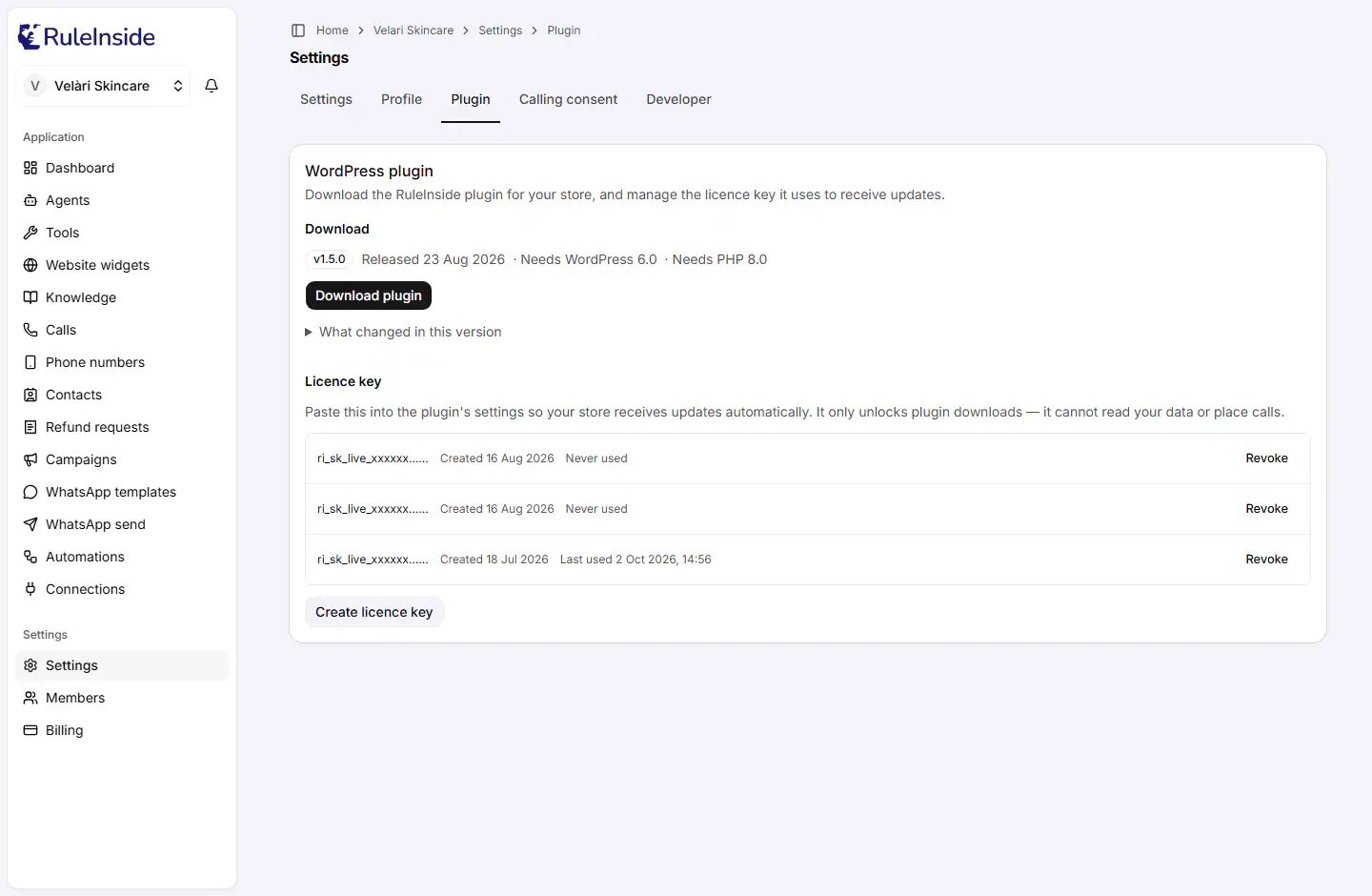
Open **Settings** and choose the **Plugin** tab. The **WordPress plugin** card has two parts: **Download**, to get
the plugin for your store, and **Licence key**, the key the plugin uses to receive updates automatically.
 ## Who can do what
| Action | Who |
| - | - |
| See this page | Everyone on your team |
| **Download plugin** | Everyone on your team, so whoever installs WordPress for you can get it |
| **Create licence key** and **Revoke** | The owner only. Members see "Only an account owner can create or revoke a licence key." |
If your workspace is not linked to a store yet, the page tells you there is nothing to download. Finish your setup
first, or contact us.
## Download the plugin
The **Download** part shows the latest version (for example `v1.5.0`), the date it was **Released**, and the
WordPress and PHP versions it needs (**Needs WordPress** and **Needs PHP**). Open **What changed in this version** to read the
release notes.
Click **Download plugin**. The button reads "Preparing…" for a moment, then your browser downloads the plugin as a
zip file. Each click prepares a fresh download that is valid for 5 minutes, so the button works even if the page
has been open for a long time. Then install the zip in WordPress as you would any plugin.
If the download fails, you see "Could not prepare the download. Please try again." or a more specific message.
Instead of the download, the card may show:
| Title on the card | What it means | What to do |
| - | - | - |
| "We could not check for the latest version" | We could not look up the latest version. The problem is on our side, not with your store. | Try again in a moment, and contact us if it keeps happening. Do not install an older copy instead. |
| "Plugin downloads are paused for this account" | Your RuleInside account is not active, so new downloads are unavailable. A plugin you already installed keeps working. | Contact us. Trying again will not help. |
| "No release is published yet" | There is no plugin version to download at the moment. | Contact us. |
## Customer details from your store
When a customer's name, email, phone or country changes in WordPress, the plugin sends the new details to
RuleInside, so your assistant uses the current ones. Nothing is sent unless the **Widget ID** and **Identity Token
Secret** are both filled in on the plugin's settings page (WordPress admin, menu **RuleInside**).
From version 1.5.1, only customers are sent. A customer is a user whose roles are only WooCommerce's `customer`
and/or WordPress's `subscriber`, and who has none of these staff permissions: writing content, managing WooCommerce,
or FluentCart staff access. Staff accounts, custom staff roles and customers who were also given a staff role are not
sent.
If your shoppers have a renamed or plugin-added role instead of, or as well as, `customer` or `subscriber` (some
forum plugins, such as bbPress, add one to every logged-in user), their profile changes are not sent, and the
assistant keeps the name it already has. Tell us if that applies to your store.
## Licence keys
A licence key lets the plugin installed on your store receive updates automatically. It only unlocks plugin
downloads: it cannot read your data or place calls.
### Create a licence key
Owner only. The button reads "Creating…" while the key is made. The key always has exactly one permission,
plugin downloads; there is nothing to choose.
The **Copy your licence key now** dialog shows the full key, which starts with `ri_sk_live_` (for example
`ri_sk_live_xxxxxx`). Click **Copy** (it changes to **Copied**). If your browser blocks copying, select the key
and copy it by hand.
The key is never shown again, to you or to us. We store only a scrambled fingerprint of it, so nobody can read
it back.
In your WordPress admin, open the **RuleInside** menu and paste the key into the **License Key** field. The
plugin then checks for updates about every 12 hours.
Copy the key before you click **Done**. If you lose it, there is no way to see it again: create a new key, paste it
into the plugin, then revoke the old one.
### The list of licence keys
Each licence key is listed with:
* the start of the key followed by "…" (the full key is never shown again);
* **Created** and the date;
* **Last used** with the date and time, or **Never used**. **Last used** moves each time your store's plugin
checks for updates, so it tells you the key is working;
* **Revoke** (owner only).
With no keys you see "No licence key yet. Create one, then paste it into the plugin's settings screen."
If you see "We could not load your licence keys", the list could not be loaded at that moment. Your existing keys
are unaffected and still work. Try again shortly, and do not create a new key to work around it, or you may end up
with duplicates.
### An API key that already works as a licence
If you see "One of your API keys already works as a licence", one of your [API keys](/api-keys) includes plugin
downloads alongside other permissions, so the plugin accepts it and you do not need another key. If you prefer to
keep the licence separate from your other permissions, create a licence key here, put it in the plugin, and then
revoke the broader key on the **Developer** tab.
### Revoke a licence key
Click **Revoke** on the key and confirm with **Revoke key**. You see "Licence key revoked.", or "That licence key
was already revoked." if it was already gone.
What a revoked key does:
* any store still using it **stops receiving plugin updates** straight away;
* the plugin itself, the website assistant on your store and your calls **keep working**;
* a download your store had already been offered can still be installed for up to 24 hours.
Revoking cannot be undone. To keep your store updating, create a new key and paste it into the plugin.
Licence keys also appear on the **Developer** tab among your [API keys](/api-keys), with a `plugin:download` badge.
Revoking one there has the same effect as revoking it here.
## Facts about licence keys
* A licence key works only while your account is active.
* When the licence is wrong, missing or revoked, WordPress simply shows that no update is available. Your store
shows no error, so check **Last used** on this page instead.
## Common questions
**Settings**, **Plugin** tab, **Download plugin**. Anyone on your team can download it.
The licence key gives your store automatic plugin updates. Paste it into the **License Key** field in the
plugin's settings.
Paste your widget's embed id into the plugin's **Widget ID** field (WordPress admin, menu **RuleInside**). You
find the embed id on the [website widgets](/website-assistant) list and in the widget editor.
It cannot be shown again. Create a new key, paste it into the plugin, then revoke the old one.
Check the key's **Last used** date on this page. **Never used** means the key was never pasted into the plugin,
or was pasted wrongly. Also check that the key was not revoked and that your account is active.
Your account is not active. Trying again will not help: contact us.
No. The plugin, the website assistant and your calls keep working. The store only stops receiving plugin
updates until you give it a new key.
This documentation is built and hosted on [Mintlify](https://mintlify.com), a developer documentation platform.
## Who can do what
| Action | Who |
| - | - |
| See this page | Everyone on your team |
| **Download plugin** | Everyone on your team, so whoever installs WordPress for you can get it |
| **Create licence key** and **Revoke** | The owner only. Members see "Only an account owner can create or revoke a licence key." |
If your workspace is not linked to a store yet, the page tells you there is nothing to download. Finish your setup
first, or contact us.
## Download the plugin
The **Download** part shows the latest version (for example `v1.5.0`), the date it was **Released**, and the
WordPress and PHP versions it needs (**Needs WordPress** and **Needs PHP**). Open **What changed in this version** to read the
release notes.
Click **Download plugin**. The button reads "Preparing…" for a moment, then your browser downloads the plugin as a
zip file. Each click prepares a fresh download that is valid for 5 minutes, so the button works even if the page
has been open for a long time. Then install the zip in WordPress as you would any plugin.
If the download fails, you see "Could not prepare the download. Please try again." or a more specific message.
Instead of the download, the card may show:
| Title on the card | What it means | What to do |
| - | - | - |
| "We could not check for the latest version" | We could not look up the latest version. The problem is on our side, not with your store. | Try again in a moment, and contact us if it keeps happening. Do not install an older copy instead. |
| "Plugin downloads are paused for this account" | Your RuleInside account is not active, so new downloads are unavailable. A plugin you already installed keeps working. | Contact us. Trying again will not help. |
| "No release is published yet" | There is no plugin version to download at the moment. | Contact us. |
## Customer details from your store
When a customer's name, email, phone or country changes in WordPress, the plugin sends the new details to
RuleInside, so your assistant uses the current ones. Nothing is sent unless the **Widget ID** and **Identity Token
Secret** are both filled in on the plugin's settings page (WordPress admin, menu **RuleInside**).
From version 1.5.1, only customers are sent. A customer is a user whose roles are only WooCommerce's `customer`
and/or WordPress's `subscriber`, and who has none of these staff permissions: writing content, managing WooCommerce,
or FluentCart staff access. Staff accounts, custom staff roles and customers who were also given a staff role are not
sent.
If your shoppers have a renamed or plugin-added role instead of, or as well as, `customer` or `subscriber` (some
forum plugins, such as bbPress, add one to every logged-in user), their profile changes are not sent, and the
assistant keeps the name it already has. Tell us if that applies to your store.
## Licence keys
A licence key lets the plugin installed on your store receive updates automatically. It only unlocks plugin
downloads: it cannot read your data or place calls.
### Create a licence key
Owner only. The button reads "Creating…" while the key is made. The key always has exactly one permission,
plugin downloads; there is nothing to choose.
The **Copy your licence key now** dialog shows the full key, which starts with `ri_sk_live_` (for example
`ri_sk_live_xxxxxx`). Click **Copy** (it changes to **Copied**). If your browser blocks copying, select the key
and copy it by hand.
The key is never shown again, to you or to us. We store only a scrambled fingerprint of it, so nobody can read
it back.
In your WordPress admin, open the **RuleInside** menu and paste the key into the **License Key** field. The
plugin then checks for updates about every 12 hours.
Copy the key before you click **Done**. If you lose it, there is no way to see it again: create a new key, paste it
into the plugin, then revoke the old one.
### The list of licence keys
Each licence key is listed with:
* the start of the key followed by "…" (the full key is never shown again);
* **Created** and the date;
* **Last used** with the date and time, or **Never used**. **Last used** moves each time your store's plugin
checks for updates, so it tells you the key is working;
* **Revoke** (owner only).
With no keys you see "No licence key yet. Create one, then paste it into the plugin's settings screen."
If you see "We could not load your licence keys", the list could not be loaded at that moment. Your existing keys
are unaffected and still work. Try again shortly, and do not create a new key to work around it, or you may end up
with duplicates.
### An API key that already works as a licence
If you see "One of your API keys already works as a licence", one of your [API keys](/api-keys) includes plugin
downloads alongside other permissions, so the plugin accepts it and you do not need another key. If you prefer to
keep the licence separate from your other permissions, create a licence key here, put it in the plugin, and then
revoke the broader key on the **Developer** tab.
### Revoke a licence key
Click **Revoke** on the key and confirm with **Revoke key**. You see "Licence key revoked.", or "That licence key
was already revoked." if it was already gone.
What a revoked key does:
* any store still using it **stops receiving plugin updates** straight away;
* the plugin itself, the website assistant on your store and your calls **keep working**;
* a download your store had already been offered can still be installed for up to 24 hours.
Revoking cannot be undone. To keep your store updating, create a new key and paste it into the plugin.
Licence keys also appear on the **Developer** tab among your [API keys](/api-keys), with a `plugin:download` badge.
Revoking one there has the same effect as revoking it here.
## Facts about licence keys
* A licence key works only while your account is active.
* When the licence is wrong, missing or revoked, WordPress simply shows that no update is available. Your store
shows no error, so check **Last used** on this page instead.
## Common questions
**Settings**, **Plugin** tab, **Download plugin**. Anyone on your team can download it.
The licence key gives your store automatic plugin updates. Paste it into the **License Key** field in the
plugin's settings.
Paste your widget's embed id into the plugin's **Widget ID** field (WordPress admin, menu **RuleInside**). You
find the embed id on the [website widgets](/website-assistant) list and in the widget editor.
It cannot be shown again. Create a new key, paste it into the plugin, then revoke the old one.
Check the key's **Last used** date on this page. **Never used** means the key was never pasted into the plugin,
or was pasted wrongly. Also check that the key was not revoked and that your account is active.
Your account is not active. Trying again will not help: contact us.
No. The plugin, the website assistant and your calls keep working. The store only stops receiving plugin
updates until you give it a new key.
This documentation is built and hosted on [Mintlify](https://mintlify.com), a developer documentation platform.