> ## Documentation Index
> Fetch the complete documentation index at: https://docs.ruleinside.com/llms.txt
> Use this file to discover all available pages before exploring further.
# Refund requests
> Refunds your assistant recorded from shoppers. You decide every one, and nothing is refunded automatically.
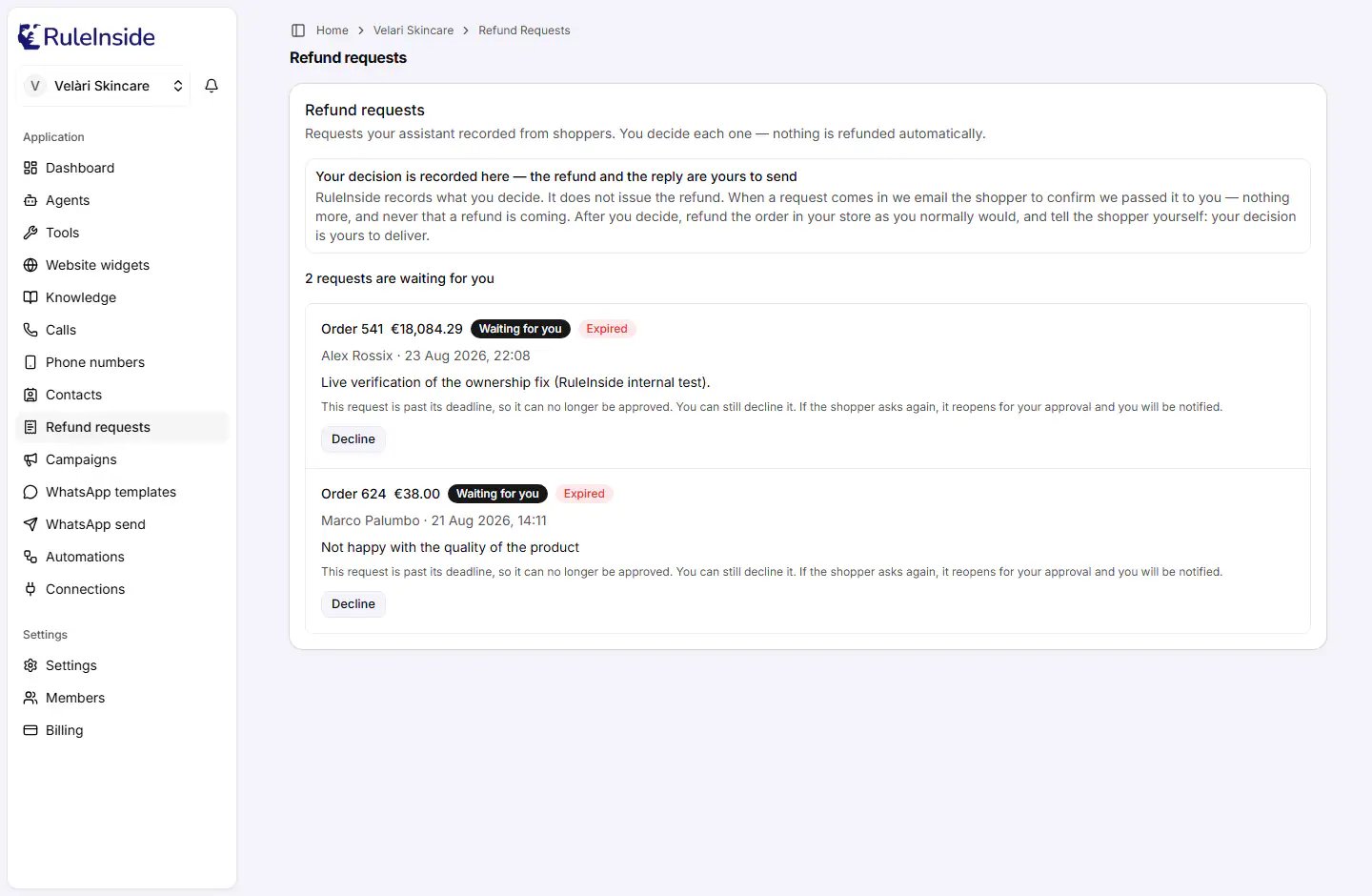
When a shopper asks your assistant for a refund, the assistant records the request and you decide it under
**Refund requests**. The page says it plainly: "Requests your assistant recorded from shoppers. You decide each one -
nothing is refunded automatically."
 ## RuleInside never issues a refund
Approving or declining a request only **records your decision**. RuleInside does not move any money and does not
tell the shopper what you decided. A notice above the list reminds you of this:
> **Your decision is recorded here - the refund and the reply are yours to send**
>
> RuleInside records what you decide. It does not issue the refund. When a request comes in we email the shopper to
> confirm we passed it to you - nothing more, and never that a refund is coming. After you decide, refund the order
> in your store as you normally would, and tell the shopper yourself: your decision is yours to deliver.
On the call, your assistant records the request and tells the shopper: "Your refund request has been recorded and
sent to the store owner to review. They will get back to you about it."
RuleInside emails the shopper to confirm the request was passed to you. The email never says a refund is coming.
Open **Refund requests** and click **Approve** or **Decline**.
If you approved it, refund the order in your store as you normally would. Either way, tell the shopper your
decision yourself.
## How a request gets here
* **Only shoppers your store has recognised can make a request**, for example a shopper signed in to your store.
Guests and callers your store has not identified cannot have a request recorded.
* **One open request per order.** If the shopper asks again while it is waiting, their new reason is added to the
same request, marked "(follow-up)".
* **A request can be approved for 72 hours** from when it was recorded. After that it shows as **Expired**. If the
shopper asks again after it expired, the same request reopens for another 72 hours, the new reason is added marked
"(asked again)", and you are notified again.
While requests are waiting, your dashboard shows a banner, for example "A refund request is waiting for you", with
"A shopper asked your assistant for a refund. Nothing is refunded until you decide." and a **Review refund requests**
button that opens this page.
## What each request shows
* "Order" and your store's order number, with an amount. **The amount is the order's total at the time of the
request**, not an amount the shopper chose. It is shown in the order's currency, or as a dash if unknown.
* A status badge, and a red **Expired** badge when a waiting request is past its 72 hours.
* The shopper's name, or their email, or "Customer details unavailable", then the date and time the request was
recorded, in your local time.
* The shopper's reason in their own words, with any "(follow-up)" or "(asked again)" additions.
* Once decided: "Decided by", the email of the person who decided, and when, followed by the decline note if one was
written.
The page lists 50 requests at a time, newest first. When there is more than one page, use **Previous** and **Next**.
At the top, a line tells you how many requests are waiting, for example "2 requests are waiting for you".
## Statuses
| Badge | What it means |
| - | - |
| **Waiting for you** | Not decided yet. |
| **Approved** | You approved it. No money has moved: refund the order in your store. |
| **Declined** | You declined it. |
| **Refunded** | Not used at present. Requests do not reach this status today. |
| **Expired** (red, next to Waiting for you) | Waiting, but past its 72 hours. It can be declined, not approved. |
## Approving and declining
**Approve** asks you to confirm ("Approve this refund request?"), then records the request as approved.
Approve is not offered on an expired request.
**Decline** opens **Decline this refund request**:
* "Note why, in your own words. This is kept with the request for your records - it is not sent to the shopper, so
tell them yourself."
* A text box for your note. It is optional, up to 1,000 characters. The example text reads "For example: this order is
outside our 30-day returns window."
* **Decline request** records the decline, with your note.
**A decision is final.** Once a request is approved or declined, the buttons disappear and it cannot be changed in
the portal. Check the order before you confirm **Approve request**.
Every decision is kept on record: what was decided, who decided it, when, and the note.
**Messages you may see:**
| Message | What it means |
| - | - |
| "Your decision has been recorded." | Done. |
| "The decision could not be recorded. Please try again." | Nothing was recorded. Try again. |
| "That request has already been decided - the list has been refreshed." | Someone else in your team decided it first. |
| "That refund request no longer exists." | The request is gone. |
| "This request is past its deadline, so it can no longer be approved. You can still decline it. If the shopper asks again, it reopens for your approval and you will be notified." | It expired. Decline it, or wait for the shopper to ask again. |
## Who can see and decide
* **Everyone in your workspace** can see the list, including shoppers' names and emails.
* **Deciding** needs the refund-approval permission, which only **owners** have.
* Someone without it sees, under each waiting request: "Deciding refund requests needs the refund-approval
permission, which is not switched on for this workspace yet."
* If the permission could not be checked at that moment, the buttons are hidden and the request says: "We could not
confirm your refund permissions just now, so the decision buttons are hidden. This is a temporary fault on our side,
not a change to your account - please refresh in a moment."
## When the list is not shown
| What you see | What it means |
| - | - |
| "No store is linked to this workspace yet, so there are no refund requests to show." | No store is connected. |
| "We could not load your refund requests" | The list could not be read. This is not the same as having none. Refresh in a moment, and contact support if it keeps happening, so a waiting shopper is not left without an answer. |
| "No refund requests yet." | There are none. |
## Common questions
No. Approving only records your decision. Refund the order in your store, then tell the shopper.
Not from RuleInside. They only received an email saying the request was passed to you. You tell them.
No. It is for your records only.
It expired: more than 72 hours have passed since it was recorded. Decline it, or wait: if the shopper asks again,
it reopens for 72 hours and you are notified.
Only owners can decide refund requests.
It is the full order total at the time of the request, not a partial amount. Refund whatever you decide in your
store.
Not in the portal. A decision is final once recorded.
Only shoppers your store has recognised, for example signed in, can have a request recorded. Guests cannot.
That is expected. Further requests for the same order are added to the open request, marked "(follow-up)" or
"(asked again)".
This documentation is built and hosted on [Mintlify](https://mintlify.com), a developer documentation platform.
## RuleInside never issues a refund
Approving or declining a request only **records your decision**. RuleInside does not move any money and does not
tell the shopper what you decided. A notice above the list reminds you of this:
> **Your decision is recorded here - the refund and the reply are yours to send**
>
> RuleInside records what you decide. It does not issue the refund. When a request comes in we email the shopper to
> confirm we passed it to you - nothing more, and never that a refund is coming. After you decide, refund the order
> in your store as you normally would, and tell the shopper yourself: your decision is yours to deliver.
On the call, your assistant records the request and tells the shopper: "Your refund request has been recorded and
sent to the store owner to review. They will get back to you about it."
RuleInside emails the shopper to confirm the request was passed to you. The email never says a refund is coming.
Open **Refund requests** and click **Approve** or **Decline**.
If you approved it, refund the order in your store as you normally would. Either way, tell the shopper your
decision yourself.
## How a request gets here
* **Only shoppers your store has recognised can make a request**, for example a shopper signed in to your store.
Guests and callers your store has not identified cannot have a request recorded.
* **One open request per order.** If the shopper asks again while it is waiting, their new reason is added to the
same request, marked "(follow-up)".
* **A request can be approved for 72 hours** from when it was recorded. After that it shows as **Expired**. If the
shopper asks again after it expired, the same request reopens for another 72 hours, the new reason is added marked
"(asked again)", and you are notified again.
While requests are waiting, your dashboard shows a banner, for example "A refund request is waiting for you", with
"A shopper asked your assistant for a refund. Nothing is refunded until you decide." and a **Review refund requests**
button that opens this page.
## What each request shows
* "Order" and your store's order number, with an amount. **The amount is the order's total at the time of the
request**, not an amount the shopper chose. It is shown in the order's currency, or as a dash if unknown.
* A status badge, and a red **Expired** badge when a waiting request is past its 72 hours.
* The shopper's name, or their email, or "Customer details unavailable", then the date and time the request was
recorded, in your local time.
* The shopper's reason in their own words, with any "(follow-up)" or "(asked again)" additions.
* Once decided: "Decided by", the email of the person who decided, and when, followed by the decline note if one was
written.
The page lists 50 requests at a time, newest first. When there is more than one page, use **Previous** and **Next**.
At the top, a line tells you how many requests are waiting, for example "2 requests are waiting for you".
## Statuses
| Badge | What it means |
| - | - |
| **Waiting for you** | Not decided yet. |
| **Approved** | You approved it. No money has moved: refund the order in your store. |
| **Declined** | You declined it. |
| **Refunded** | Not used at present. Requests do not reach this status today. |
| **Expired** (red, next to Waiting for you) | Waiting, but past its 72 hours. It can be declined, not approved. |
## Approving and declining
**Approve** asks you to confirm ("Approve this refund request?"), then records the request as approved.
Approve is not offered on an expired request.
**Decline** opens **Decline this refund request**:
* "Note why, in your own words. This is kept with the request for your records - it is not sent to the shopper, so
tell them yourself."
* A text box for your note. It is optional, up to 1,000 characters. The example text reads "For example: this order is
outside our 30-day returns window."
* **Decline request** records the decline, with your note.
**A decision is final.** Once a request is approved or declined, the buttons disappear and it cannot be changed in
the portal. Check the order before you confirm **Approve request**.
Every decision is kept on record: what was decided, who decided it, when, and the note.
**Messages you may see:**
| Message | What it means |
| - | - |
| "Your decision has been recorded." | Done. |
| "The decision could not be recorded. Please try again." | Nothing was recorded. Try again. |
| "That request has already been decided - the list has been refreshed." | Someone else in your team decided it first. |
| "That refund request no longer exists." | The request is gone. |
| "This request is past its deadline, so it can no longer be approved. You can still decline it. If the shopper asks again, it reopens for your approval and you will be notified." | It expired. Decline it, or wait for the shopper to ask again. |
## Who can see and decide
* **Everyone in your workspace** can see the list, including shoppers' names and emails.
* **Deciding** needs the refund-approval permission, which only **owners** have.
* Someone without it sees, under each waiting request: "Deciding refund requests needs the refund-approval
permission, which is not switched on for this workspace yet."
* If the permission could not be checked at that moment, the buttons are hidden and the request says: "We could not
confirm your refund permissions just now, so the decision buttons are hidden. This is a temporary fault on our side,
not a change to your account - please refresh in a moment."
## When the list is not shown
| What you see | What it means |
| - | - |
| "No store is linked to this workspace yet, so there are no refund requests to show." | No store is connected. |
| "We could not load your refund requests" | The list could not be read. This is not the same as having none. Refresh in a moment, and contact support if it keeps happening, so a waiting shopper is not left without an answer. |
| "No refund requests yet." | There are none. |
## Common questions
No. Approving only records your decision. Refund the order in your store, then tell the shopper.
Not from RuleInside. They only received an email saying the request was passed to you. You tell them.
No. It is for your records only.
It expired: more than 72 hours have passed since it was recorded. Decline it, or wait: if the shopper asks again,
it reopens for 72 hours and you are notified.
Only owners can decide refund requests.
It is the full order total at the time of the request, not a partial amount. Refund whatever you decide in your
store.
Not in the portal. A decision is final once recorded.
Only shoppers your store has recognised, for example signed in, can have a request recorded. Guests cannot.
That is expected. Further requests for the same order are added to the open request, marked "(follow-up)" or
"(asked again)".
This documentation is built and hosted on [Mintlify](https://mintlify.com), a developer documentation platform.