> ## Documentation Index
> Fetch the complete documentation index at: https://docs.ruleinside.com/llms.txt
> Use this file to discover all available pages before exploring further.
# Testing before you go live
> Hear your agent, try your website assistant, call your own number, place a test call and send yourself a WhatsApp message, then check everything before customers reach it.
When you finish this page you will have talked to your agent the way your customers will, on every channel you use,
read back what happened, and ticked off the checks that matter before real customers are called or messaged. We
suggest you set aside about an hour for a first full pass.
Some tests are real. Calling your own number, a campaign **Send test call** and a WhatsApp send are real calls and
messages, and a test call is billed like any other call. Only ever test with your own phones.
## The ways to test
| Test | Where | Who can use it | What to know |
| - | - | - | - |
| **Preview** | **Agents**, in the agent's editor header | Owners | Talks to the real agent, by voice or text, with its **saved** settings. It treats you as a guest. |
| **Live preview** | **Website widgets**, in the widget editor | Everyone on your team (only owners can change the settings) | The real widget, with a real conversation. It counts towards the daily conversation limit. |
| Calling your own number | Your phone | Anyone | A real phone call, answered by the number's **Inbound agent**. |
| **Send test call** | A draft phone campaign | Owners | Real and billable. Calls only the numbers in **Test numbers**. |
| **WhatsApp send** | **WhatsApp send** | Owners | Sends one real template message to one saved contact. |
## Talk to your agent with Preview
**Preview** is the quickest test: it runs in your browser and needs no phone.
Preview uses the agent's **saved** settings. If you changed something, click **Save changes** in the bar at the
bottom of the editor before you start.
Open **Agents** and click **Preview** in the editor header. Only owners see the button.
Click **Text** or **Voice**, then **Start text chat** or **Start voice call**. For voice, your browser asks to
use your microphone. The status moves from "Not connected" to "Connecting…" and "Connected".
Ask what your customers ask. In voice, just talk: the panel shows "Agent is speaking…" or "Listening, just talk".
Click **End**, or close the panel.
What Preview does and does not show:
* It is the real agent: its greeting, voice, instructions, knowledge and tools.
* It does **not** identify you as a customer. Store tools answer as they would for a guest: an order's details are
given only when you say its order number together with the billing email and postcode on that order. Test
order look-up for a signed-in customer on your website instead (see below).
* We recommend testing in **Voice** at least once. Text shows what the agent says; only voice shows how it sounds,
how quickly it answers and how it handles interruptions.
If it fails you see "Could not start the preview.", "Could not connect.", "Preview error." or "Conversation ended:"
with a reason. See [Testing an agent with Preview](/managing-agents#testing-an-agent-with-preview).
## Test the website assistant
### In the widget editor
Open **Website widgets** and click the pencil on a widget. The **Live preview** on the right is the real widget,
updated a moment after each change you make in the editor.
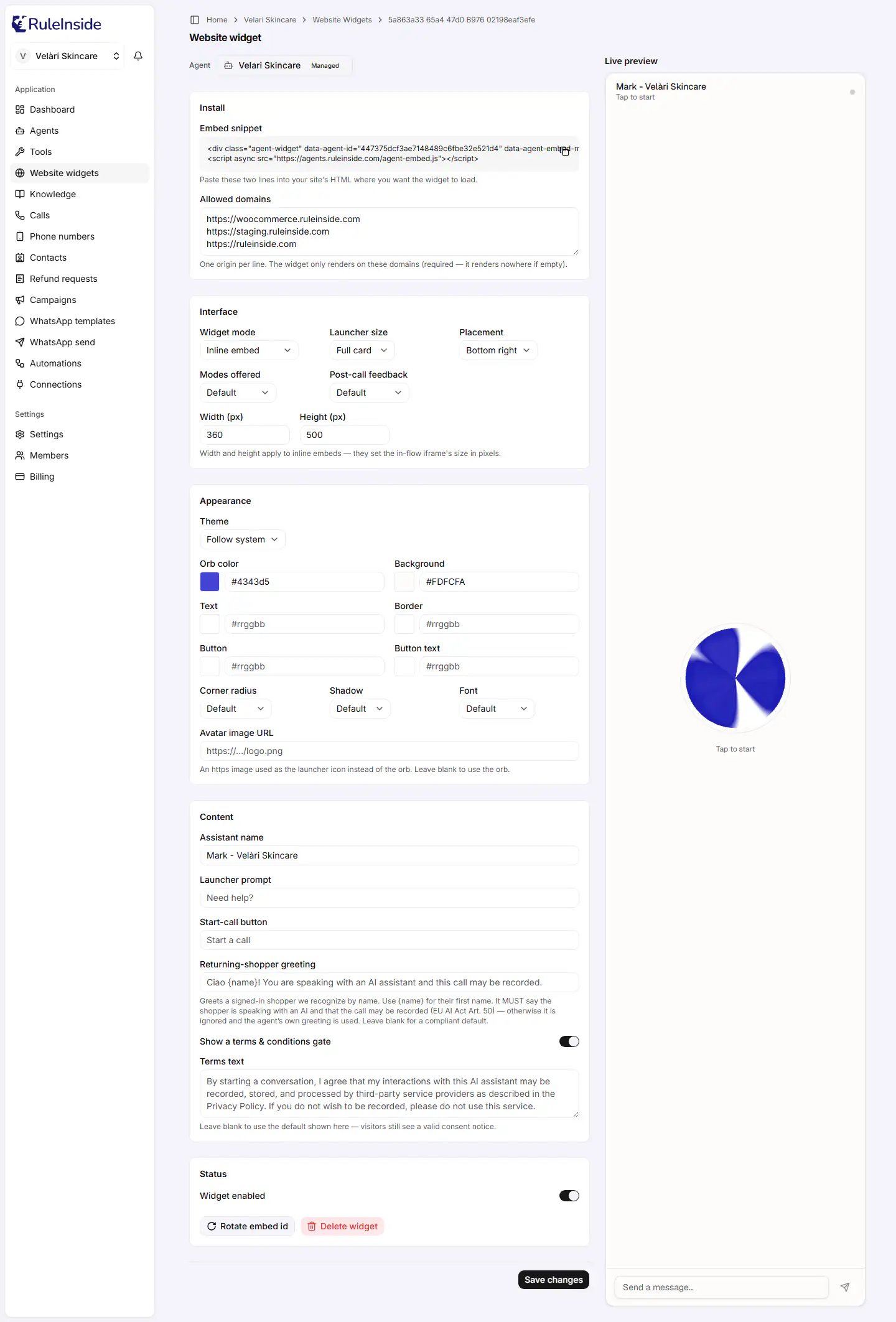 * It is a real conversation with your agent. Your browser asks for the microphone, and messages you type are really
sent.
* Like a conversation on your website, it needs the widget switched on, your account active and on a paid plan, and
it counts towards your daily conversation limit.
* **Width (px)** and **Height (px)** are not shown in the preview.
* The preview shows your changes before you save, but your website does not change until you click **Save changes**.
### On a copy of your site
If you have a staging copy of your store, we recommend trying the widget there before your live site:
1. Add the staging site's address, starting with `https://`, on its own line in **Allowed domains**, and click
**Save changes**. The widget only appears on the addresses listed there. (`http://` is accepted only for
`localhost` addresses on your own computer.)
2. Paste the snippet into the staging site or, on WordPress with the RuleInside plugin, paste the **embed id** into
the plugin's **Widget ID** field (WordPress admin, menu **RuleInside**).
3. Open the staging site as a shopper would and start a conversation.
The same snippet works on every address in **Allowed domains**. See [Website assistant](/website-assistant) and
[WordPress plugin](/plugin).
### As a signed-in customer and as a guest
Your assistant gives order details to a customer logged in to your store, about their own orders. Someone not
logged in gets an order's details only by giving its order number together with the billing email and postcode on
that order; otherwise, general help. Try both:
* **Signed in:** log in to your store as a customer who has an order (a test account of your own is ideal) and ask
about that order. In a voice conversation, a signed-in shopper your store recognises is greeted with the
**Returning-shopper greeting**, as long as it mentions both AI and recording.
* **As a guest:** log out, ask the same question without giving the billing email and postcode, and check that no
order details are given.
Order look-up needs your store connected under [Connections](/connections).
## Call your own phone number
Open **Phone numbers**. The number's **Inbound agent** must show an agent: a dash means no agent answers calls to
it. Press **Assign** to choose one.
Listen to the greeting from start to end.
We suggest you interrupt the agent, say "ok" while it talks, spell an order number or an email address, stay
silent for a while, and, if transfers are set up, ask to speak to a person.
Open **Calls**, choose the agent in the **Agent** bar, and look for a **Phone inbound** call from your number.
Its summary and outcome appear a short time after the call ends: refresh if they are missing.
What you hear on a call is shaped by [Turn taking](/agent-settings#turn-taking), **Call limits** and **Conversation
behaviour** in [Agent settings](/agent-settings).
## Place a campaign test call
A campaign can call your own phones before it calls anyone else. Test calls are for phone campaigns only.
Click **New campaign**, choose **Phone call**, and fill in the campaign as you mean to run it. Creating it only
saves a draft: nobody is called.
In **Test numbers (optional)**, type your own numbers, one per line, in international format such as
`+15551234567`. Up to 20.
Open the campaign and click **Send test call**, then **Place test call**. The campaign stays a draft.
A test call is a real, billable call, and it counts towards your daily call limit. It **skips the consent check**,
because a test number is not one of your contacts. Never put a customer's number in **Test numbers**.
A test call is still checked against your store's calling consent confirmation, your do-not-call list and opt-outs,
the campaign's calling hours and days, and your daily call limit. You then see "Test call placed to \{count}
number(s)." or "No test call was placed." with the reason. A common one: you are testing outside the campaign's
calling hours. See [Send test call](/campaign-results#send-test-call).
## Send yourself a WhatsApp message
WhatsApp campaigns have no test call. To test a template, send it to your own number from **WhatsApp send**. Before
you start, check that:
* your WhatsApp number is connected on **Phone numbers** (for a number our team connected for you, with
**Messaging enabled** on and an agent assigned);
* the template is registered under [WhatsApp templates](/whatsapp-templates) with **Kind** set to **Message** and
**Enabled** on;
* **you** are a saved contact, with your number in international format starting with `+`, and WhatsApp consent is
recorded on your contact with **Consent** (see [Contacts](/contacts#recording-consent-for-one-contact));
* an owner has confirmed **Settings › Calling consent**.
On **WhatsApp send**, type your number in **To (phone number)**, choose the **Template**, and fill in any
**Template variables**.
Click **Send message**, then **Send now** in the confirmation.
Look at your row in **Recent sends**. **Status** shows where the message is; **Delivery** shows what WhatsApp
reported, for a number connected through Meta.
* A **Marketing** template is sent only inside the calling hours where you are. Outside them it waits as **Queued**.
* A number that is not a saved contact is refused, and the send log shows **Suppressed** with `opt_out`.
* If you reply **STOP** from your test phone, you opt yourself out of WhatsApp messages and calls from your store.
Reply **START** to opt back in to WhatsApp messages (calls stay stopped).
See [Sending a WhatsApp message](/whatsapp-send).
## Pre-launch checklist
Work through this list before real customers can reach your agent.
| Check | Where to look |
| - | - |
| The greeting says the caller is talking to an AI assistant and that the call may be recorded. The portal does not stop you saving a greeting without them. | **Agents**, **First message** and **Recording notice**. On the website, also the **Returning-shopper greeting**. |
| The instructions sound natural read aloud: no lists, links or symbols the agent would read out awkwardly. | **System prompt** in the agent editor. See [Writing instructions](/writing-instructions). |
| The agent answers your five most common customer questions correctly from your knowledge. | **Preview**, then [Knowledge](/knowledge). |
| Order look-up works for a signed-in customer, and gives a guest no order details without the order number, billing email and postcode. | Your website, signed in and signed out. |
| Every transfer number is answered by a person. We suggest calling each one yourself. | **Transfer to a person** in the agent editor. |
| Calling consent shows **Confirmed**. Until it does, no calls or WhatsApp messages are sent. | **Settings › Calling consent**. |
| Calling hours and days are right, and **Timezone for customers we cannot place** is set the way you want. | **Settings › Calling consent**, **Calling hours and days**. |
| The contacts you plan to call show **Calls: callable**. | [Contacts](/contacts). |
| A test call was placed and you listened to it. | Your own number, or **Send test call**. |
| The test shows on the **Calls** page, with a summary. | [Calls](/conversations), with the right agent selected. |
## Reading a test conversation
Open **Calls**, choose the agent, and click the date of your test call. The call's page shows, from top to bottom:
* **Recording**: listen to the greeting and the agent's voice as a customer heard them.
* **Details**: the channel, the duration and the **Result** (**Success** or **Failure**).
* **Summary** and **Data collected**: what the agent understood and captured, for example a lead's email.
* **Evaluation**: each check your agent runs, with its result and explanation, when your agent has any.
* **Transcript**: the whole conversation, message by message.
In the transcript, look for:
* **Slow answers.** The figure after an agent message's time, such as "· 1.41s", is how long the agent took to
respond. If answers feel slow, see [Turn taking](/agent-settings#turn-taking).
* **Interruptions.** **interrupted** marks a message that was cut off. If the agent stops when the caller says
"ok", add those words to **Words that do not interrupt**.
* **Actions.** Rows with a wrench icon are actions the agent took, such as looking up an order, with "ok" or "error".
Open one to see **Request** and **Response**.
* **Knowledge look-ups.** A row with a book icon shows the agent checked your knowledge. If it never checks a
document you expected, see [How the agent uses a document](/knowledge#how-the-agent-uses-a-document).
See [Calls](/conversations) for every card and notice.
## A suggested way to roll out
You do not have to switch everything on at once. A careful order, which we recommend:
1. **Website first.** Try the widget on a staging copy, then add your live address to **Allowed domains**. To stop
it at any time, switch **Widget enabled** off and click **Save changes**: your snippet does not need to change.
2. **Your phone line.** Assign the **Inbound agent** and read the **Calls** page every day for the first week.
3. **A small campaign.** Upload a short list of people who agreed to be called, launch, and read the launch result
and every call before you reach a larger group. An uploaded list holds at most 1,000 rows, and a campaign
reaches at most 5,000 contacts.
4. **Automations last.** Use **Preview** on a rule to see who it would reach (it never places a call), and keep one
rule switched on at a time.
5. **WhatsApp.** Send a template to yourself, then to a small group.
## Common questions
Preview uses the saved settings. Click **Save changes**, then start a new Preview.
Only account owners see it. Ask an owner of your team.
Preview treats you as a guest, so it finds an order only when you give its order number together with the
billing email and postcode on that order. To test a signed-in customer, use your website while signed in to your
store as a customer.
No. It is a real call, billed like any other, and it counts towards your daily call limit.
Read the reason in the result. The most common: your store's calling consent is not confirmed, you are outside
the campaign's calling hours, a test number is not in international format, or the daily limit is reached.
No. Test calls are for phone campaigns only. Send the template to your own number from **WhatsApp send**.
Yes. It is a real conversation and counts towards your daily conversation limit.
No. A test call skips the consent check, so only use your own phones.
## Next steps
Find a problem by what you see, and how to fix it.
Every card on a call's page, explained.
Change what you heard in your tests.
Launch, pause and read your first campaign.
This documentation is built and hosted on [Mintlify](https://mintlify.com), a developer documentation platform.
* It is a real conversation with your agent. Your browser asks for the microphone, and messages you type are really
sent.
* Like a conversation on your website, it needs the widget switched on, your account active and on a paid plan, and
it counts towards your daily conversation limit.
* **Width (px)** and **Height (px)** are not shown in the preview.
* The preview shows your changes before you save, but your website does not change until you click **Save changes**.
### On a copy of your site
If you have a staging copy of your store, we recommend trying the widget there before your live site:
1. Add the staging site's address, starting with `https://`, on its own line in **Allowed domains**, and click
**Save changes**. The widget only appears on the addresses listed there. (`http://` is accepted only for
`localhost` addresses on your own computer.)
2. Paste the snippet into the staging site or, on WordPress with the RuleInside plugin, paste the **embed id** into
the plugin's **Widget ID** field (WordPress admin, menu **RuleInside**).
3. Open the staging site as a shopper would and start a conversation.
The same snippet works on every address in **Allowed domains**. See [Website assistant](/website-assistant) and
[WordPress plugin](/plugin).
### As a signed-in customer and as a guest
Your assistant gives order details to a customer logged in to your store, about their own orders. Someone not
logged in gets an order's details only by giving its order number together with the billing email and postcode on
that order; otherwise, general help. Try both:
* **Signed in:** log in to your store as a customer who has an order (a test account of your own is ideal) and ask
about that order. In a voice conversation, a signed-in shopper your store recognises is greeted with the
**Returning-shopper greeting**, as long as it mentions both AI and recording.
* **As a guest:** log out, ask the same question without giving the billing email and postcode, and check that no
order details are given.
Order look-up needs your store connected under [Connections](/connections).
## Call your own phone number
Open **Phone numbers**. The number's **Inbound agent** must show an agent: a dash means no agent answers calls to
it. Press **Assign** to choose one.
Listen to the greeting from start to end.
We suggest you interrupt the agent, say "ok" while it talks, spell an order number or an email address, stay
silent for a while, and, if transfers are set up, ask to speak to a person.
Open **Calls**, choose the agent in the **Agent** bar, and look for a **Phone inbound** call from your number.
Its summary and outcome appear a short time after the call ends: refresh if they are missing.
What you hear on a call is shaped by [Turn taking](/agent-settings#turn-taking), **Call limits** and **Conversation
behaviour** in [Agent settings](/agent-settings).
## Place a campaign test call
A campaign can call your own phones before it calls anyone else. Test calls are for phone campaigns only.
Click **New campaign**, choose **Phone call**, and fill in the campaign as you mean to run it. Creating it only
saves a draft: nobody is called.
In **Test numbers (optional)**, type your own numbers, one per line, in international format such as
`+15551234567`. Up to 20.
Open the campaign and click **Send test call**, then **Place test call**. The campaign stays a draft.
A test call is a real, billable call, and it counts towards your daily call limit. It **skips the consent check**,
because a test number is not one of your contacts. Never put a customer's number in **Test numbers**.
A test call is still checked against your store's calling consent confirmation, your do-not-call list and opt-outs,
the campaign's calling hours and days, and your daily call limit. You then see "Test call placed to \{count}
number(s)." or "No test call was placed." with the reason. A common one: you are testing outside the campaign's
calling hours. See [Send test call](/campaign-results#send-test-call).
## Send yourself a WhatsApp message
WhatsApp campaigns have no test call. To test a template, send it to your own number from **WhatsApp send**. Before
you start, check that:
* your WhatsApp number is connected on **Phone numbers** (for a number our team connected for you, with
**Messaging enabled** on and an agent assigned);
* the template is registered under [WhatsApp templates](/whatsapp-templates) with **Kind** set to **Message** and
**Enabled** on;
* **you** are a saved contact, with your number in international format starting with `+`, and WhatsApp consent is
recorded on your contact with **Consent** (see [Contacts](/contacts#recording-consent-for-one-contact));
* an owner has confirmed **Settings › Calling consent**.
On **WhatsApp send**, type your number in **To (phone number)**, choose the **Template**, and fill in any
**Template variables**.
Click **Send message**, then **Send now** in the confirmation.
Look at your row in **Recent sends**. **Status** shows where the message is; **Delivery** shows what WhatsApp
reported, for a number connected through Meta.
* A **Marketing** template is sent only inside the calling hours where you are. Outside them it waits as **Queued**.
* A number that is not a saved contact is refused, and the send log shows **Suppressed** with `opt_out`.
* If you reply **STOP** from your test phone, you opt yourself out of WhatsApp messages and calls from your store.
Reply **START** to opt back in to WhatsApp messages (calls stay stopped).
See [Sending a WhatsApp message](/whatsapp-send).
## Pre-launch checklist
Work through this list before real customers can reach your agent.
| Check | Where to look |
| - | - |
| The greeting says the caller is talking to an AI assistant and that the call may be recorded. The portal does not stop you saving a greeting without them. | **Agents**, **First message** and **Recording notice**. On the website, also the **Returning-shopper greeting**. |
| The instructions sound natural read aloud: no lists, links or symbols the agent would read out awkwardly. | **System prompt** in the agent editor. See [Writing instructions](/writing-instructions). |
| The agent answers your five most common customer questions correctly from your knowledge. | **Preview**, then [Knowledge](/knowledge). |
| Order look-up works for a signed-in customer, and gives a guest no order details without the order number, billing email and postcode. | Your website, signed in and signed out. |
| Every transfer number is answered by a person. We suggest calling each one yourself. | **Transfer to a person** in the agent editor. |
| Calling consent shows **Confirmed**. Until it does, no calls or WhatsApp messages are sent. | **Settings › Calling consent**. |
| Calling hours and days are right, and **Timezone for customers we cannot place** is set the way you want. | **Settings › Calling consent**, **Calling hours and days**. |
| The contacts you plan to call show **Calls: callable**. | [Contacts](/contacts). |
| A test call was placed and you listened to it. | Your own number, or **Send test call**. |
| The test shows on the **Calls** page, with a summary. | [Calls](/conversations), with the right agent selected. |
## Reading a test conversation
Open **Calls**, choose the agent, and click the date of your test call. The call's page shows, from top to bottom:
* **Recording**: listen to the greeting and the agent's voice as a customer heard them.
* **Details**: the channel, the duration and the **Result** (**Success** or **Failure**).
* **Summary** and **Data collected**: what the agent understood and captured, for example a lead's email.
* **Evaluation**: each check your agent runs, with its result and explanation, when your agent has any.
* **Transcript**: the whole conversation, message by message.
In the transcript, look for:
* **Slow answers.** The figure after an agent message's time, such as "· 1.41s", is how long the agent took to
respond. If answers feel slow, see [Turn taking](/agent-settings#turn-taking).
* **Interruptions.** **interrupted** marks a message that was cut off. If the agent stops when the caller says
"ok", add those words to **Words that do not interrupt**.
* **Actions.** Rows with a wrench icon are actions the agent took, such as looking up an order, with "ok" or "error".
Open one to see **Request** and **Response**.
* **Knowledge look-ups.** A row with a book icon shows the agent checked your knowledge. If it never checks a
document you expected, see [How the agent uses a document](/knowledge#how-the-agent-uses-a-document).
See [Calls](/conversations) for every card and notice.
## A suggested way to roll out
You do not have to switch everything on at once. A careful order, which we recommend:
1. **Website first.** Try the widget on a staging copy, then add your live address to **Allowed domains**. To stop
it at any time, switch **Widget enabled** off and click **Save changes**: your snippet does not need to change.
2. **Your phone line.** Assign the **Inbound agent** and read the **Calls** page every day for the first week.
3. **A small campaign.** Upload a short list of people who agreed to be called, launch, and read the launch result
and every call before you reach a larger group. An uploaded list holds at most 1,000 rows, and a campaign
reaches at most 5,000 contacts.
4. **Automations last.** Use **Preview** on a rule to see who it would reach (it never places a call), and keep one
rule switched on at a time.
5. **WhatsApp.** Send a template to yourself, then to a small group.
## Common questions
Preview uses the saved settings. Click **Save changes**, then start a new Preview.
Only account owners see it. Ask an owner of your team.
Preview treats you as a guest, so it finds an order only when you give its order number together with the
billing email and postcode on that order. To test a signed-in customer, use your website while signed in to your
store as a customer.
No. It is a real call, billed like any other, and it counts towards your daily call limit.
Read the reason in the result. The most common: your store's calling consent is not confirmed, you are outside
the campaign's calling hours, a test number is not in international format, or the daily limit is reached.
No. Test calls are for phone campaigns only. Send the template to your own number from **WhatsApp send**.
Yes. It is a real conversation and counts towards your daily conversation limit.
No. A test call skips the consent check, so only use your own phones.
## Next steps
Find a problem by what you see, and how to fix it.
Every card on a call's page, explained.
Change what you heard in your tests.
Launch, pause and read your first campaign.
This documentation is built and hosted on [Mintlify](https://mintlify.com), a developer documentation platform.