> ## Documentation Index
> Fetch the complete documentation index at: https://docs.ruleinside.com/llms.txt
> Use this file to discover all available pages before exploring further.
# Tools
> What your agent can do during a conversation, how to add your own tools, and the built-in system tools.
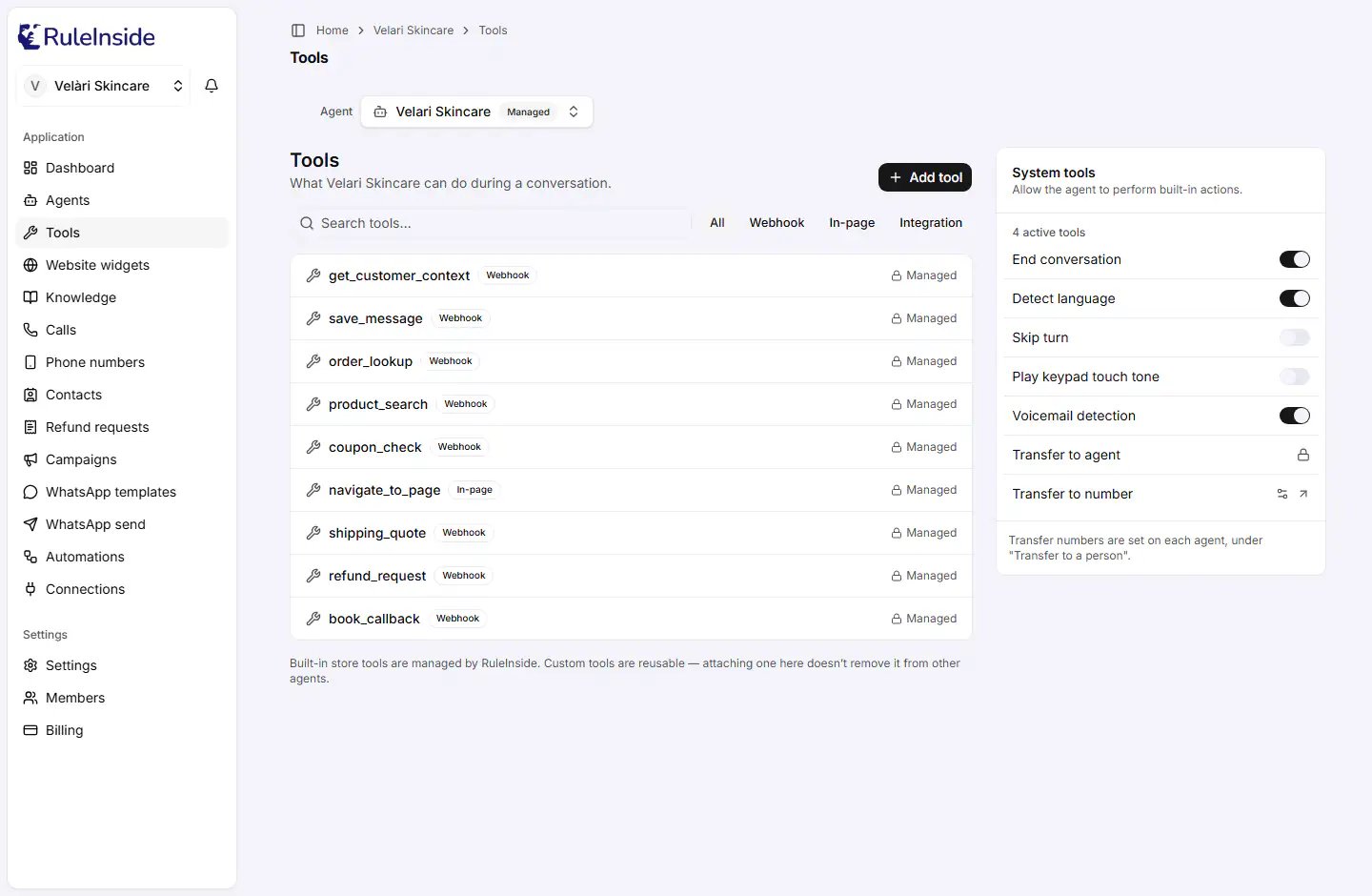
Open **Tools** to see what the agent chosen in the **Agent** selector can do during a conversation: RuleInside's
store tools, your own custom tools and the built-in system tools. Everything on this page applies to that agent; to
work on another agent, choose it in the selector.
 ## Who can change tools
Any member can see this page. To change anything you need **both**:
* to be an **owner** of the account, and
* the active agent to be at **Full control** (see [Edit levels](/agent-settings#edit-levels)). Agents you create
are always at Full control; your main agent often is not.
Otherwise the page is read-only: there is no **Add tool** button, no **Attach**, **Remove**, edit or delete
buttons, and the switches are greyed out. Transfer numbers follow a different rule, described under
[Transfer rows](#transfer-rows).
## The tools list
The page title reads "What … can do during a conversation." with your agent's name. Above the list:
* **Add tool** (only when you can change tools).
* A search box, **Search tools…**, which matches names and descriptions.
* Filters: **All**, **Webhook**, **In-page**, **Integration**. They also apply to RuleInside's tools.
The search and filters appear once there is at least one tool. The list shows, in order:
1. **RuleInside's store tools** on the agent (such as product search, order look-up and coupon check), each with a
padlock and **Managed**. You cannot change or remove them, and they always stay on the agent.
2. **Your custom tools attached to this agent**, with their name, type, description and URL (for Webhook and
Integration tools), and the buttons **Remove**, edit (pencil) and delete (trash).
3. **Available to attach** (only when you can change tools): your custom tools that are not on this agent, each
with **Attach**, edit and delete.
The footer reads: "Built-in store tools are managed by RuleInside. Custom tools are reusable, attaching one here
doesn't remove it from other agents."
Each tool shows a type badge: **Webhook**, **In-page**, **Integration**, **Built-in** or **Tool**. The same Webhook
tools are labelled **Store** in the agent editor's Tools card.
## Buttons on a custom tool
| Button | What happens | Can it be undone? |
| - | - | - |
| **Attach** | Adds the tool to this agent. Saves straight away, with no Save button. | Yes, with **Remove**. |
| **Remove** | Takes the tool off this agent only. The tool itself is kept and stays on your other agents. Saves straight away. | Yes, with **Attach**. |
| Pencil (**Edit**) | Opens the tool's settings in the **Edit tool** dialog. Not offered for Integration tools. | Edits change the tool on **every** agent it is attached to. |
| Trash (**Delete**) | Deletes the tool for good, from every agent. | **No.** |
Deleting a tool asks you to confirm ("Delete this tool?") and cannot be undone. To use the tool
again you must create it again, including any secret value.
Messages you may see:
* Attach or Remove failed: "Could not update tools." (or the reason), and the page reloads.
* On your main agent below Full control: "This agent is managed, custom tools can only be attached to your own
agents."
* Delete: "Tool deleted." or "Could not delete the tool."
* Edit could not open: "Could not load the tool."
## Adding or editing a tool
## Who can change tools
Any member can see this page. To change anything you need **both**:
* to be an **owner** of the account, and
* the active agent to be at **Full control** (see [Edit levels](/agent-settings#edit-levels)). Agents you create
are always at Full control; your main agent often is not.
Otherwise the page is read-only: there is no **Add tool** button, no **Attach**, **Remove**, edit or delete
buttons, and the switches are greyed out. Transfer numbers follow a different rule, described under
[Transfer rows](#transfer-rows).
## The tools list
The page title reads "What … can do during a conversation." with your agent's name. Above the list:
* **Add tool** (only when you can change tools).
* A search box, **Search tools…**, which matches names and descriptions.
* Filters: **All**, **Webhook**, **In-page**, **Integration**. They also apply to RuleInside's tools.
The search and filters appear once there is at least one tool. The list shows, in order:
1. **RuleInside's store tools** on the agent (such as product search, order look-up and coupon check), each with a
padlock and **Managed**. You cannot change or remove them, and they always stay on the agent.
2. **Your custom tools attached to this agent**, with their name, type, description and URL (for Webhook and
Integration tools), and the buttons **Remove**, edit (pencil) and delete (trash).
3. **Available to attach** (only when you can change tools): your custom tools that are not on this agent, each
with **Attach**, edit and delete.
The footer reads: "Built-in store tools are managed by RuleInside. Custom tools are reusable, attaching one here
doesn't remove it from other agents."
Each tool shows a type badge: **Webhook**, **In-page**, **Integration**, **Built-in** or **Tool**. The same Webhook
tools are labelled **Store** in the agent editor's Tools card.
## Buttons on a custom tool
| Button | What happens | Can it be undone? |
| - | - | - |
| **Attach** | Adds the tool to this agent. Saves straight away, with no Save button. | Yes, with **Remove**. |
| **Remove** | Takes the tool off this agent only. The tool itself is kept and stays on your other agents. Saves straight away. | Yes, with **Attach**. |
| Pencil (**Edit**) | Opens the tool's settings in the **Edit tool** dialog. Not offered for Integration tools. | Edits change the tool on **every** agent it is attached to. |
| Trash (**Delete**) | Deletes the tool for good, from every agent. | **No.** |
Deleting a tool asks you to confirm ("Delete this tool?") and cannot be undone. To use the tool
again you must create it again, including any secret value.
Messages you may see:
* Attach or Remove failed: "Could not update tools." (or the reason), and the page reloads.
* On your main agent below Full control: "This agent is managed, custom tools can only be attached to your own
agents."
* Delete: "Tool deleted." or "Could not delete the tool."
* Edit could not open: "Could not load the tool."
## Adding or editing a tool
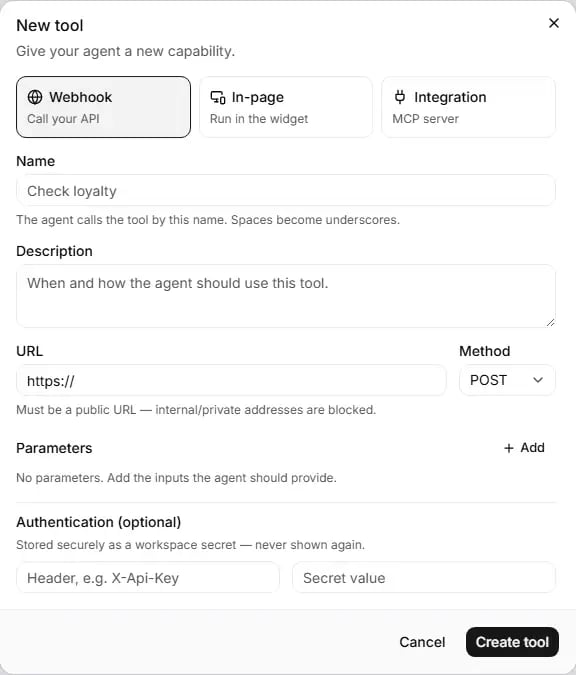 Click **Add tool** to open **New tool** ("Give your agent a new capability."), or the pencil on a tool to open
**Edit tool** ("Change this tool. The type can't be changed."). Choose a type:
* **Webhook** ("Call your API"): the agent calls an address on your server.
* **In-page** ("Run in the widget"): the tool runs inside your website assistant.
* **Integration** ("MCP server"): connects an MCP server.
In **Edit tool** the type is locked.
### Fields for every type
| Field | What it does | Values and limits |
| - | - | - |
| **Name** | The name the agent uses to call the tool (placeholder "Check loyalty"). "The agent calls the tool by this name. Spaces become underscores." | Converted as you type: lower case, any character other than a letter or number becomes an underscore, must start with a letter, up to 64 characters. When the result differs from what you typed, the hint shows "Saved as:" and the converted name. At least 2 letters or numbers. |
| **Description** | "When and how the agent should use this tool." The agent reads this to decide when to use the tool. | Up to 1,000 characters |
A name reserved by RuleInside is refused. A tool may not refer to RuleInside's reserved identity or system
variables (such as names starting with `system__`) in its name, description, URL, header or parameters; the
message says "Tools may not reference reserved identity or system variables".
### Webhook fields
| Field | What it does | Values and limits | Default |
| - | - | - | - |
| **URL** | The address the agent calls (placeholder "[https://api.yourstore.com/endpoint](https://api.yourstore.com/endpoint)") | "Must be a public URL, internal/private addresses are blocked." Must start with `https://`, use a public domain name (not an IP address or `localhost`), and contain no user name or password. | `https://` |
| **Method** | How the address is called | GET, POST, PUT, PATCH, DELETE. With GET the parameters go in the address; otherwise in the request body. | POST |
| **Parameters** | The inputs the agent sends | See below | None |
| **Authentication (optional)** | A header sent with every call. "Stored securely as a workspace secret, never shown again." | Header name (placeholder "Header, e.g. X-Api-Key": letters, numbers and hyphens, up to 64) and value (placeholder "Secret value"). Both are needed, otherwise no header is sent. | None |
**Parameters.** Click **+ Add** to add a row ("No parameters. Add the inputs the agent should provide." while
there are none). Each row has:
* a name box (placeholder "param\_name"), converted like the tool name;
* a type: string, number, integer or boolean;
* **from variable (optional)**: when filled, the value comes from that conversation variable instead of from the
agent, and **req** is greyed out. RuleInside's reserved variable names are refused;
* **req**: the agent must supply this value;
* a trash button to remove the row.
Parameters have no description box: the parameter's name is used as its description. Give each parameter a clear
name, such as `order_number` or `customer_email`.
**Authentication when editing.** If the tool already has a value, the box reads "Leave blank to keep current key".
Leave it blank to keep the stored value, or type a new one to replace it. You cannot read the stored value back,
and you cannot remove authentication from an existing tool in the portal: to drop it, delete the tool and create it
again without it.
### In-page fields
**Parameters**, as above. "In-page tools run inside the embedded widget and need a matching handler on your site
to do anything. This is an advanced option."
### Integration fields
| Field | What it does | Values | Default |
| - | - | - | - |
| **Server URL** | The MCP server's address (placeholder "[https://mcp.yourservice.com](https://mcp.yourservice.com)") | Same rules as the Webhook URL | `https://` |
| **Transport** | The connection type the server uses | **Streamable HTTP** or SSE | Streamable HTTP |
| **Secret token (optional)** | A token sent to the server (placeholder "Bearer token") | Text | Empty |
"Every tool call requires approval by default. MCP integrations may require an upgraded plan."
Integration tools must be switched on for your account by RuleInside; they are off unless we have enabled them.
An Integration tool cannot be edited after it is created: delete it and create it again.
### Saving the dialog
Click **Create tool** ("Creating…") or, when editing, **Save changes** ("Saving…"). **Cancel** closes the dialog
without saving.
* A new tool is created and attached to the active agent in one step: "Tool created and attached." If the tool is
created but cannot be attached, it appears under **Available to attach**; click **Attach** there.
* An edit shows "Tool updated." and changes the tool on every agent it is attached to.
* Failures show the reason, or "Could not create the tool." / "Could not update the tool."
## System tools
The **System tools** panel on the right reads "Allow the agent to perform built-in actions." and shows how many
are active, including the transfer tools when they are on.
Five switches: **End conversation**, **Detect language**, **Skip turn**, **Play keypad touch tone** and
**Voicemail detection**.
* Each switch saves as soon as you click it: "Updated." or "Could not update." (the page then reloads).
* Only an owner can use them, and only on an agent at **Full control**. Otherwise they are greyed out with "This
agent is managed, its system tools are configured by RuleInside." or "Only account owners can change these, ask
an owner of your team."
* **Voicemail detection** also decides what **When a call reaches voicemail** shows under
[Call limits](/agent-settings#call-limits).
### Transfer rows
* **Transfer to agent**: always locked. Only RuleInside sets it up.
* **Transfer to number**: shows a settings icon when the agent has transfer numbers. When the agent editor shows
the **Transfer to a person** card, the row links to it, with an arrow if you can change transfers there (an owner,
with the agent at **Instructions** or above) or a padlock if you cannot. "Transfer numbers are set on each agent,
under "Transfer to a person"." See [Transfer to a person](/agent-settings#transfer-to-a-person).
## What you might see
| Message | What it means |
| - | - |
| "Tool builder isn't enabled on your plan. Contact RuleInside if you'd like this feature enabled for your account." | Tools are not switched on for your account. Contact RuleInside. |
| "This workspace is not linked to a store yet." | Your workspace is not connected to your store yet. |
| "Couldn't load your tools. Refresh to try again." | The page failed to load. Refresh it. |
| "No tools yet" | The agent has no tools. Owners see "Add a tool to let this agent call your API."; otherwise "This agent has no tools attached." |
| "No matching tools on this agent." | Nothing matches your search or filter. |
| "No tools on this agent yet." | You have custom tools, but none is attached to this agent. |
Row buttons are greyed out while an attach, delete or load is running.
## Common questions
Either the active agent is not at **Full control** or you are not an owner. Your main agent is often below Full
control; agents you create are always at Full control.
No. RuleInside's store tools are marked **Managed** and always stay on the agent.
There is no undo. Create the tool again, including any authentication value, and attach it to each agent that
used it.
It must start with `https://`, use a public domain name (not an IP address or `localhost`), and contain no user
name or password.
Yes. Choose the other agent in the selector and click **Attach** on the tool. Editing the tool later changes it
on every agent.
**Remove** takes the tool off this agent only and keeps it for your other agents. Delete (the trash button)
erases it from every agent, straight away and for good.
Nowhere. Secret values are never shown again. To change it, edit the tool and type a new value.
In the agent editor, under **Transfer to a person**. The **Transfer to number** row on this page links there.
No. Delete it and create it again.
If you see "Could not update.", the change was not saved and the page reloaded with the current value. Check
that you are an owner and that the agent is at **Full control**.
This documentation is built and hosted on [Mintlify](https://mintlify.com), a developer documentation platform.
Click **Add tool** to open **New tool** ("Give your agent a new capability."), or the pencil on a tool to open
**Edit tool** ("Change this tool. The type can't be changed."). Choose a type:
* **Webhook** ("Call your API"): the agent calls an address on your server.
* **In-page** ("Run in the widget"): the tool runs inside your website assistant.
* **Integration** ("MCP server"): connects an MCP server.
In **Edit tool** the type is locked.
### Fields for every type
| Field | What it does | Values and limits |
| - | - | - |
| **Name** | The name the agent uses to call the tool (placeholder "Check loyalty"). "The agent calls the tool by this name. Spaces become underscores." | Converted as you type: lower case, any character other than a letter or number becomes an underscore, must start with a letter, up to 64 characters. When the result differs from what you typed, the hint shows "Saved as:" and the converted name. At least 2 letters or numbers. |
| **Description** | "When and how the agent should use this tool." The agent reads this to decide when to use the tool. | Up to 1,000 characters |
A name reserved by RuleInside is refused. A tool may not refer to RuleInside's reserved identity or system
variables (such as names starting with `system__`) in its name, description, URL, header or parameters; the
message says "Tools may not reference reserved identity or system variables".
### Webhook fields
| Field | What it does | Values and limits | Default |
| - | - | - | - |
| **URL** | The address the agent calls (placeholder "[https://api.yourstore.com/endpoint](https://api.yourstore.com/endpoint)") | "Must be a public URL, internal/private addresses are blocked." Must start with `https://`, use a public domain name (not an IP address or `localhost`), and contain no user name or password. | `https://` |
| **Method** | How the address is called | GET, POST, PUT, PATCH, DELETE. With GET the parameters go in the address; otherwise in the request body. | POST |
| **Parameters** | The inputs the agent sends | See below | None |
| **Authentication (optional)** | A header sent with every call. "Stored securely as a workspace secret, never shown again." | Header name (placeholder "Header, e.g. X-Api-Key": letters, numbers and hyphens, up to 64) and value (placeholder "Secret value"). Both are needed, otherwise no header is sent. | None |
**Parameters.** Click **+ Add** to add a row ("No parameters. Add the inputs the agent should provide." while
there are none). Each row has:
* a name box (placeholder "param\_name"), converted like the tool name;
* a type: string, number, integer or boolean;
* **from variable (optional)**: when filled, the value comes from that conversation variable instead of from the
agent, and **req** is greyed out. RuleInside's reserved variable names are refused;
* **req**: the agent must supply this value;
* a trash button to remove the row.
Parameters have no description box: the parameter's name is used as its description. Give each parameter a clear
name, such as `order_number` or `customer_email`.
**Authentication when editing.** If the tool already has a value, the box reads "Leave blank to keep current key".
Leave it blank to keep the stored value, or type a new one to replace it. You cannot read the stored value back,
and you cannot remove authentication from an existing tool in the portal: to drop it, delete the tool and create it
again without it.
### In-page fields
**Parameters**, as above. "In-page tools run inside the embedded widget and need a matching handler on your site
to do anything. This is an advanced option."
### Integration fields
| Field | What it does | Values | Default |
| - | - | - | - |
| **Server URL** | The MCP server's address (placeholder "[https://mcp.yourservice.com](https://mcp.yourservice.com)") | Same rules as the Webhook URL | `https://` |
| **Transport** | The connection type the server uses | **Streamable HTTP** or SSE | Streamable HTTP |
| **Secret token (optional)** | A token sent to the server (placeholder "Bearer token") | Text | Empty |
"Every tool call requires approval by default. MCP integrations may require an upgraded plan."
Integration tools must be switched on for your account by RuleInside; they are off unless we have enabled them.
An Integration tool cannot be edited after it is created: delete it and create it again.
### Saving the dialog
Click **Create tool** ("Creating…") or, when editing, **Save changes** ("Saving…"). **Cancel** closes the dialog
without saving.
* A new tool is created and attached to the active agent in one step: "Tool created and attached." If the tool is
created but cannot be attached, it appears under **Available to attach**; click **Attach** there.
* An edit shows "Tool updated." and changes the tool on every agent it is attached to.
* Failures show the reason, or "Could not create the tool." / "Could not update the tool."
## System tools
The **System tools** panel on the right reads "Allow the agent to perform built-in actions." and shows how many
are active, including the transfer tools when they are on.
Five switches: **End conversation**, **Detect language**, **Skip turn**, **Play keypad touch tone** and
**Voicemail detection**.
* Each switch saves as soon as you click it: "Updated." or "Could not update." (the page then reloads).
* Only an owner can use them, and only on an agent at **Full control**. Otherwise they are greyed out with "This
agent is managed, its system tools are configured by RuleInside." or "Only account owners can change these, ask
an owner of your team."
* **Voicemail detection** also decides what **When a call reaches voicemail** shows under
[Call limits](/agent-settings#call-limits).
### Transfer rows
* **Transfer to agent**: always locked. Only RuleInside sets it up.
* **Transfer to number**: shows a settings icon when the agent has transfer numbers. When the agent editor shows
the **Transfer to a person** card, the row links to it, with an arrow if you can change transfers there (an owner,
with the agent at **Instructions** or above) or a padlock if you cannot. "Transfer numbers are set on each agent,
under "Transfer to a person"." See [Transfer to a person](/agent-settings#transfer-to-a-person).
## What you might see
| Message | What it means |
| - | - |
| "Tool builder isn't enabled on your plan. Contact RuleInside if you'd like this feature enabled for your account." | Tools are not switched on for your account. Contact RuleInside. |
| "This workspace is not linked to a store yet." | Your workspace is not connected to your store yet. |
| "Couldn't load your tools. Refresh to try again." | The page failed to load. Refresh it. |
| "No tools yet" | The agent has no tools. Owners see "Add a tool to let this agent call your API."; otherwise "This agent has no tools attached." |
| "No matching tools on this agent." | Nothing matches your search or filter. |
| "No tools on this agent yet." | You have custom tools, but none is attached to this agent. |
Row buttons are greyed out while an attach, delete or load is running.
## Common questions
Either the active agent is not at **Full control** or you are not an owner. Your main agent is often below Full
control; agents you create are always at Full control.
No. RuleInside's store tools are marked **Managed** and always stay on the agent.
There is no undo. Create the tool again, including any authentication value, and attach it to each agent that
used it.
It must start with `https://`, use a public domain name (not an IP address or `localhost`), and contain no user
name or password.
Yes. Choose the other agent in the selector and click **Attach** on the tool. Editing the tool later changes it
on every agent.
**Remove** takes the tool off this agent only and keeps it for your other agents. Delete (the trash button)
erases it from every agent, straight away and for good.
Nowhere. Secret values are never shown again. To change it, edit the tool and type a new value.
In the agent editor, under **Transfer to a person**. The **Transfer to number** row on this page links there.
No. Delete it and create it again.
If you see "Could not update.", the change was not saved and the page reloaded with the current value. Check
that you are an owner and that the agent is at **Full control**.
This documentation is built and hosted on [Mintlify](https://mintlify.com), a developer documentation platform.