> ## Documentation Index
> Fetch the complete documentation index at: https://docs.ruleinside.com/llms.txt
> Use this file to discover all available pages before exploring further.
# Webhooks
> Have RuleInside send a signed message to your own system whenever a call ends, a contact opts out or consent changes.
A webhook sends a signed HTTPS request to an address on your own system (an **endpoint**) whenever something
happens: a call ends, a contact opts out, consent changes. Your system can then update your CRM, alert your team or
start its own process.
Open **Settings**, choose the **Developer** tab, and find the **Webhooks** card. The same tab holds your
[API keys](/api-keys).
Webhooks send data **out** of RuleInside. To have your other systems send contacts and events **into** RuleInside,
use an [inbound connection](/connections#inbound-connections).
## Who can do what
* **Everyone on your team** can see the endpoints and the recent deliveries.
* **Only the owner** can add or remove an endpoint, because an endpoint decides where your customer data is sent.
If your workspace is not linked to a store yet, the card asks you to connect your store first.
## Your endpoints
Each endpoint on the list shows:
* its address;
* a grey badge with its format: `normalized` for every endpoint you add on this page (an endpoint our team set up
for you may show `raw`);
* the events it receives: one badge per event, **All events**, or, for a `raw` endpoint, every completed call;
* **Added** and the date, followed by your description if you gave one;
* **Remove** (owner only).
With no endpoints you see "No endpoints yet. Add one to start receiving events."
If you see "We could not load your endpoints", the list could not be loaded at that moment. It does not mean you have
none, and an endpoint that was already receiving events is still running. Reload in a moment.
## Add an endpoint
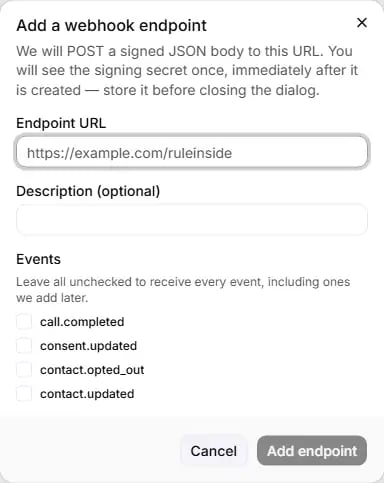
Click **Add endpoint** (owner only) and fill in:
| Field | Rules | What it does |
| - | - | - |
| **Endpoint URL** | Required. Must start with `https://`, up to 2,048 characters, with no user name or password in it. | The address we send each message to, for example `https://example.com/webhooks`. |
| **Description (optional)** | Up to 200 characters | A note for you, shown on the list. |
| **Events** | Tick boxes, all unticked by default | The events this endpoint receives. Leave all unticked to receive every event, including ones we add later. |
Click **Add endpoint** in the dialog (available once a URL is typed). It reads "Adding…" while it works.
The address is checked before it is saved:
| Message | What to do |
| - | - |
| "The URL must not contain a username or password. Use a header for a shared secret." | Remove the user name and password from the address. |
| A refusal for an address on a private or internal network | Use a public address. Addresses that point to a private or internal network are refused. |
| "We could not look up that domain right now. Check the address, then try again." | Check the address for typing mistakes, then try again. |
| "A webhook endpoint with this URL already exists. Delete it first to re-register." | Remove the existing endpoint first, then add it again. |
| "Could not add the endpoint." | Try again; contact us if it keeps happening. |
### Copy your signing secret
When the endpoint is added, the **Your signing secret** dialog shows its signing secret. Click **Copy**, store the
secret in your system, then click **Done**.
The signing secret is shown only once and cannot be retrieved later. If you close the dialog without copying it,
remove the endpoint and add it again to get a new secret.
## The events
| Event | Sent when |
| - | - |
| `call.completed` | A call or conversation ended. It includes the channel (such as the website widget, phone or WhatsApp), the duration, the outcome, the summary, the contact, and the data your agent collected. |
| `consent.updated` | Calling or WhatsApp consent was given or withdrawn for one or more numbers. |
| `contact.opted_out` | A contact asked not to be contacted. |
| `contact.updated` | A contact was created or changed, for example through an [inbound connection](/connections#inbound-connections) or the API. |
There is no event for a finished campaign at the moment.
## What each message looks like
Each message is an HTTPS `POST` with a JSON body:
| Field | What it is |
| - | - |
| `id` | The event's id. It stays the same if the event is sent again, so use it to ignore duplicates. |
| `type` | The event, for example `call.completed`. |
| `api_version` | `v1`. |
| `created_at` | When the event was created. |
| `data` | The details of the event. |
```json Body theme={null}
{
"id": "",
"type": "contact.opted_out",
"api_version": "v1",
"created_at": "
### Check the signature
Every message carries an `X-RuleInside-Signature` header with a time (`t`) and a signature (`v0`). The signature
is an HMAC-SHA256, made with your signing secret, of the time, a dot (`.`), and the exact body of the message, as
received.
To check that a message really came from RuleInside and was not changed on the way, your system:
1. reads `t` and `v0` from the header;
2. computes the HMAC-SHA256 of `t`, a dot and the raw body, using your signing secret;
3. accepts the message only if the result matches `v0`.
Compute the signature on the body exactly as it arrived, before your system parses or reformats it.
## Deliveries and retries
* A delivery succeeds when your endpoint answers with any `2xx` code within **15 seconds**. Anything else counts as
a failure.
* A failed delivery is retried, with a longer wait each time. In practice the first retries come about 15 minutes
apart, and the longest wait between two attempts is about two hours.
* After **8** attempts the delivery is marked **dead**: it is not retried any more, and you get a notification.
A dead delivery is not sent again automatically, even after you fix your endpoint.
* Delivery is "at least once": rarely, the same event arrives twice. Ignore an `id` your system has already
processed.
* Finished deliveries (delivered or dead) are removed from the list after 30 days.
## Recent deliveries
**Recent deliveries** lists the latest 50 deliveries across all your endpoints, newest first. Each row shows the
endpoint address, the time, how many attempts were made ("N of M attempts"), an error type if there was one, and
a status:
| Status | Badge | Meaning |
| - | - | - |
| `pending` | Grey | Waiting to be sent. |
| `failed` | Red | The last attempt failed. It will be retried. |
| `delivered` | Dark | Your endpoint accepted it. |
| `dead` | Red | All attempts are used up. It will not be retried. |
The error type tells you why an attempt failed. Your endpoint's own reply is not shown, only the type:
| Error type | What your endpoint did |
| - | - |
| `auth_rejected` | Answered `401` or `403`: your system refused the request. |
| `not_found` | Answered `404`: the address does not exist. |
| `rate_limited` | Answered `408` or `429`: too busy or timed out. |
| `server_error` | Answered with a `5xx` code: an error on your server. |
| `client_error` | Answered with another `4xx` code. |
| `unreachable` | Did not answer, took too long, or the address was refused. |
With no deliveries you see "No deliveries yet." If you see "We could not load recent deliveries", the list could
not be loaded at that moment. It does not mean nothing was delivered.
## Remove an endpoint
Click **Remove** (owner only) and confirm with **Remove endpoint** ("Remove this endpoint?"). You see "Endpoint
removed.", or "That endpoint was already removed, or no longer exists."
Removing an endpoint cannot be undone. No new events are sent to it from that moment, and its signing secret stops
working and cannot be recovered. If you add the same address again later, it gets a **new** signing secret.
Messages that were still waiting to be sent to the endpoint when you removed it are not sent. Events that happen
after the removal are not sent to it either.
## Change the signing secret
There is no button to replace a signing secret in place. A new secret would take effect immediately, and every
event would fail your signature check until you updated your system. To change it:
Events that happen while the endpoint is removed are not sent to it.
Choose the same events, and copy the new signing secret.
Put the new secret into your system. Messages that were waiting when you removed the endpoint are not sent, so
events from that moment until you add it again do not reach your system.
## Common questions
Tick only `call.completed`. Leaving every event unticked means all events, including ones we add later.
Look at the error type. `auth_rejected` usually means your signature check or your own login is refusing us;
`unreachable` means your server was down or could not be reached. Fix the endpoint: new events then arrive as
normal, but dead deliveries are not sent again.
That can happen rarely. Each event has a stable `id`: ignore an `id` your system has already processed.
Remove the endpoint and add it again, then update your system with the new secret. See
[Change the signing secret](#change-the-signing-secret).
It cannot be shown again. Remove the endpoint, add it again and copy the new secret.
No. The address must be public and use `https://`. Addresses that point to a private or internal network are
refused.
This documentation is built and hosted on [Mintlify](https://mintlify.com), a developer documentation platform.
 Click **Add endpoint** (owner only) and fill in:
| Field | Rules | What it does |
| - | - | - |
| **Endpoint URL** | Required. Must start with `https://`, up to 2,048 characters, with no user name or password in it. | The address we send each message to, for example `https://example.com/webhooks`. |
| **Description (optional)** | Up to 200 characters | A note for you, shown on the list. |
| **Events** | Tick boxes, all unticked by default | The events this endpoint receives. Leave all unticked to receive every event, including ones we add later. |
Click **Add endpoint** in the dialog (available once a URL is typed). It reads "Adding…" while it works.
The address is checked before it is saved:
| Message | What to do |
| - | - |
| "The URL must not contain a username or password. Use a header for a shared secret." | Remove the user name and password from the address. |
| A refusal for an address on a private or internal network | Use a public address. Addresses that point to a private or internal network are refused. |
| "We could not look up that domain right now. Check the address, then try again." | Check the address for typing mistakes, then try again. |
| "A webhook endpoint with this URL already exists. Delete it first to re-register." | Remove the existing endpoint first, then add it again. |
| "Could not add the endpoint." | Try again; contact us if it keeps happening. |
### Copy your signing secret
When the endpoint is added, the **Your signing secret** dialog shows its signing secret. Click **Copy**, store the
secret in your system, then click **Done**.
Click **Add endpoint** (owner only) and fill in:
| Field | Rules | What it does |
| - | - | - |
| **Endpoint URL** | Required. Must start with `https://`, up to 2,048 characters, with no user name or password in it. | The address we send each message to, for example `https://example.com/webhooks`. |
| **Description (optional)** | Up to 200 characters | A note for you, shown on the list. |
| **Events** | Tick boxes, all unticked by default | The events this endpoint receives. Leave all unticked to receive every event, including ones we add later. |
Click **Add endpoint** in the dialog (available once a URL is typed). It reads "Adding…" while it works.
The address is checked before it is saved:
| Message | What to do |
| - | - |
| "The URL must not contain a username or password. Use a header for a shared secret." | Remove the user name and password from the address. |
| A refusal for an address on a private or internal network | Use a public address. Addresses that point to a private or internal network are refused. |
| "We could not look up that domain right now. Check the address, then try again." | Check the address for typing mistakes, then try again. |
| "A webhook endpoint with this URL already exists. Delete it first to re-register." | Remove the existing endpoint first, then add it again. |
| "Could not add the endpoint." | Try again; contact us if it keeps happening. |
### Copy your signing secret
When the endpoint is added, the **Your signing secret** dialog shows its signing secret. Click **Copy**, store the
secret in your system, then click **Done**.