> ## Documentation Index
> Fetch the complete documentation index at: https://docs.ruleinside.com/llms.txt
> Use this file to discover all available pages before exploring further.
# Website assistant
> Put your agent on your website, choose how it looks and what it says, and keep it under your control.
The website assistant (the **widget**) is a voice and chat box on your website. Shoppers talk to, or type to, one
of your agents through it. Open **Website widgets** in the sidebar to create and manage your widgets.
Each widget puts **one** agent on your website, and each agent can have only one widget.
## Who can do what
* **Everyone on your team** can open the widgets list and every widget, and read all its settings.
* **Only the owner** can create a widget, change its settings, switch it on or off, rotate its embed id or delete
it. Members see the settings greyed out, without the buttons that change something, and a note that only account
owners can add or change widgets.
See [Who can do what](/roles).
The website widget is available on paid plans, and only while your account is active.
## The widgets list
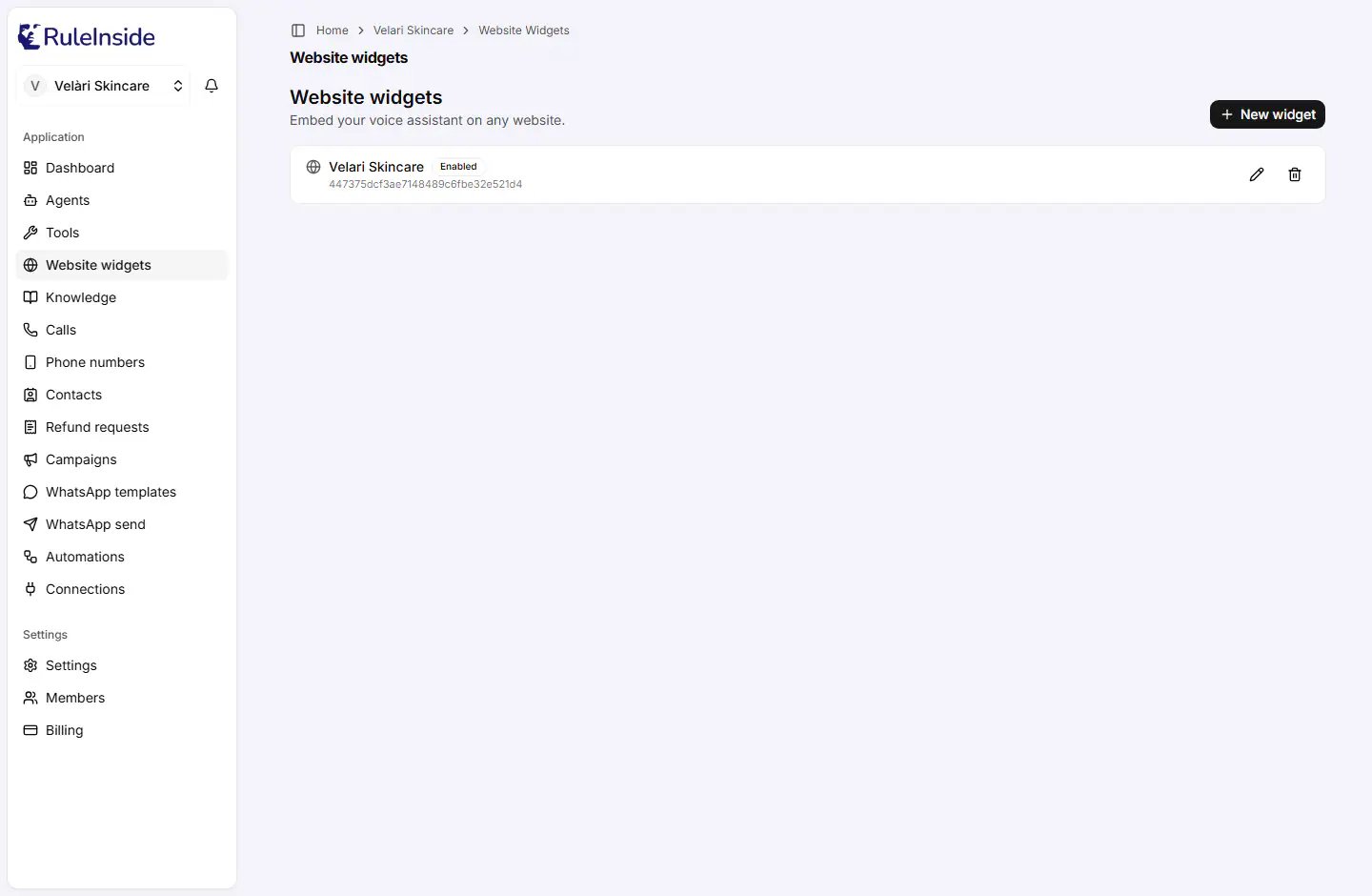 The list shows one row per widget, oldest first. Each row shows:
* the **agent's name** (if your agents could not be loaded, the row shows "Agent" instead);
* a status badge: **Enabled** (the widget is switched on) or **Disabled** (it is switched off and shows nothing on
your website until you switch it back on);
* the **embed id**, in small grey letters: the identifier inside your snippet that says which widget to load (the
WordPress plugin calls it **Widget ID**);
* a pencil icon (**Edit widget**) that opens the widget editor;
* a bin icon (**Delete widget**), for the owner only.
If the page shows "Couldn't load your widgets. Please try again.", the list could not be loaded at that moment.
Your widgets are not gone; reload the page.
## Creating a widget
The list shows one row per widget, oldest first. Each row shows:
* the **agent's name** (if your agents could not be loaded, the row shows "Agent" instead);
* a status badge: **Enabled** (the widget is switched on) or **Disabled** (it is switched off and shows nothing on
your website until you switch it back on);
* the **embed id**, in small grey letters: the identifier inside your snippet that says which widget to load (the
WordPress plugin calls it **Widget ID**);
* a pencil icon (**Edit widget**) that opens the widget editor;
* a bin icon (**Delete widget**), for the owner only.
If the page shows "Couldn't load your widgets. Please try again.", the list could not be loaded at that moment.
Your widgets are not gone; reload the page.
## Creating a widget
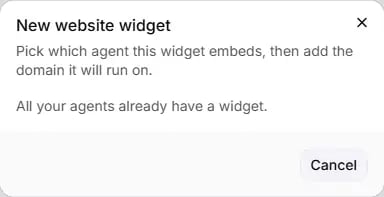 The **New website widget** dialog opens. Only the owner sees this button.
**Agent** lists only the agents that do not have a widget yet. The first one is selected by default.
**Allowed domain** is the website the widget may appear on, for example `https://shop.example.com`. It starts
filled with `https://`. You can add more domains later in the editor. If you leave it as `https://` or blank,
the widget is created with no allowed domain and appears nowhere until you add one.
The widget is created **switched on**, and its editor opens so you can copy the snippet and set it up.
Instead of the fields, the dialog may show:
* "You need an agent first." with a **Create one** link: create an agent first.
* "All your agents already have a widget.": every agent already has its widget. Create another agent if you want a
second, differently set up widget.
Messages you may see when creating a widget:
| Message | What to do |
| - | - |
| "The website widget is available on paid plans." | Move to a paid plan. |
| "A widget already exists for this agent." | Open that agent's existing widget instead. |
| "This agent is not fully provisioned yet. Try again shortly." | Wait a few minutes and try again. |
| "Could not create the widget." | Try again; contact us if it keeps happening. |
You also see a message if your account is not active, or if a domain is not accepted (see
[Allowed domains](#allowed-domains)).
## The widget editor
Click the pencil on a row to open the editor (page title **Website widget**). The settings are on the left and a
**Live preview** is on the right.
The **New website widget** dialog opens. Only the owner sees this button.
**Agent** lists only the agents that do not have a widget yet. The first one is selected by default.
**Allowed domain** is the website the widget may appear on, for example `https://shop.example.com`. It starts
filled with `https://`. You can add more domains later in the editor. If you leave it as `https://` or blank,
the widget is created with no allowed domain and appears nowhere until you add one.
The widget is created **switched on**, and its editor opens so you can copy the snippet and set it up.
Instead of the fields, the dialog may show:
* "You need an agent first." with a **Create one** link: create an agent first.
* "All your agents already have a widget.": every agent already has its widget. Create another agent if you want a
second, differently set up widget.
Messages you may see when creating a widget:
| Message | What to do |
| - | - |
| "The website widget is available on paid plans." | Move to a paid plan. |
| "A widget already exists for this agent." | Open that agent's existing widget instead. |
| "This agent is not fully provisioned yet. Try again shortly." | Wait a few minutes and try again. |
| "Could not create the widget." | Try again; contact us if it keeps happening. |
You also see a message if your account is not active, or if a domain is not accepted (see
[Allowed domains](#allowed-domains)).
## The widget editor
Click the pencil on a row to open the editor (page title **Website widget**). The settings are on the left and a
**Live preview** is on the right.
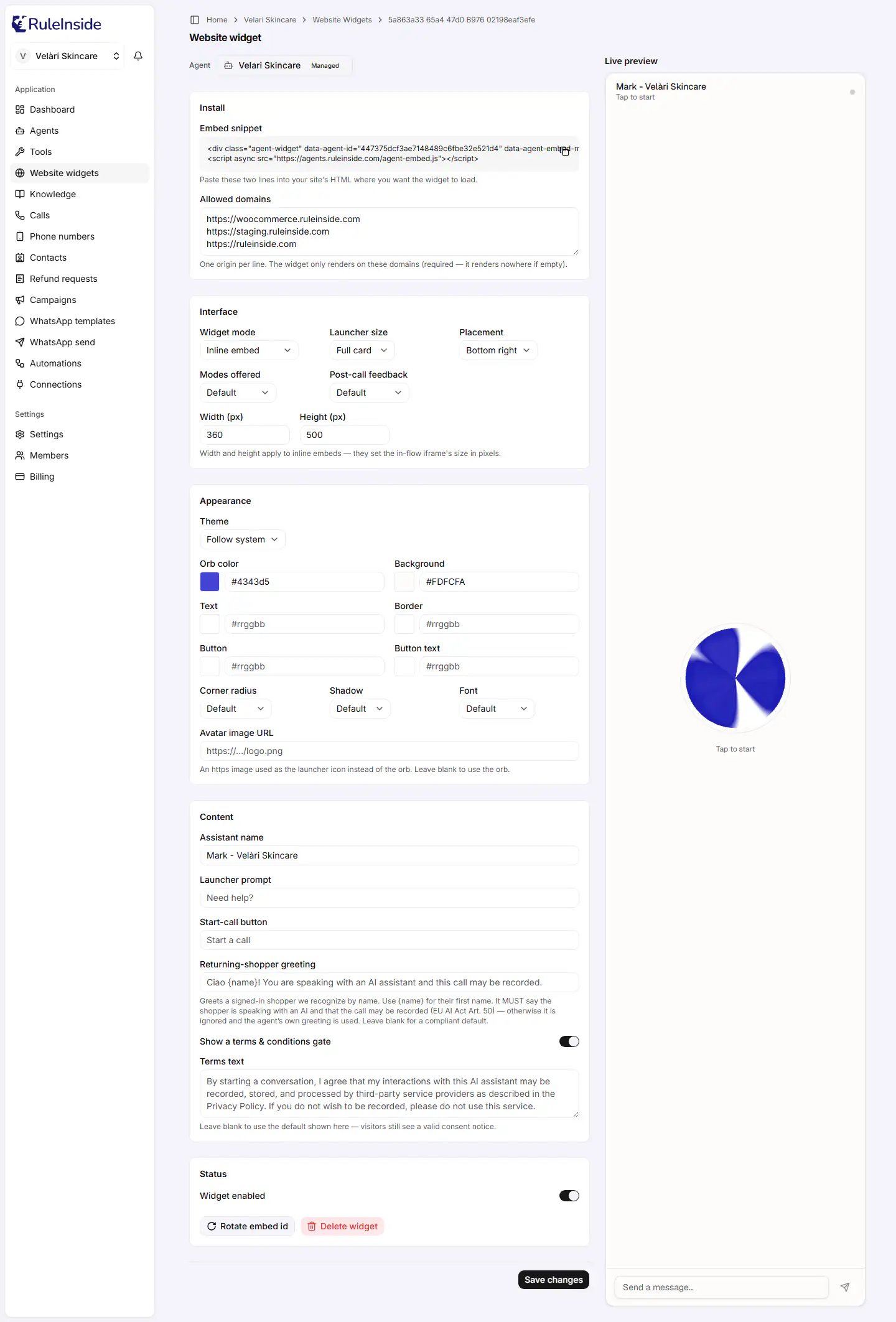 At the top, **Agent** shows which agent this widget uses, with a **Managed** badge if it is the store agent our
team built for you. You cannot change the agent of a widget: a widget belongs to one agent for good. To use another
agent, create a new widget for it and replace the snippet on your site.
### How saving works
Nothing you change in the editor takes effect until you click **Save changes** (bottom right). You then see
"Saved.", or a message that says what to fix (for example a colour or a domain). The only buttons that act
straight away are **Rotate embed id** and **Delete widget**, after you confirm them.
Every drop-down starts with **Default**, which means "use the widget's built-in value".
Clearing a setting does not reset it to the default today. Once a text, colour, image address or drop-down has been
saved with a value, emptying the field (or choosing **Default**) and saving again keeps the old value. To change it,
type or choose the value you want instead, for example the default wording shown on this page, or a specific
colour.
### Install
**Embed snippet** (read only) holds the two lines you paste into your site's HTML, where you want the widget to
load. It looks like this, with your own embed id:
```html Floating launcher theme={null}
```
```html Inline embed theme={null}
```
* **Copy snippet** is the copy icon at the top right of the box. It copies both lines, and the icon turns into a
tick for two seconds. Members can copy the snippet too; only the settings below it are greyed out for them.
* With **Widget mode** set to **Inline embed**, the first line also carries the inline mode and, if you filled
them in, the width and height. So changing **Widget mode**, **Width (px)** or **Height (px)** changes the snippet
itself: paste the new snippet onto your site after saving.
On WordPress with the RuleInside plugin, you do not paste the snippet. Paste only the **embed id** into the
plugin's **Widget ID** field (WordPress admin, menu **RuleInside**). See [WordPress plugin](/plugin).
#### Allowed domains
**Allowed domains** lists the websites the widget may appear on, one per line, for example
`https://shop.example.com`. The widget only shows on these websites. If the list is empty, it shows nowhere.
| Rule | Detail |
| - | - |
| Secure addresses only | Each line must start with `https://`. `http://` is accepted only for `localhost`, `127.0.0.1` and names ending in `.localhost`, for testing on your own computer. |
| The address of the site only | No page path, no `?` query, no `#` part, no user name or password. A trailing `/` is fine and is removed. |
| Tidied for you | Addresses are saved in lower case, and repeated lines are removed. |
| Up to 25 lines | More than 25 lines are refused, even if some of them repeat. |
Messages you may see: "Enter a full origin like [https://shop.example.com](https://shop.example.com).", a message that the address must use
https, or a message that it must not include a path, query or fragment.
The widget also refuses to open on its own in a browser tab: it only works inside a website that embeds it.
### Interface
| Setting | Options | Default | What it does |
| - | - | - | - |
| **Widget mode** | **Floating launcher**, **Inline embed** | Floating launcher | Floating: a launcher fixed in a corner of the screen. Inline: the full widget appears in your page exactly where you placed the snippet. Changes the snippet. |
| **Launcher size** | **Full card**, **Compact**, **Orb only** | Full card | The size of the floating launcher: a full card, a compact orb with a label, or just the round orb. Has no effect with Inline embed. |
| **Placement** | **Bottom right**, **Bottom left**, **Top right**, **Top left** | Bottom right | The corner the floating launcher sits in. |
| **Modes offered** | **Voice & text**, **Voice only**, **Text only** | Voice & text | Whether shoppers can talk, type, or both. |
| **Post-call feedback** | **After the call**, **Off** | After the call | Whether the widget asks the shopper for feedback when a conversation ends. |
| **Width (px)** | Whole number from 200 to 1200 | The widget's own size | Shown only with Inline embed. The width of the widget in your page. Changes the snippet. |
| **Height (px)** | Whole number from 200 to 1000 | The widget's own size | Shown only with Inline embed. The height of the widget in your page. Changes the snippet. |
Enter **Width (px)** and **Height (px)** as plain numbers, such as `600`. A value with letters, such as `600px`, is
ignored when you save. A number outside the range is refused with a message such as "Too big: expected number to
be \<=1200".
If you change **Widget mode** but do not paste the new snippet, your website keeps the layout of the snippet that is
already on the page.
### Appearance
| Setting | Options | Default | What it does |
| - | - | - | - |
| **Theme** | **Follow system**, **Light**, **Dark** | Light | Follow system matches the shopper's light or dark device setting. The colours below override the theme. |
| **Orb color** | A colour like `#1a2b3c` | Widget default | The animated round orb. |
| **Background** | A colour like `#1a2b3c` | Widget default | The background of the widget panel. |
| **Text** | A colour like `#1a2b3c` | Widget default | The text colour. |
| **Border** | A colour like `#1a2b3c` | Widget default | The border colour. |
| **Button** | A colour like `#1a2b3c` | Widget default | The background of the buttons. |
| **Button text** | A colour like `#1a2b3c` | Widget default | The text on the buttons. |
| **Corner radius** | **None**, **Small**, **Medium**, **Large**, **Extra large** | Widget default | How rounded the corners are. |
| **Shadow** | **None**, **Small**, **Medium**, **Large** | Widget default | The shadow around the widget. |
| **Font** | **Geist**, **Inter**, **Lora**, **Monospace** | Widget default | The typeface. |
| **Avatar image URL** | An address starting with `https://`, up to 600 characters | The orb | An image shown as the launcher icon instead of the orb. |
Each colour must be a 6-digit hex colour, such as `#1a2b3c`, or you see "Use a 6-digit hex color like #1a2b3c."
You can type it or pick it from the swatch.
If **Button** and **Button text** are too close to read easily, you see "Low contrast between the button and its
text". It is a warning only: you can still save, but shoppers may find the buttons hard to read.
### Content
| Setting | Limit | Default wording | What it is |
| - | - | - | - |
| **Assistant name** | 60 characters | "AI Assistant" | The name at the top of the widget. |
| **Launcher prompt** | 60 characters | "Need help?" | The short line on the launcher. |
| **Start-call button** | 40 characters | "Start a call" | The button that starts a voice call. |
| **Returning-shopper greeting** | 200 characters | "Ciao \{name}! You are speaking with an AI assistant and this call may be recorded. How can I help?" | What the agent says first to a signed-in shopper it recognises. |
| **Show a terms & conditions gate** | On or off | On | Before their first conversation, the shopper must accept a consent notice. |
| **Terms text** | 2,000 characters | A notice that conversations with the AI assistant may be recorded, stored and processed by third-party providers as described in the Privacy Policy | The consent notice. Shown only while the gate is on. |
#### The returning-shopper greeting
This greeting welcomes a signed-in shopper your store recognises, by name. Write `{name}` where their first name
should go. It is used only when a recognised shopper starts a **voice** conversation, never for guests and never
for text chats.
The greeting must tell the shopper **both** that they are speaking with an AI and that the call may be recorded.
To count, it needs:
* an AI mention: "AI", "A.I.", "artificial intelligence", "virtual assistant" or "automated assistant" (Italian
"IA", "assistente virtuale" and "intelligenza artificiale" also count);
* a recording mention: any word containing "record" (or, in Italian, "registrat").
If the greeting does not mention both, you can still save it, but the widget does not use it: your agent's own
first message is used instead, and the portal does not warn you. Curly braces other than `{name}` are removed
before the greeting is spoken.
### Status
* **Widget enabled**: switch it off and click **Save changes** to stop the widget showing on every website at once.
The embed id stays the same, so switching it back on brings the widget back with no change to your website.
* **Rotate embed id** (owner only): creates a new embed id. You are asked to confirm ("Rotate the embed id?").
Afterwards a message reminds you to update the snippet on your site.
* **Delete widget** (owner only): deletes the widget after you confirm, then returns you to the list.
**Rotate embed id** cannot be undone. The old embed id stops working at once, so every website still using the
old snippet, and every WordPress plugin whose **Widget ID** still holds the old id, shows nothing until you update
it. Use it if your snippet was copied onto a website where it should not be. It needs an active account.
## Deleting a widget
Click the bin icon on the list, or **Delete widget** in the editor, and confirm ("Delete this widget?"). You see
"Widget deleted."
Deleting a widget cannot be undone. It stops loading on your site straight away. Your agent is not affected, and
you can create a new widget for the same agent, but it gets a **new** embed id: paste the new snippet (or the new
**Widget ID** in the plugin) on your site.
Deleting an **agent** also deletes its widget.
## The live preview
The right side of the editor shows **Live preview**: the real widget, updated a moment after each change, without
interrupting a conversation in progress. **Width (px)** and **Height (px)** are not shown in the preview.
The preview is a real conversation with your agent. Your browser asks for microphone access, and messages you type
are really sent. Like a conversation on your website, it needs the widget switched on, your account active and on a
paid plan, and it counts towards the daily conversation limit.
## Limits that protect your widget
* **30 conversation starts a minute for each widget.** Above that, new conversations cannot start until the minute
is over.
* **A daily number of conversations for your account**, shared by all your widgets and set from your plan. The
day resets at midnight UTC, not at your local midnight. Your portal notifies you when half of the day's
conversations are used and when all of them are; new conversations then start again the next day. See
[Plans, limits and what happens at the limit](/limits).
* If you see "Your website assistant is paused. Contact support to turn it back on.", contact us.
Every new conversation checks again that the widget is switched on and that your account is active and on a paid
plan, so a paused account's widget stops at once.
## Common questions
Check these in order:
1. Is the exact address of your site, starting with `https://`, listed in **Allowed domains**?
2. Is **Widget enabled** switched on, and did you click **Save changes**?
3. Was the embed id rotated after you pasted the snippet? Then paste the new one.
4. Is your account active and on a paid plan?
5. Did you reach today's conversation limit? Look for a notification in your portal.
6. Are you opening the widget's own address in a browser tab? That is refused on purpose: open your website
instead.
Yes. Add each website on its own line in **Allowed domains** (up to 25), save, and paste the same snippet on
each site.
No, each agent has one widget. If you want a second widget set up differently, create another agent for it.
No. Create a widget for the other agent and replace the snippet on your site.
Make sure you clicked **Save changes**. If you changed **Widget mode**, **Width (px)** or **Height (px)**, the
snippet itself changed: copy it again and paste it onto your site.
Clearing a field does not reset it today. Type the wording or value you want instead, for example the default
wording listed on this page.
It must say both that the shopper is speaking with an AI and that the call may be recorded, using the words
listed under [The returning-shopper greeting](#the-returning-shopper-greeting). Otherwise your agent's own first
message is used. It is also used only for signed-in shoppers your store recognises, and only for voice.
Switch **Widget enabled** off and click **Save changes**. Switch it back on later: the snippet on your site does
not need to change.
Only the owner of the account can change widgets. Ask an owner of your team.
This documentation is built and hosted on [Mintlify](https://mintlify.com), a developer documentation platform.
At the top, **Agent** shows which agent this widget uses, with a **Managed** badge if it is the store agent our
team built for you. You cannot change the agent of a widget: a widget belongs to one agent for good. To use another
agent, create a new widget for it and replace the snippet on your site.
### How saving works
Nothing you change in the editor takes effect until you click **Save changes** (bottom right). You then see
"Saved.", or a message that says what to fix (for example a colour or a domain). The only buttons that act
straight away are **Rotate embed id** and **Delete widget**, after you confirm them.
Every drop-down starts with **Default**, which means "use the widget's built-in value".
Clearing a setting does not reset it to the default today. Once a text, colour, image address or drop-down has been
saved with a value, emptying the field (or choosing **Default**) and saving again keeps the old value. To change it,
type or choose the value you want instead, for example the default wording shown on this page, or a specific
colour.
### Install
**Embed snippet** (read only) holds the two lines you paste into your site's HTML, where you want the widget to
load. It looks like this, with your own embed id:
```html Floating launcher theme={null}
```
```html Inline embed theme={null}
```
* **Copy snippet** is the copy icon at the top right of the box. It copies both lines, and the icon turns into a
tick for two seconds. Members can copy the snippet too; only the settings below it are greyed out for them.
* With **Widget mode** set to **Inline embed**, the first line also carries the inline mode and, if you filled
them in, the width and height. So changing **Widget mode**, **Width (px)** or **Height (px)** changes the snippet
itself: paste the new snippet onto your site after saving.
On WordPress with the RuleInside plugin, you do not paste the snippet. Paste only the **embed id** into the
plugin's **Widget ID** field (WordPress admin, menu **RuleInside**). See [WordPress plugin](/plugin).
#### Allowed domains
**Allowed domains** lists the websites the widget may appear on, one per line, for example
`https://shop.example.com`. The widget only shows on these websites. If the list is empty, it shows nowhere.
| Rule | Detail |
| - | - |
| Secure addresses only | Each line must start with `https://`. `http://` is accepted only for `localhost`, `127.0.0.1` and names ending in `.localhost`, for testing on your own computer. |
| The address of the site only | No page path, no `?` query, no `#` part, no user name or password. A trailing `/` is fine and is removed. |
| Tidied for you | Addresses are saved in lower case, and repeated lines are removed. |
| Up to 25 lines | More than 25 lines are refused, even if some of them repeat. |
Messages you may see: "Enter a full origin like [https://shop.example.com](https://shop.example.com).", a message that the address must use
https, or a message that it must not include a path, query or fragment.
The widget also refuses to open on its own in a browser tab: it only works inside a website that embeds it.
### Interface
| Setting | Options | Default | What it does |
| - | - | - | - |
| **Widget mode** | **Floating launcher**, **Inline embed** | Floating launcher | Floating: a launcher fixed in a corner of the screen. Inline: the full widget appears in your page exactly where you placed the snippet. Changes the snippet. |
| **Launcher size** | **Full card**, **Compact**, **Orb only** | Full card | The size of the floating launcher: a full card, a compact orb with a label, or just the round orb. Has no effect with Inline embed. |
| **Placement** | **Bottom right**, **Bottom left**, **Top right**, **Top left** | Bottom right | The corner the floating launcher sits in. |
| **Modes offered** | **Voice & text**, **Voice only**, **Text only** | Voice & text | Whether shoppers can talk, type, or both. |
| **Post-call feedback** | **After the call**, **Off** | After the call | Whether the widget asks the shopper for feedback when a conversation ends. |
| **Width (px)** | Whole number from 200 to 1200 | The widget's own size | Shown only with Inline embed. The width of the widget in your page. Changes the snippet. |
| **Height (px)** | Whole number from 200 to 1000 | The widget's own size | Shown only with Inline embed. The height of the widget in your page. Changes the snippet. |
Enter **Width (px)** and **Height (px)** as plain numbers, such as `600`. A value with letters, such as `600px`, is
ignored when you save. A number outside the range is refused with a message such as "Too big: expected number to
be \<=1200".
If you change **Widget mode** but do not paste the new snippet, your website keeps the layout of the snippet that is
already on the page.
### Appearance
| Setting | Options | Default | What it does |
| - | - | - | - |
| **Theme** | **Follow system**, **Light**, **Dark** | Light | Follow system matches the shopper's light or dark device setting. The colours below override the theme. |
| **Orb color** | A colour like `#1a2b3c` | Widget default | The animated round orb. |
| **Background** | A colour like `#1a2b3c` | Widget default | The background of the widget panel. |
| **Text** | A colour like `#1a2b3c` | Widget default | The text colour. |
| **Border** | A colour like `#1a2b3c` | Widget default | The border colour. |
| **Button** | A colour like `#1a2b3c` | Widget default | The background of the buttons. |
| **Button text** | A colour like `#1a2b3c` | Widget default | The text on the buttons. |
| **Corner radius** | **None**, **Small**, **Medium**, **Large**, **Extra large** | Widget default | How rounded the corners are. |
| **Shadow** | **None**, **Small**, **Medium**, **Large** | Widget default | The shadow around the widget. |
| **Font** | **Geist**, **Inter**, **Lora**, **Monospace** | Widget default | The typeface. |
| **Avatar image URL** | An address starting with `https://`, up to 600 characters | The orb | An image shown as the launcher icon instead of the orb. |
Each colour must be a 6-digit hex colour, such as `#1a2b3c`, or you see "Use a 6-digit hex color like #1a2b3c."
You can type it or pick it from the swatch.
If **Button** and **Button text** are too close to read easily, you see "Low contrast between the button and its
text". It is a warning only: you can still save, but shoppers may find the buttons hard to read.
### Content
| Setting | Limit | Default wording | What it is |
| - | - | - | - |
| **Assistant name** | 60 characters | "AI Assistant" | The name at the top of the widget. |
| **Launcher prompt** | 60 characters | "Need help?" | The short line on the launcher. |
| **Start-call button** | 40 characters | "Start a call" | The button that starts a voice call. |
| **Returning-shopper greeting** | 200 characters | "Ciao \{name}! You are speaking with an AI assistant and this call may be recorded. How can I help?" | What the agent says first to a signed-in shopper it recognises. |
| **Show a terms & conditions gate** | On or off | On | Before their first conversation, the shopper must accept a consent notice. |
| **Terms text** | 2,000 characters | A notice that conversations with the AI assistant may be recorded, stored and processed by third-party providers as described in the Privacy Policy | The consent notice. Shown only while the gate is on. |
#### The returning-shopper greeting
This greeting welcomes a signed-in shopper your store recognises, by name. Write `{name}` where their first name
should go. It is used only when a recognised shopper starts a **voice** conversation, never for guests and never
for text chats.
The greeting must tell the shopper **both** that they are speaking with an AI and that the call may be recorded.
To count, it needs:
* an AI mention: "AI", "A.I.", "artificial intelligence", "virtual assistant" or "automated assistant" (Italian
"IA", "assistente virtuale" and "intelligenza artificiale" also count);
* a recording mention: any word containing "record" (or, in Italian, "registrat").
If the greeting does not mention both, you can still save it, but the widget does not use it: your agent's own
first message is used instead, and the portal does not warn you. Curly braces other than `{name}` are removed
before the greeting is spoken.
### Status
* **Widget enabled**: switch it off and click **Save changes** to stop the widget showing on every website at once.
The embed id stays the same, so switching it back on brings the widget back with no change to your website.
* **Rotate embed id** (owner only): creates a new embed id. You are asked to confirm ("Rotate the embed id?").
Afterwards a message reminds you to update the snippet on your site.
* **Delete widget** (owner only): deletes the widget after you confirm, then returns you to the list.
**Rotate embed id** cannot be undone. The old embed id stops working at once, so every website still using the
old snippet, and every WordPress plugin whose **Widget ID** still holds the old id, shows nothing until you update
it. Use it if your snippet was copied onto a website where it should not be. It needs an active account.
## Deleting a widget
Click the bin icon on the list, or **Delete widget** in the editor, and confirm ("Delete this widget?"). You see
"Widget deleted."
Deleting a widget cannot be undone. It stops loading on your site straight away. Your agent is not affected, and
you can create a new widget for the same agent, but it gets a **new** embed id: paste the new snippet (or the new
**Widget ID** in the plugin) on your site.
Deleting an **agent** also deletes its widget.
## The live preview
The right side of the editor shows **Live preview**: the real widget, updated a moment after each change, without
interrupting a conversation in progress. **Width (px)** and **Height (px)** are not shown in the preview.
The preview is a real conversation with your agent. Your browser asks for microphone access, and messages you type
are really sent. Like a conversation on your website, it needs the widget switched on, your account active and on a
paid plan, and it counts towards the daily conversation limit.
## Limits that protect your widget
* **30 conversation starts a minute for each widget.** Above that, new conversations cannot start until the minute
is over.
* **A daily number of conversations for your account**, shared by all your widgets and set from your plan. The
day resets at midnight UTC, not at your local midnight. Your portal notifies you when half of the day's
conversations are used and when all of them are; new conversations then start again the next day. See
[Plans, limits and what happens at the limit](/limits).
* If you see "Your website assistant is paused. Contact support to turn it back on.", contact us.
Every new conversation checks again that the widget is switched on and that your account is active and on a paid
plan, so a paused account's widget stops at once.
## Common questions
Check these in order:
1. Is the exact address of your site, starting with `https://`, listed in **Allowed domains**?
2. Is **Widget enabled** switched on, and did you click **Save changes**?
3. Was the embed id rotated after you pasted the snippet? Then paste the new one.
4. Is your account active and on a paid plan?
5. Did you reach today's conversation limit? Look for a notification in your portal.
6. Are you opening the widget's own address in a browser tab? That is refused on purpose: open your website
instead.
Yes. Add each website on its own line in **Allowed domains** (up to 25), save, and paste the same snippet on
each site.
No, each agent has one widget. If you want a second widget set up differently, create another agent for it.
No. Create a widget for the other agent and replace the snippet on your site.
Make sure you clicked **Save changes**. If you changed **Widget mode**, **Width (px)** or **Height (px)**, the
snippet itself changed: copy it again and paste it onto your site.
Clearing a field does not reset it today. Type the wording or value you want instead, for example the default
wording listed on this page.
It must say both that the shopper is speaking with an AI and that the call may be recorded, using the words
listed under [The returning-shopper greeting](#the-returning-shopper-greeting). Otherwise your agent's own first
message is used. It is also used only for signed-in shoppers your store recognises, and only for voice.
Switch **Widget enabled** off and click **Save changes**. Switch it back on later: the snippet on your site does
not need to change.
Only the owner of the account can change widgets. Ask an owner of your team.
This documentation is built and hosted on [Mintlify](https://mintlify.com), a developer documentation platform.