

- Left: First message, Personalization variables, Transfer to a person, Conversation and System prompt.
- Right: Configuration (Name, Voice, Language, Language model, Turn taking, Call limits, Conversation behaviour), then Knowledge base and Tools. Each Configuration row except Name opens a side panel.
Who can change a setting
You can change a setting only when both of these are true:- You are an owner of the account. Members can open every agent and read every setting, but all fields are greyed out for them and they see: “Only account owners can change agents, ask an owner of your team to make edits.” See Who can do what.
- The agent’s edit level allows that setting. A setting above the agent’s level shows a padlock or is greyed out.
Edit levels
Every agent has one of four edit levels. The level is shown as a badge in the editor header and under the agent’s name in the agents list. Each level includes everything in the levels above it in this table.- Agents you create yourself (blank or cloned) always start at Full control.
- Your main agent, the one RuleInside set up for you, keeps the level RuleInside set for it. It carries the Managed badge, which only marks it as your main agent: the edit level, not the badge, decides what you can change.
- Some settings can never be changed from the portal, at any level: the language model name and its reasoning setting, the voicemail message, Transfer to agent, RuleInside’s own store tools and knowledge documents, and RuleInside’s sections of the prompt. Contact RuleInside if you need one of these changed.
Saving your changes
When you change something, a bar appears at the bottom of the page with two buttons:- Discard puts every field back to the values loaded with the page.
- Save changes sends your changes (the button shows “Saving…” while it works). Every field is locked until the save finishes.
- Only fields you changed, and are allowed to change, are sent. If there is nothing to send you see “No changes to save.”
- Closing a side panel does not save it. Changes in the Voice, Language, Language model, Turn taking, Call limits and Conversation behaviour panels, the First message card, transfer numbers, time zone and prompt all save together when you click Save changes.
- If a field is empty or out of range you see “Some settings need fixing before this can be saved. Open the highlighted section to see what.” Nothing is saved. Open the highlighted panel to find the message under the field.
- On success you see “Agent updated.” and the form reloads with the saved values. The change applies to the live agent.
- If the save is refused you see the reason, for example “Not permitted at this agent’s edit level (…): …”, or “Could not update the agent.”
First message
The First message card sets how the call opens. Its description reads “The first thing customers hear.” or, when the caller speaks first, “What the agent says after the caller answers.”- First message text: keep it short, and say that the caller is speaking with an AI assistant and that the call may be recorded (the portal’s own hint under the box asks for both).
- Who speaks first: keep Agent speaks first for most stores, so callers hear the greeting straight away. Choose Caller speaks first if you would rather the agent waited for the person to say “Hello?” first.
- Wait for the caller to speak (seconds): leave it empty, so it uses the reply wait from Turn taking. Set a value only if you want a different wait at the very start of the call.
- Recording notice: keep In the opening line unless your greeting feels too long. Then choose After the first exchanges and move the recording sentence into What the agent says.
- What the agent says: one short sentence is enough, for example “This call may be recorded for quality purposes.”
- The greeting should tell callers they are speaking with an AI assistant and that the call may be recorded. The portal does not stop you saving a greeting without them, but always include them.
- With After the first exchanges, the greeting must still say the caller is talking to an AI assistant. Take the recording sentence out of the greeting, or it will be said twice.
- Wait for the caller to speak (seconds) is the same setting as Wait at the start of the call (seconds) under Call limits. Changing one changes the other.
- Caller speaks first needs the Instructions level. At Name, voice & greeting, a greeting you type makes the agent speak first.
- If Who speaks first and Recording notice are not shown on your agent, contact RuleInside.
Personalization variables
Values your storefront passes in when a call starts, such as the customer’s first name. Use one in the first message or the instructions by writing its name in double curly braces, for example{{first_name}}. The default
is used when no value is passed in.
- Edit level: Name, voice & greeting. The card is hidden on a View only agent. When you cannot edit, the boxes are greyed out and the card says “This agent is managed, variables are configured by RuleInside.”
- Save variables replaces your whole list. A row you removed is deleted when you save, and rows with an empty name are dropped. On success: “Variables saved.” On failure: the reason, or “Could not save variables.”
- Some names are reserved by RuleInside: names starting with
system__orsecret__, and names that start and end with an underscore. They are refused with ”’…’ is a reserved variable name.” RuleInside’s own variables are never shown here and never removed by your save. - When the list is empty the card shows “No variables yet.”
Transfer to a person
“The agent hands the caller over to one of your numbers when the situation calls for it. Works on phone calls only.” This card appears when RuleInside has switched transfers on for your account. If transfers are not switched on but RuleInside already set one up for this agent, the card shows: “RuleInside set this transfer up for you. You can remove it here at any time. To add a number or change when the agent transfers, contact RuleInside support.” In that case the fields are read-only, there is no add button, and the Remove buttons still work. Each transfer rule has:- Add a number adds a rule. You can have up to 5; the button is greyed out at 5.
- Edit level: Instructions, owners only. Rules save with Save changes.
- With no rules the card says “No transfer numbers. The agent never hands a call over.” Removing every rule switches transfers off.
- RuleInside keeps a record of every change to transfer numbers and who made it.
Conversation
The Conversation card is marked “Managed by RuleInside.” and has a padlock, but one field in it is yours:- Store timezone (edit level Instructions): a list of time zones such as Europe/Rome, plus UTC and Not set. “Lets the agent tell callers the right local time, for example whether the shop is open now.” Saves with Save changes. Anything other than a real zone name is refused with “Timezone must be a real zone name, e.g. Europe/Rome.”
- Variables (“Identity & call context”): the variables RuleInside passes into every call. Shown for information only; never editable.
System prompt
What the System prompt card shows depends on the agent’s edit level.- Additional instructions are added to the prompt in their own section; the rest of the prompt is never touched. Saving the box empty removes that section.
- At Full control, if your agent’s prompt contains RuleInside’s platform sections, they must still be there when you save. Otherwise the save is refused with “Your system prompt must keep its platform sections (…). Restore them and save again.” A blank agent you created has no platform sections.
- The opening greeting (when the caller speaks first) and the recording sentence (when said after the first exchanges) are kept in their own sections. They are not shown in this box and are kept automatically when you save the prompt.
Name
Name (edit level Name, voice & greeting): 1 to 100 characters. An empty name is refused. The new name also appears in the agent selector and the agents list.Voice
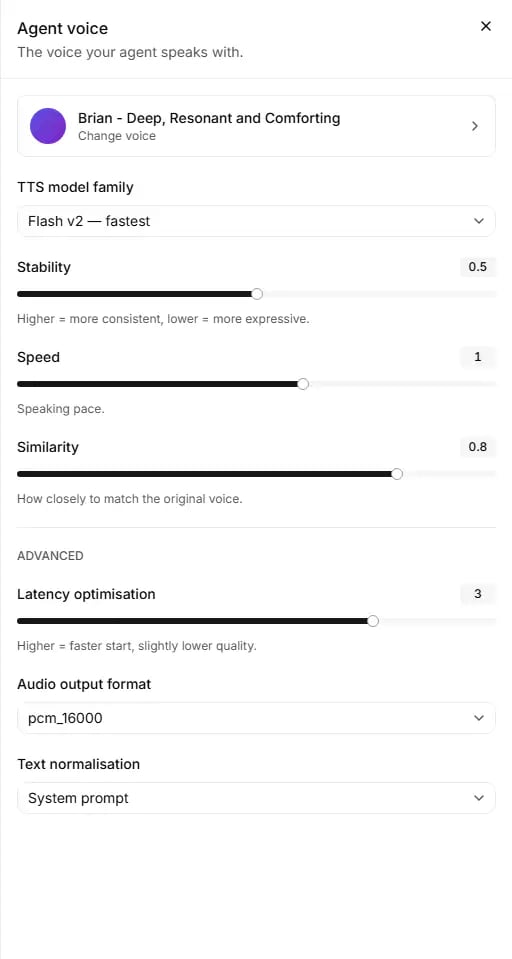
The Agent voice panel, with the voice and its sound settings.
- Voice: choose a voice that speaks your callers’ language and suits your store. Use Play sample to listen before you choose (see Choosing a voice).
- TTS model family: leave it as set. A wrong choice can stop the agent working properly, and it must match the language. Contact RuleInside if you think it needs changing.
- Stability: keep the default unless the voice sounds too flat (lower it for a more expressive voice) or too changeable (raise it for a more consistent one).
- Speed: keep 1 unless callers find the agent too fast or too slow. Change it in small steps and test with Preview after saving.
- Similarity: keep the default unless the agent does not sound close enough to the voice you chose; then raise it.
- Latency optimisation: keep the default. Higher values give a faster start with slightly lower sound quality. If the agent feels slow to answer, look at Turn taking first: the editor says that is usually what people mean.
- Audio output format: leave it as set and contact RuleInside if you think it needs changing. A wrong format breaks the sound on phone calls.
- Text normalisation: leave it as set and contact RuleInside if numbers or symbols are read out wrongly.
Choosing a voice
Change voice opens Select a voice (use Back to return).- My Voices: the voices already in your account. Explore: the public voice library.
- Search with “Search your voices…” or “Search the library…”.
- Filter with Language (English, Italian, Spanish, French, German, Portuguese, Dutch, Polish, Turkish, Arabic, Hindi, Japanese, Korean, Chinese), Category (Professional, Famous, High quality), Gender (Female, Male, Neutral) and Age (Young, Middle-aged, Old).
- Play sample plays a voice before you choose it, when a sample exists.
- Explore shows up to 40 results (“Searching…” while it looks). “No voices found.” means nothing matched.
- A voice from My Voices only changes the form. It is saved when you click Save changes.
- A voice from Explore is first added to your voices (“Voice added to your workspace.” or, if it fails, “Could not add that voice.”) and then selected. If you already have a voice with the same name, that one is used. The voice stays in your voices even if you then discard the change.
- A voice you just added can take up to 5 minutes to appear under My Voices and in the Voice row.
Language

The Language panel sets the agent's default language.
Language model
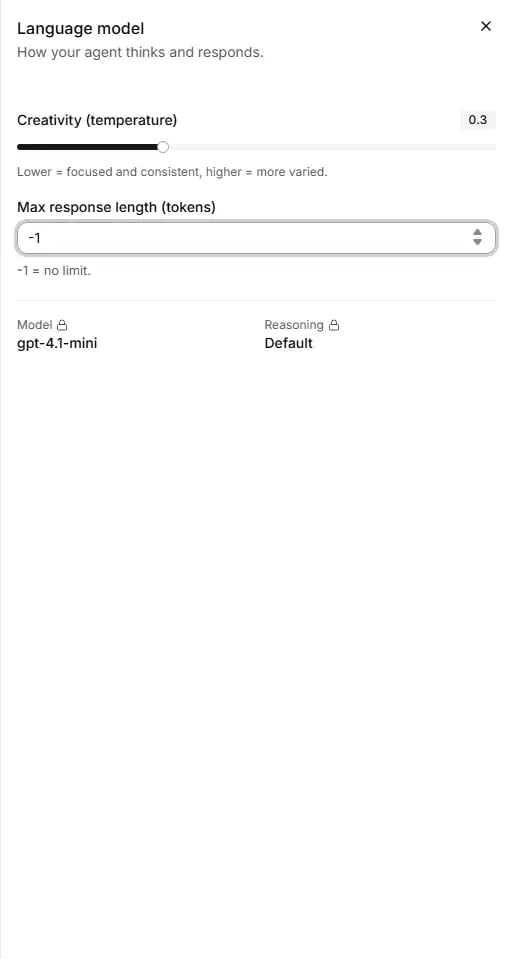
The Language model panel: creativity, response length, and the model in use.
- Creativity (temperature): keep the default. Lower it if you want more focused, consistent answers; raise it only if answers sound too repetitive.
- Max response length (tokens): keep -1 (no limit). If you want shorter answers, ask for them in your instructions instead (see Writing instructions).
- Model and Reasoning: nothing to do. Contact RuleInside if you have a question about them.
Turn taking
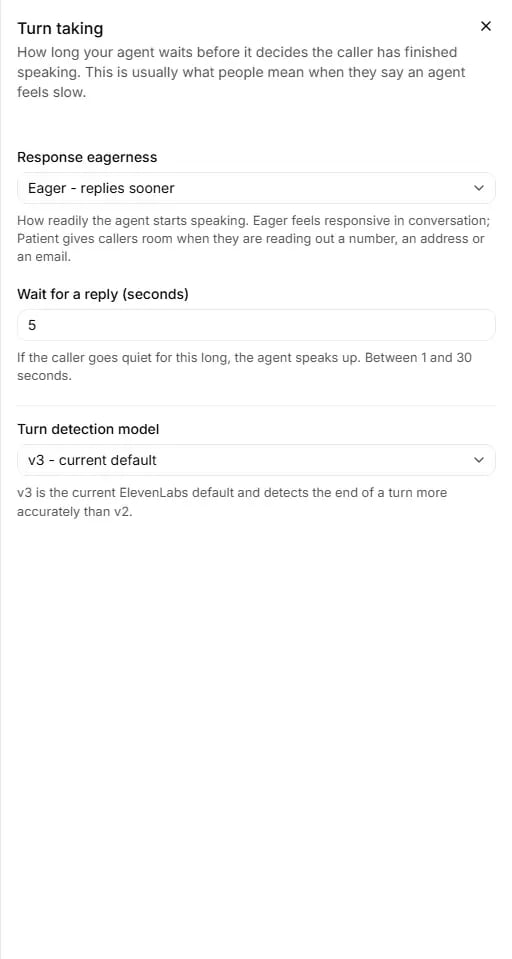
Turn taking decides how long the agent waits before it replies.
- Response eagerness: keep Normal for most stores. Choose Eager if the agent feels slow to answer. Choose Patient if callers often read out order numbers, addresses or email addresses and the agent starts talking before they finish.
- Wait for a reply (seconds): keep 7. A shorter wait makes the agent speak up sooner when the caller goes quiet; a longer one gives callers time to find something, such as an order number.
- Turn detection model: keep v3.
Call limits
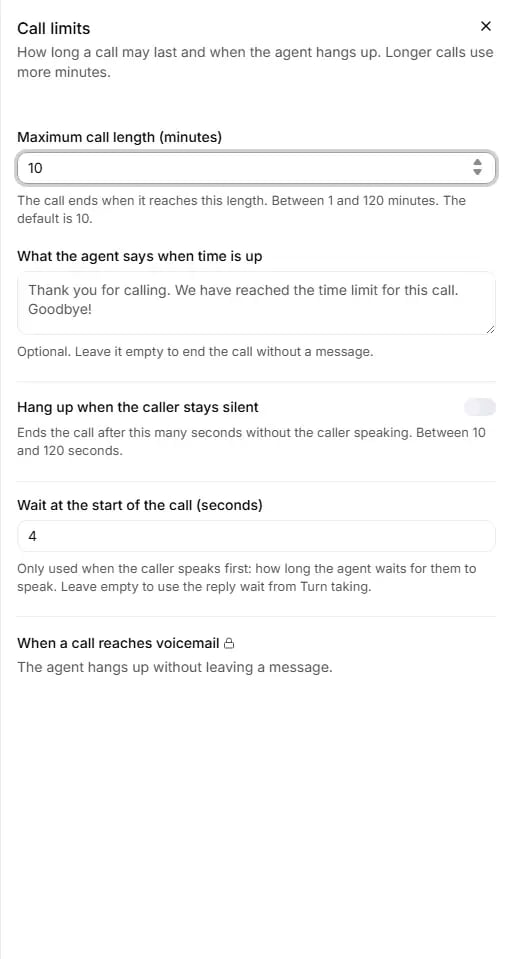
Call limits: maximum length, silence and voicemail.
- Maximum call length (minutes): keep 10 for most stores. Raise it if real conversations reach the limit (check the Duration column on Calls). Lower it if you want to cap the minutes a single call can use.
- What the agent says when time is up: write a short, polite goodbye, so the call does not end without a word.
- Hang up when the caller stays silent: consider switching it on if your calls show long stretches where the caller has stopped talking.
- Seconds of silence: start with 30. We suggest keeping it longer than Wait for a reply (seconds) in Turn taking, so the agent speaks up before the call is ended.
- Wait at the start of the call (seconds): leave it empty unless you use Caller speaks first and want a different wait at the start.
- When a call reaches voicemail: nothing to change here. Contact RuleInside if you need it changed.
Conversation behaviour
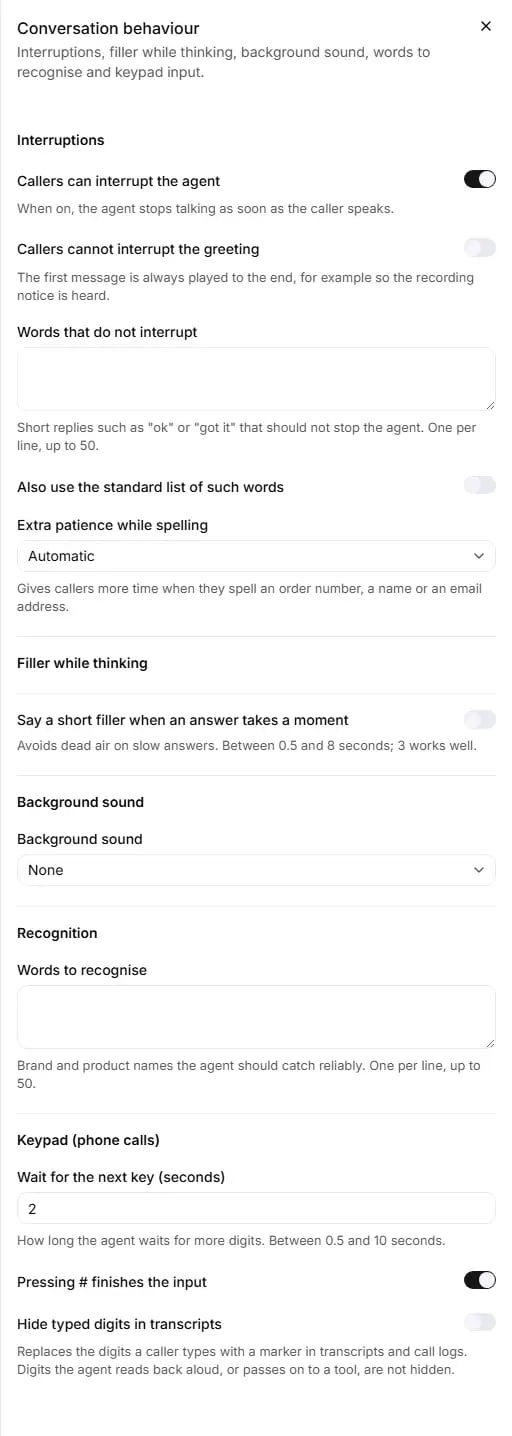
Conversation behaviour: interruptions, filler, background sound, recognition and keypad.
Interruptions
- Callers can interrupt the agent: keep it on, so the agent stops talking as soon as the caller speaks, as a person would on the phone.
- Callers cannot interrupt the greeting: switch it on if your greeting carries the recording notice and you want it always heard in full.
- Words that do not interrupt: add the short replies your callers use, in their language, if the agent stops talking when they say “ok” or “yes”.
- Also use the standard list of such words: switch it on as a quick start, then add your own words if needed.
- Extra patience while spelling: keep Automatic.
Filler while thinking
Background sound
Recognition
Words to recognise: “Brand and product names the agent should catch reliably.” One per line, up to 50 lines, each up to 50 characters. Recommended: add your store’s name and the product or brand names callers say most often, especially ones with an unusual spelling.Keypad (phone calls)
- Wait for the next key (seconds): keep 2. Raise it if callers type long numbers slowly and get cut off.
- Pressing # finishes the input: keep it on.
- Hide typed digits in transcripts: switch it on if callers type numbers on the keypad that you do not want in your transcripts and call logs.
Knowledge base and Tools cards
These two cards in the right column are summaries.- Knowledge base (“Documents your agent answers from.”) lists the documents attached to the agent, or “No documents attached yet.” It is read-only and has no link. To add or change documents, open Knowledge in the sidebar.
- Tools lists every tool on the agent with a type badge: Store, In-page, Built-in, Integration or Tool. On a Full control agent it reads “What this agent can do during a call.” and Manage tools opens the Tools page. Below Full control it reads “What your agent can do, managed by RuleInside.” The tools shown here as Store are the ones labelled Webhook on the Tools page.
Common questions
I changed a setting, closed the panel and nothing happened
I changed a setting, closed the panel and nothing happened
The save says some settings need fixing
The save says some settings need fixing
Why is a setting greyed out or showing a padlock?
Why is a setting greyed out or showing a padlock?
Why can't I change the speech engine or the audio format?
Why can't I change the speech engine or the audio format?
I changed the language and got an error about the voice model
I changed the language and got an error about the voice model
The agent feels slow to answer
The agent feels slow to answer
The agent stops talking when the caller says 'ok'
The agent stops talking when the caller says 'ok'
The agent cuts calls short
The agent cuts calls short
Can the recording notice come later in the call?
Can the recording notice come later in the call?
Can the agent wait for the caller to say hello?
Can the agent wait for the caller to say hello?
Can the agent transfer a caller to a person?
Can the agent transfer a caller to a person?
Why can I remove a transfer but not add one?
Why can I remove a transfer but not add one?
Why does the agent use the default name in the greeting instead of the customer's?
Why does the agent use the default name in the greeting instead of the customer's?