

Who is never contacted
Every person is checked just before each call, retry or message, and anyone who fails a check is skipped:- people who opted out;
- numbers on your do-not-call list (on WhatsApp, the do-not-contact list);
- people with no recorded consent (a lawful basis to call, or WhatsApp opt-in for a WhatsApp campaign);
- people outside their calling hours or days, in their own time zone (phone calls);
- people contacted too often recently (at most 5 calls in any 7 days, or 4 WhatsApp marketing messages);
- everyone, when your account’s daily call limit is reached, or when your store has not confirmed its calling consent under Settings › Calling consent.
Who can do what
- Any member of your team can open Campaigns, see the list, open a campaign, read its results and download them.
- Only the account owner can create, edit, test, launch, pause, resume or cancel a campaign. Other members see Only account owners can manage this: ask an owner of your team. in place of the buttons. See Who can do what.
The campaign list
The page lists your campaigns, newest first. If your workspace has no store linked yet, it says so and the New campaign button is greyed out.
With no campaigns yet, the list reads No campaigns yet. Create one to start reaching your contacts. If it cannot
be loaded, refresh the page; nothing was changed.
Creating a campaign
Click New campaign (owner only). The form opens with the subtitle This creates a draft. Nothing is dialed until you open the campaign and launch it.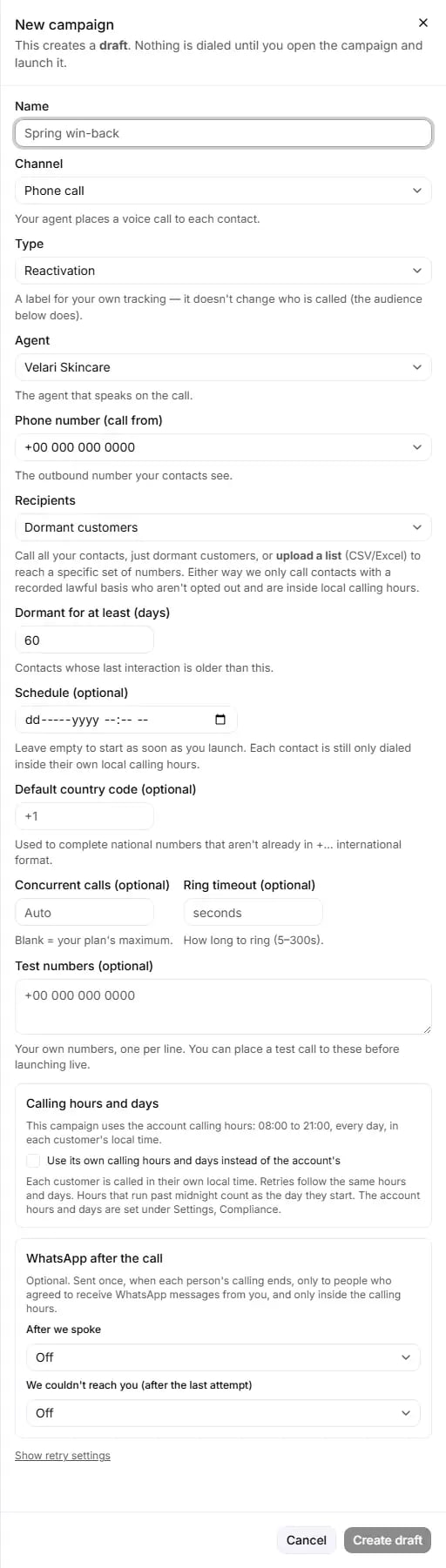
The New campaign form with Phone call selected and the retry settings still collapsed.
Name
- Name (placeholder Spring win-back): your own name for the campaign, shown in the list and on its page, and used in the name of the Excel file of its results.
- Required, 1 to 200 characters. Create draft stays grey while it is empty.
Channel
- Phone call (default): Your agent places a voice call to each contact.
- WhatsApp message: Sends your approved WhatsApp re-engagement template to each contact who has opted in to WhatsApp. Configure the template under WhatsApp Templates. Set the template up first on the WhatsApp templates page: the launch is refused until one is enabled.
Type
- Type (placeholder Choose a type…): Reactivation (default), Welcome or Lead Generation.
- A label for your own tracking: it doesn’t change who is called (the audience below does).
Agent
- Agent (placeholder Choose an agent…): The agent that speaks on the call. Your agents are listed by name, and your default agent carries (default).
- Default: your default agent. Required. On a WhatsApp campaign the agent is recorded but nobody is called.
Phone number (call from) (phone only)
- Phone number (call from) (placeholder Choose a number…): The outbound number your contacts see.
- Only your numbers that can place outbound calls are listed. Default: the first of them. Required.
- With no outbound number you see You have no outbound phone number yet. Add one on the Phone numbers page, then create a campaign. Add one on Phone numbers first.
- The number is checked again when you launch. If it is no longer available for outbound calls, the launch is refused with The selected phone number is no longer available for outbound calling.
Recipients
- Recipients (placeholder Choose recipients…) decides who the campaign reaches:
- Dormant customers (default): contacts whose last interaction with your agent is older than the number of days you set below. This is the last interaction, not the last order.
- All contacts: every contact in your store that has a phone number.
- Upload a list (CSV or Excel) (phone only): exactly the people in a file you upload.
- Whatever you choose, only contacts with a recorded lawful basis, not opted out and inside their calling hours are called.
A campaign reaches at most 5,000 contacts. If the group you choose is larger, the first 5,000 are used and the
rest are not called by this campaign. The Recipients field says so. An uploaded list holds at most 1,000 rows:
to reach more people with one campaign, import them on the Contacts page first (up to 1,000 per import, so a
larger list takes several imports; see Importing contacts), then choose All contacts.
Your plan’s daily call limit still applies, see Plans and limits.
Dormant for at least (days)
Shown only with Dormant customers.- Dormant for at least (days): Contacts whose last interaction is older than this.
- A whole number, 1 or more. Default: 60. Otherwise you see Enter a number of days (1 or more). and cannot save.
Uploading a list
Shown only with Upload a list (CSV or Excel).-
Recipients (CSV or Excel): pick a
.csvor.xlsxfile of at most 8 MB. Only the first sheet of an Excel file is read. An old.xlsfile cannot be read: save it as.xlsxor export a CSV. -
Download CSV template: a ready-made file with the columns
phone,name,email,city,order_number,languageand two sample rows. -
Or paste CSV: paste the rows instead of uploading a file, for example:
- A phone column is required (international format, e.g. +15551234567); name, email, and any extra columns become call variables. This campaign will call exactly these contacts.
-
If the first row names a phone column (for example
phone,phone_number,mobileorPhone Number), it is read as a header row. Without a header row, the columns are read as phone, name and email, in that order. - Every other column becomes a detail your agent can use on the call. A column name may use only letters, numbers and underscores, start with a letter or underscore, and be at most 64 characters. Columns that break this rule are listed in red and ignored.
- Rows without a phone number are skipped and counted. The line under the box shows how many recipients are ready and how many rows were skipped.
- At most 1,000 rows per list. Over that, the count turns red and you cannot save: split the file.
Schedule (optional) (phone only)
- Schedule (optional): a date and time, in your own time zone. Leave empty to start as soon as you launch. Each contact is still only dialed inside their own local calling hours.
- A time in the past works like “now”.
Default country code (optional)
- Default country code (optional) (placeholder +1): Used to complete national numbers that aren’t already in +… international format.
- Shown for both channels. Enter a country calling code, with or without the plus (for example
+44or44). - A number that still cannot be written in international format is skipped and counted. RuleInside never guesses a country.
Concurrent calls (optional) (phone only)
- Concurrent calls (optional) (placeholder Auto): how many of this campaign’s calls may ring or be under way at the same time. Blank = your plan’s maximum.
- 1 or more; otherwise Enter 1 or more. A number above your plan’s maximum is lowered to it when you save. Blank follows your plan, so an upgrade raises it. See Plans and limits.
Ring timeout (optional) (phone only)
- Ring timeout (optional) (placeholder seconds): How long to ring (5–300s).
- 5 to 300 seconds; otherwise 5–300 seconds. Blank uses the voice provider’s default.
Test numbers (optional) (phone only)
- Test numbers (optional) (placeholder +15551234567): Your own numbers, one per line. You can place a test call to these before launching live.
- One number per line, in international format (or a national number with a default country code). At most 20. Extensions and pauses written into a number are refused.
- Send test call appears on the campaign page only for a phone draft with at least one test number.
Calling hours and days (phone only)
The panel shows the hours this campaign will use, for example This campaign uses the account calling hours: 08:00 to 21:00, every day, in each customer’s local time. Your account’s hours start as 08:00 to 21:00, every day, and are changed under Settings › Calling consent.- Use its own calling hours and days instead of the account’s (unticked by default): gives this campaign its own
hours.
- Two hour pickers, start (00:00 to 23:00) to end (01:00 to 24:00). They start at your account’s hours. The start and end cannot be the same hour.
- Seven day buttons, Monday first. At least one day must stay selected.
- Hours that are not entirely inside 08:00 to 21:00 need a second tick: I choose to call from {start} to {end} in each customer’s local time. I understand these hours are outside 8:00 to 21:00 and I am responsible for them. Who confirmed, when, and which hours are recorded.
- Each customer is called in their own local time. Retries follow the same hours and days. Hours that run past midnight count as the day they start.
WhatsApp after the call (phone only)
Optional. Sent once, when each person’s calling ends, only to people who agreed to receive WhatsApp messages from you, and only inside the calling hours.- After we spoke: sent to a person who was reached.
- We couldn’t reach you (after the last attempt): sent to a person who was not reached, after their last attempt.
Show retry settings (phone only)
Click Show retry settings to open the panel (and Hide retry settings to close it). If a call isn’t answered we retry, within these limits. We cap retries to protect your contacts (and you) from over-calling, so larger values are reduced automatically.
A blank or 0 uses the default. A value outside the range is changed to the nearest allowed value when you save,
without a message: the campaign page shows the values actually saved, under Retries. How retries work is
explained in Retries.
Saving
- Cancel closes the form. Nothing is saved.
- Create draft (Creating… while working) saves the draft. It stays grey until every required field is valid. On success you see Campaign created as a draft: review it, then launch. and the campaign opens.
Editing a draft
On the campaign page, Edit (owner, drafts only) opens Edit campaign: You can change a campaign until it is launched. Nothing is dialed until you launch it.- The same fields, filled in with the saved values. Channel is locked.
- Recipients offers Keep the current list ({count} contacts) for an uploaded list. Choosing Upload a list (CSV or Excel) again imports a new list and replaces the audience.
- Emptying an optional field returns it to its default (On launch, Auto, the provider’s ring time, no test numbers).
- Save changes (Saving…) saves. On success: Campaign saved. Review it, then launch.
There is no way to delete a campaign. A draft you no longer want can be cancelled.
Common questions
I created a campaign. Why has nobody been called?
I created a campaign. Why has nobody been called?
Create draft only saves a draft. Open the campaign and press Launch campaign. A schedule does not launch
it for you either.
How many contacts can one campaign reach?
How many contacts can one campaign reach?
Up to 5,000. A larger group is cut to the first 5,000. An uploaded list holds at most 1,000 rows, so for more
people either run several campaigns, or import them on the Contacts page (1,000 per import) and choose All
contacts. Your plan’s daily call limit, from 500 calls in 24 hours on Lite to 15,000 on Scale, still applies:
a launch calls up to what is left of it, queues at most one more day of it to try again later, and does not
call anyone beyond that; the launch result says how many. See
Plans and limits.
Some contacts were left out at launch because of the daily limit. Will they be called later?
Some contacts were left out at launch because of the daily limit. Will they be called later?
Mostly. People left out at launch because your daily call cap was reached, or because of a processing error,
are tried again by the same campaign, up to one day of your daily call cap per launch, starting an hour later
or when their calling hours next open, for up to about a day. Every check runs again before each call. The launch result says how many will be
tried again and how many will not: people beyond one day of your cap are not called by that campaign, so launch
another campaign later to reach them. See The campaign page.
I typed 5 attempts and the campaign shows 3.
I typed 5 attempts and the campaign shows 3.
Retries are capped: at most 3 attempts, at least 1 hour apart, at most 2 a day. Larger values are lowered when
you save.
I set 50 concurrent calls. Why does it show less?
I set 50 concurrent calls. Why does it show less?
The number is lowered to your plan’s maximum when you save. See Plans and limits.
What is the difference between Dormant customers and the Win back automation?
What is the difference between Dormant customers and the Win back automation?
Dormant customers uses the last time the contact interacted with your agent. The Win back past customers
automation uses the date of the last order in your store. They can select different people. See
Automations.
Can I call at 22:00?
Can I call at 22:00?
Yes, on one campaign: tick Use its own calling hours and days instead of the account’s, set the hours, and
confirm that you are responsible for hours outside 8:00 to 21:00. Your confirmation is recorded with who made it
and when. Each person is still called in their own local time.
Can I change a campaign from phone to WhatsApp?
Can I change a campaign from phone to WhatsApp?
No. The channel is fixed once the draft is saved. Create a new campaign.
Why can't my colleague create or launch a campaign?
Why can't my colleague create or launch a campaign?
Only the account owner can. Other members can view campaigns, filter the calls and download the results.
I uploaded a list and then cancelled the campaign. Are the contacts gone?
I uploaded a list and then cancelled the campaign. Are the contacts gone?
No. The contacts stay in Contacts with the lawful basis you recorded. Manage them from
Contacts.