

Webhooks send data out of RuleInside. To have your other systems send contacts and events into RuleInside,
use an inbound connection.
Who can do what
- Everyone on your team can see the endpoints and the recent deliveries.
- Only the owner can add or remove an endpoint, because an endpoint decides where your customer data is sent.
Your endpoints
Each endpoint on the list shows:- its address;
- a grey badge with its format:
normalizedfor every endpoint you add on this page (an endpoint our team set up for you may showraw); - the events it receives: one badge per event, All events, or, for a
rawendpoint, every completed call; - Added and the date, followed by your description if you gave one;
- Remove (owner only).
Add an endpoint
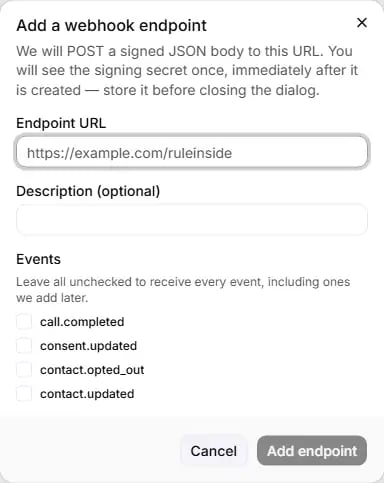
Add a webhook endpoint: the address, an optional description and the events.
Click Add endpoint in the dialog (available once a URL is typed). It reads “Adding…” while it works.
The address is checked before it is saved:
Copy your signing secret
When the endpoint is added, the Your signing secret dialog shows its signing secret. Click Copy, store the secret in your system, then click Done.The events
There is no event for a finished campaign at the moment.
What each message looks like
Each message is an HTTPSPOST with a JSON body:
Check the signature
Every message carries anX-RuleInside-Signature header with a time (t) and a signature (v0). The signature
is an HMAC-SHA256, made with your signing secret, of the time, a dot (.), and the exact body of the message, as
received.
To check that a message really came from RuleInside and was not changed on the way, your system:
- reads
tandv0from the header; - computes the HMAC-SHA256 of
t, a dot and the raw body, using your signing secret; - accepts the message only if the result matches
v0.
Deliveries and retries
- A delivery succeeds when your endpoint answers with any
2xxcode within 15 seconds. Anything else counts as a failure. - A failed delivery is retried, with a longer wait each time. In practice the first retries come about 15 minutes apart, and the longest wait between two attempts is about two hours.
- After 8 attempts the delivery is marked dead: it is not retried any more, and you get a notification. A dead delivery is not sent again automatically, even after you fix your endpoint.
- Delivery is “at least once”: rarely, the same event arrives twice. Ignore an
idyour system has already processed. - Finished deliveries (delivered or dead) are removed from the list after 30 days.
Recent deliveries
Recent deliveries lists the latest 50 deliveries across all your endpoints, newest first. Each row shows the endpoint address, the time, how many attempts were made (“N of M attempts”), an error type if there was one, and a status:
The error type tells you why an attempt failed. Your endpoint’s own reply is not shown, only the type:
With no deliveries you see “No deliveries yet.” If you see “We could not load recent deliveries”, the list could
not be loaded at that moment. It does not mean nothing was delivered.
Remove an endpoint
Click Remove (owner only) and confirm with Remove endpoint (“Remove this endpoint?”). You see “Endpoint removed.”, or “That endpoint was already removed, or no longer exists.”Messages that were still waiting to be sent to the endpoint when you removed it are not sent. Events that happen
after the removal are not sent to it either.
Change the signing secret
There is no button to replace a signing secret in place. A new secret would take effect immediately, and every event would fail your signature check until you updated your system. To change it:1
Remove the endpoint
Events that happen while the endpoint is removed are not sent to it.
2
Add the same address again
Choose the same events, and copy the new signing secret.
3
Update your system
Put the new secret into your system. Messages that were waiting when you removed the endpoint are not sent, so
events from that moment until you add it again do not reach your system.
Common questions
I only want call events
I only want call events
Tick only
call.completed. Leaving every event unticked means all events, including ones we add later.My endpoint shows dead deliveries
My endpoint shows dead deliveries
Look at the error type.
auth_rejected usually means your signature check or your own login is refusing us;
unreachable means your server was down or could not be reached. Fix the endpoint: new events then arrive as
normal, but dead deliveries are not sent again.The same event arrived twice
The same event arrived twice
That can happen rarely. Each event has a stable
id: ignore an id your system has already processed.How do I change the signing secret?
How do I change the signing secret?
Remove the endpoint and add it again, then update your system with the new secret. See
Change the signing secret.
I lost the signing secret
I lost the signing secret
It cannot be shown again. Remove the endpoint, add it again and copy the new secret.
Can my endpoint be on my own network?
Can my endpoint be on my own network?
No. The address must be public and use
https://. Addresses that point to a private or internal network are
refused.