

- Any member can read the page, filter the calls, choose columns and use Download Excel.
- Only the account owner can use Edit, Send test call, Launch campaign, Pause, Resume, Pause again and Cancel. Other members see these greyed out with Only account owners can manage this: ask an owner of your team.
The summary
At the top: the campaign name, its status and ← All campaigns. The summary box shows what the campaign will use. Fields marked (phone) are not shown for a WhatsApp campaign.The buttons
Which buttons you see depends on the campaign’s status. While one action is running, all the buttons are disabled.
In each confirmation, the other button (Cancel, Keep running, Stay paused or Keep campaign) closes it
without doing anything.
Send test call
The confirmation reads: “This calls your configured test number(s): {numbers}: so you can hear the agent before launching live. It places a real call (standard charges apply) but does not touch your contact list.” A test call is checked against your store’s calling consent confirmation, your do-not-call list and opt-outs, this campaign’s calling hours and days, and your daily call limit. It is not checked for consent, because a test number is not one of your contacts: only use your own phones. A test call counts towards your daily call limit. You then see Test call placed to {count} number(s). or No test call was placed. with the reason, for example that a number is not in international format, is on the do-not-call or opt-out list, is outside the calling hours, that the daily limit is reached, or that your store has not confirmed its calling consent. Test calls are for phone campaigns only. To test a WhatsApp template, send it to one number from the WhatsApp send page.Launch campaign
For a phone campaign the confirmation reads: “This places real phone calls to your eligible contacts and will incur calling charges. We automatically skip anyone who is opted out, on a do-not-call list, without a lawful basis, or outside their local calling hours. This can’t be undone once calls start (you can cancel to stop remaining calls).” For a WhatsApp campaign: “This sends real WhatsApp messages (your approved re-engagement template) to your eligible contacts and will incur messaging charges. We automatically skip anyone who is opted out of WhatsApp, on a do-not-contact list, or without WhatsApp consent. Messages start sending immediately and can’t be recalled once sent.” Each person is called in their own time zone, so the contacts are grouped by time zone, and each group starts at its next allowed time (never before the schedule you set). A group whose time is more than an hour away waits, and is checked again, opt-outs included, about an hour before its calls. A launch can be refused, for example when your account is not active, when the agent has no outbound number, when the chosen number is no longer available, or, for WhatsApp, when no re-engagement template is enabled. The message tells you which.Pause and Resume
Pause and Resume are for phone campaigns only.- Pause: “No new calls will start. Calls already under way cannot be recalled. Everyone not yet called keeps their place, and retries wait until you resume.” The page then shows This campaign is paused. No new calls start. Everyone not yet called keeps their place, and Resume carries on inside each person’s calling hours and days.
- If you see Campaign paused, but {count} batch(es) could not be confirmed stopped and may still be calling. Press Pause again., press Pause again. If the message repeats, contact support.
- Resume: “Calling continues inside each person’s calling hours and days. Everyone is checked again for opt-outs, do-not-call and consent before they are called. Retries that came due while paused go out within about an hour.” Pressing Resume does not place a call by itself.
Cancel
The confirmation reads: “Any calls already placed can’t be recalled, but we’ll stop scheduled and in-progress batches and any retries, so no further contacts are dialed.” If the message says some batches could not be confirmed stopped, press Cancel again: the button stays available while any batch may still be calling. If the message repeats, contact support.The launch result
Right after a launch or a test call, a box under the summary tells you what happened. It is shown only until you reload the page.- Campaign launched with, for example, Dialing {count} contact(s). or {held} contact(s) are waiting for their calling time: each is checked again, including opt-outs, about an hour before the call.
- Launch complete: nobody was dialed (phone) or Send complete: nobody was messaged (WhatsApp), with We matched {count} contact(s), but none could be called right now.
- One line per reason people were left out, for example {count} skipped: opted out, {count} skipped: phone not in international format or {count} will be tried again by this campaign when they can next be called.
People left out at launch because the daily call cap was reached, or because of a processing error, are tried
again by the same campaign, up to one day of your daily call cap per launch, starting an hour later or when their
calling hours next open, for up to about a day, with every check run again. The launch result shows them as
will be tried again by this campaign when they can next be called, and anyone beyond one day of your cap, already
being called by another campaign, or whose calling hours are too short for a retry, as not called by this campaign. People left out for any other reason, including called too
recently, are not called later by that campaign: to reach them, create a new campaign once the reason has passed.
Campaign statuses
- A phone campaign stays Running while it still owes retries or booked call-backs, even after every first call is done. It also stays open for up to 20 minutes after a batch ends, while a call may still be under way.
- A WhatsApp campaign keeps showing Running after launch. Its messages are all queued at launch, but the status does not change to Completed on its own. To see what happened to each message, use the send log on WhatsApp.
Call batches
A phone campaign hands its calls to the voice provider in batches, one or more per time zone. Call batches lists them, newest first. Before launch: No batches yet. Batches appear here once the campaign is launched.
Cancel failed (in red) means we asked to stop the batch and could not confirm it stopped: it may still be
calling. Press Cancel again.
For a WhatsApp campaign, the table shows Created, Timezone, Status, Scheduled for and Dialed /
Done, which reads {count} message(s) enqueued.
WhatsApp after the call
Shown when the campaign has at least one WhatsApp follow-up switched on. After we spoke and We couldn’t reach you each read Off, or:- {count} sent
- {count} waiting (queued, or held until the calling hours open)
- {count} not sent: no WhatsApp permission
- {count} not sent: other reason (for example an opt-out, the do-not-contact list, the weekly limit, or a stopped campaign)
- {count} failed
Calls
For a phone campaign, Calls lists every call it placed, one row per call, newest first, 50 per page, with the number of calls recorded next to the heading.Searching and result chips
- Search a name or phone number, then Search: finds a contact name containing your text (any letter case), or a number containing the same digits (at least 3).
- Under the toolbar, each result that happened appears as a chip with its count, for example Spoke with the customer: 2. Click a chip to show only those calls; click it again to show them all. You can turn on several chips; a call matching any of them is shown.
- Extra chips when they apply: Call-backs requested: {n}, Called us back: {n} and Appointment booked:
{n} (only when your agent collects a yes/no field named
appointment_booked). - While a filter is on, a line shows each filter (click its × to remove it), {count} of {total} calls match, and Clear filters.
Columns of the calls table
Not shown here: calls placed before this list started on 24 September 2026, calls older than 12 months, and calls
to people whose personal data has been erased. Rarely, a call we could not record is also missing.
Use Previous and Next to move between pages.
Call results
Call-back states
A customer can ask for a call-back during a call when your agent has the call-back booking tool, which our team sets up. The Call-back requested by customer column shows:
A booked call-back passes the same checks as every other call when its time comes. If a check fails, it is not
placed and is not tried again.
Add filter
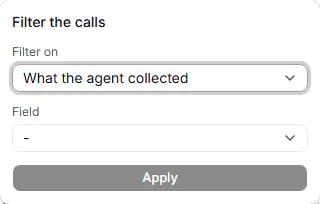
Add filter: choose what to filter on, then the field, condition and value.
- Only the kinds this campaign has data for are offered; Attempt and Follow-ups are always there.
- Every filter must match at once. is ignores letter case; contains finds the text anywhere.
- Only one Attempt and one Follow-ups filter at a time: a new one replaces the old one.
- Up to 10 conditions of each kind, values up to 200 characters.
- If you see This filter could not be used. Clear it to see the calls., press Clear filters.
Call data
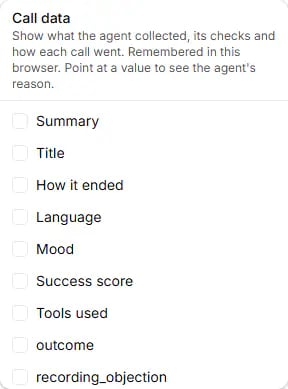
Call data: tick an item to add it as a column of the calls table.
The details and checks offered depend on how your agent is set up, and use your agent’s own names. A call without
that piece of information shows a dash.
Your choice is saved in this browser only. A colleague, or you on another browser, starts with nothing ticked.
Columns
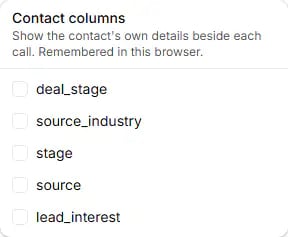
Columns: show a contact's own details beside each call.
Download Excel
Download Excel (Preparing the file… while working) downloads the calls as an Excel file. Any member can use it.- It holds what the table currently shows: the active filter, or the whole campaign with no filter. All matching calls are included, whatever page you are on, newest first, up to 5,000. If more matched, you see The file holds the newest {count} of {total} matching calls. Narrow the filter to download the rest.
- The file is named after the campaign and the date, with one sheet named Calls. Times use the time zone of the browser that downloaded it.
- Columns, in order: When, Contact, each of your contact columns, Phone, Attempt, Was a requested call-back, Result, Length, Called us back at, Call-back requested by customer, Call-back agreed time, Summary, Title, How it ended, Language, Mood, Success score, then each collected detail (with its reason), each check (with its score and reason), and Tools used.
- If the download fails, you see The download failed. Please try again. (Nothing was changed.) and no file is saved.
Retries
When a call is not answered, the campaign calls the person again on its own, within the retry settings saved on the campaign (see Retries in the summary).- A call that connected ends that person’s calls: no retry. The exception is a call answered by voicemail, which is retried.
- Any other ended call (no answer, busy, failed, voicemail) is retried until Max attempts is reached.
- The next try is at least Hours between retries later, inside the campaign’s calling hours and days in the person’s own time zone, and never more than Max per day calls on one of their days.
- Every retry passes all the checks again when it is placed. If one fails for a temporary reason (for example the daily limit), the retry is tried again about an hour later, for up to about a day.
- A paused campaign keeps its retries waiting until Resume. A cancelled campaign never retries.
Common questions
I launched and nobody was called.
I launched and nobody was called.
Read the reasons in the launch result. If it says your store has not confirmed its calling consent, the owner
confirms it under Settings › Calling consent. no recorded lawful basis to call means consent must be
recorded in Contacts. outside local calling hours means the people’s calling hours are closed
now. a processing error means try again shortly. Because nobody was called, the campaign is still a draft and
you can launch it again.
It says Launched, but nobody's phone rang.
It says Launched, but nobody's phone rang.
The people are probably Waiting for their calling time: the summary shows how many and the first time. Their
calls go out about an hour before that time, after every check runs again.
Can I launch the same campaign again to reach the people it skipped?
Can I launch the same campaign again to reach the people it skipped?
Only if the first launch called nobody and left nobody waiting (it is then still a draft). Otherwise create a new
campaign. People left out at launch because of the daily limit or a processing error are already tried again by the
first campaign, for up to about a day.
Can I change a campaign after launching it?
Can I change a campaign after launching it?
No. Only a draft can be edited. After launch you can pause, resume or cancel it.
Is Send test call free?
Is Send test call free?
No. It is a real call, billed like any other, and it counts towards your daily call limit. It skips the consent
check, so only put your own phones in Test numbers.
I paused, but a call still came through.
I paused, but a call still came through.
Calls already under way cannot be recalled. If the message said some batches could not be confirmed stopped,
press Pause again.
A batch says Cancel failed.
A batch says Cancel failed.
We could not confirm that the batch stopped. Press Cancel again; the button stays available while any batch
may still be calling. If it repeats, contact support.
Someone was called twice in an hour.
Someone was called twice in an hour.
Look at Attempt. A retry is always at least Hours between retries after the previous call (minimum 1
hour). A Requested call-back is a call the customer asked for, at the time they agreed.
What does Called us back mean?
What does Called us back mean?
A call came in from that number after our call. Caller ID can be faked, so it means “from this number”, not a
confirmed person.
Where is the recording?
Where is the recording?
Click Open call in the Call log column. There is no link when the call has nothing to hear, for example
when nobody answered.
Why doesn't my colleague see my Call data columns?
Why doesn't my colleague see my Call data columns?
The columns you pick are saved in your browser only. Each person chooses their own.
The Excel file has fewer calls than the campaign.
The Excel file has fewer calls than the campaign.
The file holds up to 5,000 calls, and only those the current filter shows. Calls before 24 September 2026, older
than 12 months, or to people whose data was erased are not in the list or the file.
My WhatsApp campaign still says Running.
My WhatsApp campaign still says Running.
That is expected: a WhatsApp campaign does not change to Completed on its own. Its messages were queued at launch.
Check each message in the send log on WhatsApp.
Did the WhatsApp follow-up go out?
Did the WhatsApp follow-up go out?
Look at WhatsApp after the call: each follow-up is counted as sent, waiting, not sent (no WhatsApp
permission, or another reason) or failed.