

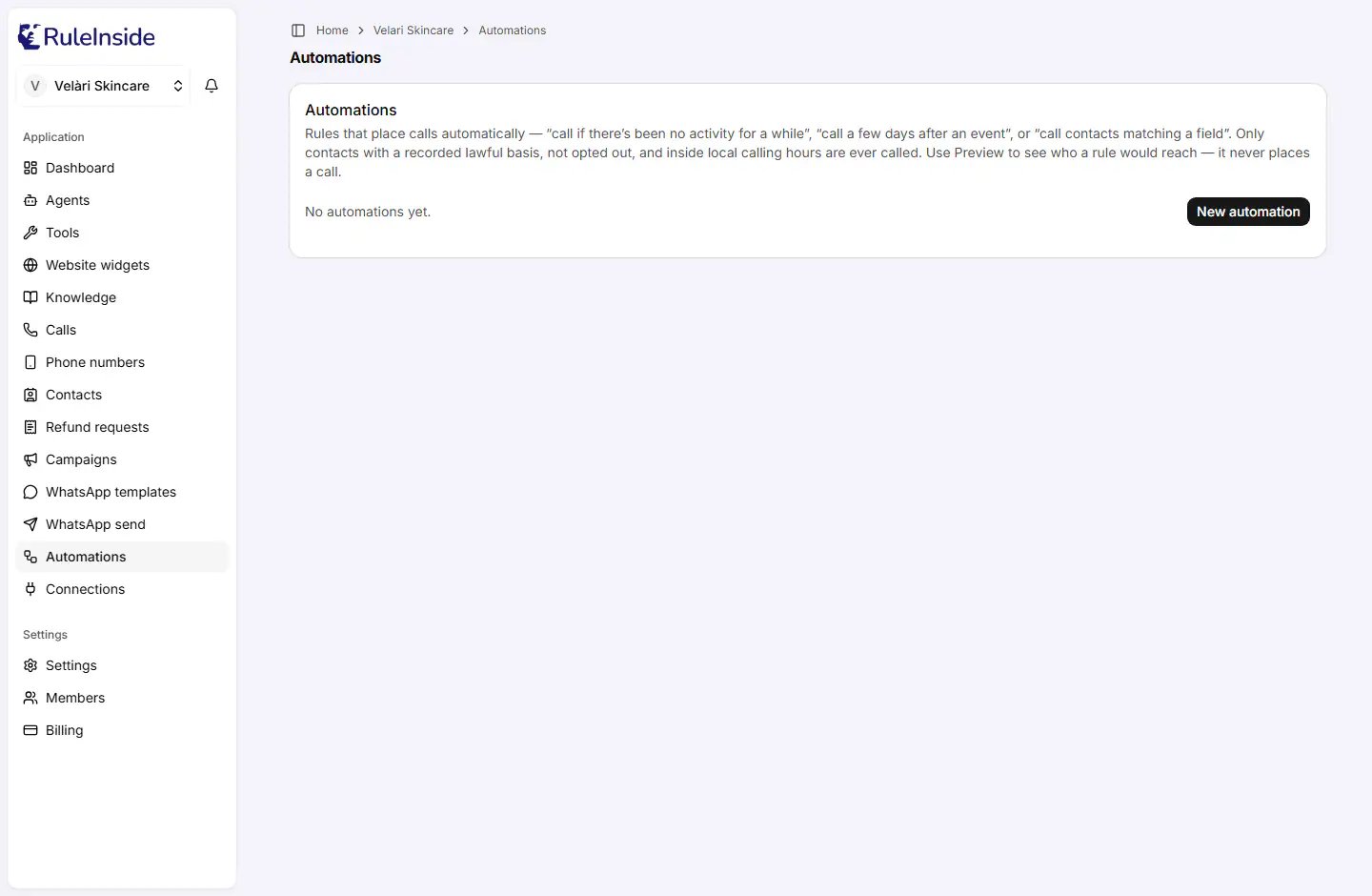
The Automations page: one card per rule, with its trigger, status, switch, Preview and Delete.
Who can do what
- Any member can see the rules and use Preview, which never places a call.
- Only the account owner can add a rule, switch it on or off, or delete it. Other members see Only account owners can add or change automations: ask an owner of your team. and a read-only Active or Off badge.
The rules on the page
The line at the top counts your rules (for example 3 automations., or No automations yet.). Each rule is a card, newest first, with:- its trigger: No activity for a while, Follow up after an event, Contacts matching a field or Win back past customers;
- its status: Active or Off;
- a one-line description, for example Call anyone with no activity for 30 days.;
- (owner) a switch, On / Off;
- Preview (Checking… while working);
- (owner) Delete.
Creating a rule
Click New automation (owner only). Set a rule in plain terms. Nothing is called until it’s switched on: and every call still passes the consent & calling-hours check.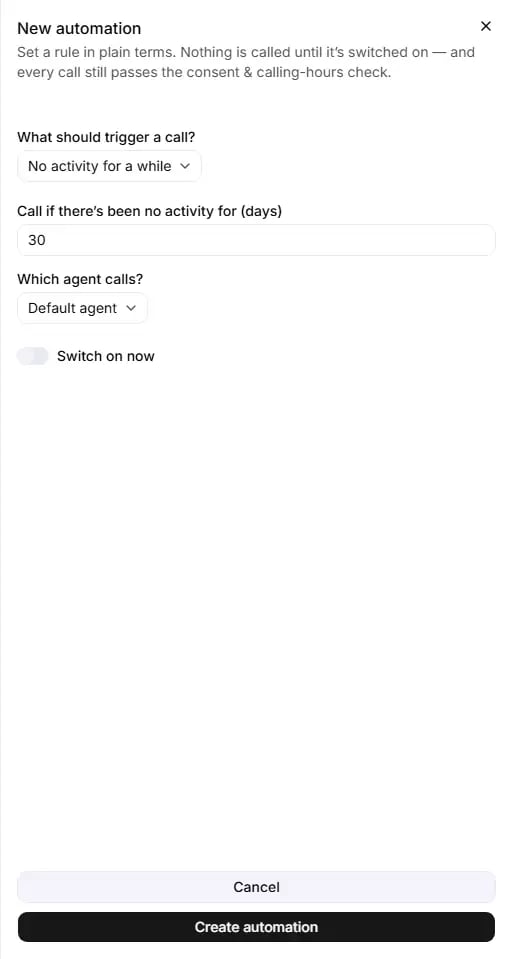
The New automation form: choose the trigger, the agent, and whether to switch it on now.
What should trigger a call?
Default: No activity for a while. Each trigger has its own fields:
What each trigger looks at:
- No activity for a while uses the last time an event about the contact arrived. Only contacts that were once active and then went quiet qualify.
- Win back past customers uses the date of the contact’s last order in your store. Only contacts with a recorded store order qualify. You can have only one win-back rule switched on at a time.
- Contacts matching a field uses the contact’s own columns (see Contacts).
- Follow up after an event calls a contact the chosen number of days after an event of that exact type arrives for them (see How rules run).
Which agent calls?
Default agent (your default agent at the moment of each call), or one of your agents by name. Choosing the agent marked (default) by name keeps that agent even if you change your default later. The call always comes from the number assigned to that agent; there is no number to choose.Switch on now
Switch on now is off by default: the rule is created switched off, and you switch it on from its card when you are ready.Saving
- Cancel closes the form. Nothing is saved.
- Create automation (Creating… while working) saves the rule. If a required value is missing you see Fill in the rule details first.; on success, Automation created.
Preview
Preview shows who a rule would reach right now. It never places a call, and any member can use it.- For No activity for a while, Contacts matching a field and Win back past customers: {matched} contact(s) match right now · {callable} callable after the compliance check. (Preview places no calls.), then Excluded: with each reason and its count. If the group was cut at the rule’s limit: Showing a capped sample: the real group may be larger.
- For Follow up after an event: This runs when an “{eventType}” event arrives: it then calls that contact {days} day(s) later (if they’re reachable). No one is called right now.
Switching a rule on or off
The owner’s On / Off switch saves at once, with no confirmation. If the save fails, the switch flips back and you see Could not update the automation. Switching a rule off stops its future runs; it does not recall calls already placed.Deleting a rule
Delete asks Delete this automation? “It will stop running. This can’t be undone.” Press Delete to confirm, or Keep it to go back. Calls already placed are not recalled.A rule cannot be edited. To change one, create a new rule with the settings you want, then delete the old one.
How rules run
- No activity for a while, Contacts matching a field and Win back past customers run twice a month: at 04:00 UTC on the 1st and on the 15th. A rule you switch on in between waits for the next run.
- Only one of these rules runs for your store each time: the oldest one that is switched on. A newer rule switched on at the same time does nothing while the older one is on. Keep one of these rules on at a time, and switch the others off.
- A run is skipped when your previous automatic batch is still running, or when the rule’s agent has no outbound number assigned. Assign one on Phone numbers.
- Rules use your account’s calling hours and days (under Settings › Calling consent). A rule has no hours of its own.
- Follow up after an event does not wait for those dates. When an event of that exact type arrives for a contact, through a Connection or the developer API, one call is planned for the event’s time plus the days you chose, and placed after every check runs. An event whose call would already be more than 2 days late (for example an old event sent late) is ignored.
- Orders from your store count as events only when store activity events are switched on for your account by our
team (they are off by default). Otherwise an
order.completedrule only fires for events sent through a Connection or the developer API. - An event follow-up created in the portal is always a phone call.
Common questions
I switched on a rule yesterday and nothing happened.
I switched on a rule yesterday and nothing happened.
Scheduled rules run only at 04:00 UTC on the 1st and 15th of each month. Also check that it is the oldest rule
switched on (only that one runs), that your previous automatic batch has finished, and that the rule’s agent has
an outbound number assigned.
My event follow-up never fires.
My event follow-up never fires.
The Event type must match the event’s name exactly, for example
order.completed, and events must actually
arrive: through a Connection or the developer API, or from your store’s orders only if store activity events are
switched on for your account. An event more than 2 days past its due time is ignored.Preview shows contacts matched but 0 callable.
Preview shows contacts matched but 0 callable.
Read Excluded:. “no store attestation” is fixed under Settings › Calling consent, “no consent” in
Contacts, “frequency cap” clears by itself within a week, “outside window” changes with the time of
day, and “error” means try again.
Can I edit an automation?
Can I edit an automation?
No. Create a new rule with the settings you want, then delete the old one.
Can I have two Win back rules?
Can I have two Win back rules?
Only one win-back rule can be switched on at a time. Switch the other off, or delete it, before switching a new
one on.
Can a rule call outside my account's calling hours?
Can a rule call outside my account's calling hours?
No. Rules always use your account’s calling hours and days, in each person’s own time zone. To call at other
times, use a campaign with its own calling hours.
What is the difference between No activity and Win back?
What is the difference between No activity and Win back?
No activity for a while looks at the last event about the contact. Win back past customers looks at the
date of their last order in your store. They can select different people.
How many people does one run call?
How many people does one run call?
At most 2,000 per run, and only those who pass every check at that moment.