

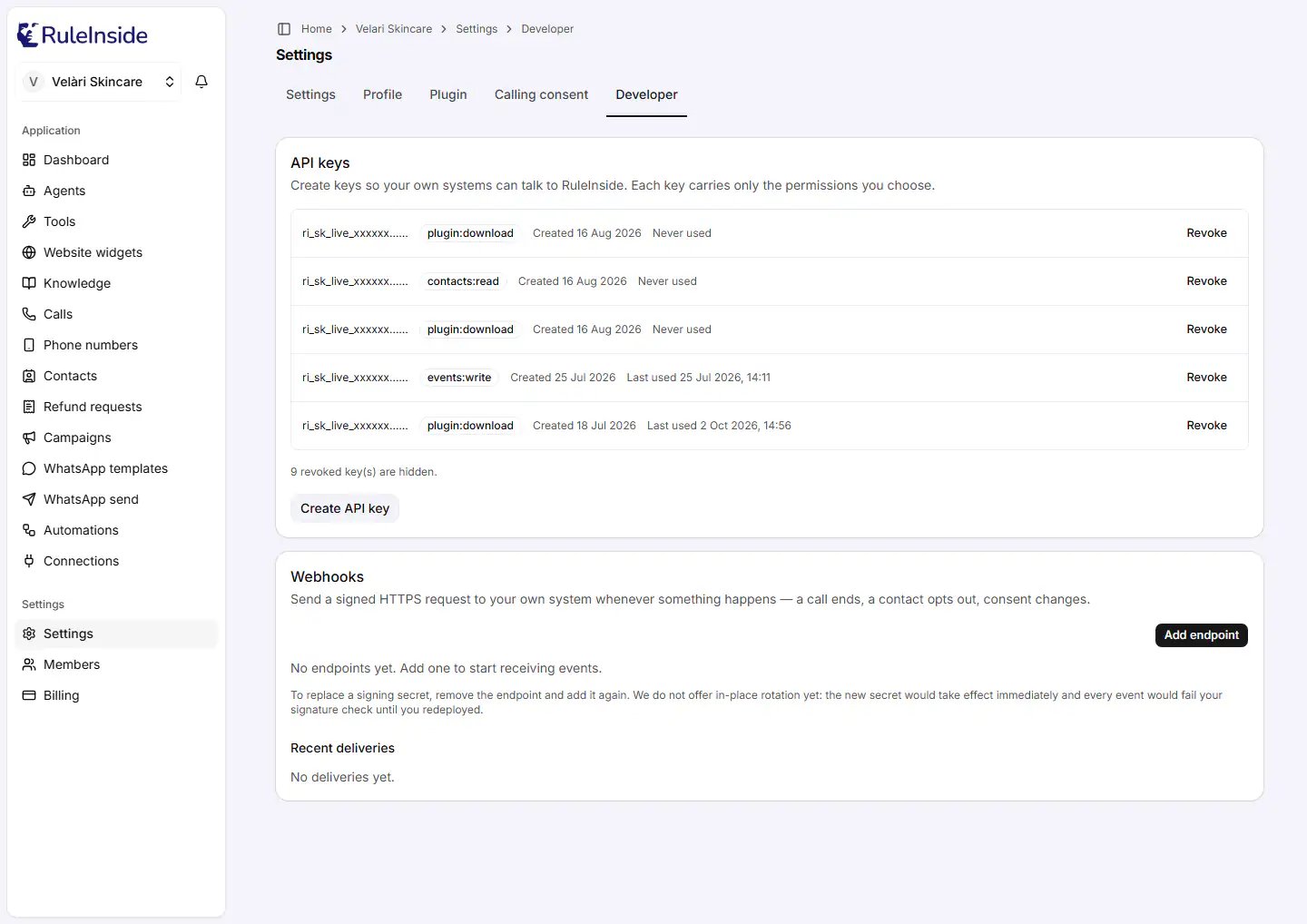
Settings, Developer: your API keys and webhook endpoints.
Who can do what
- Everyone on your team can see the list of keys.
- Only the owner can create or revoke a key. Members see “Only an account owner can create or revoke API keys.”
The list of keys
The list shows every key that has not been revoked, including the licence keys of the WordPress plugin. Each row shows:- the start of the key followed by ”…”, for example
ri_sk_live_xxxxxx…(the full key is never shown again); - one badge for each permission the key has;
- Created and the date;
- Last used with the date and time, or Never used;
- Revoke (owner only).
Create an API key
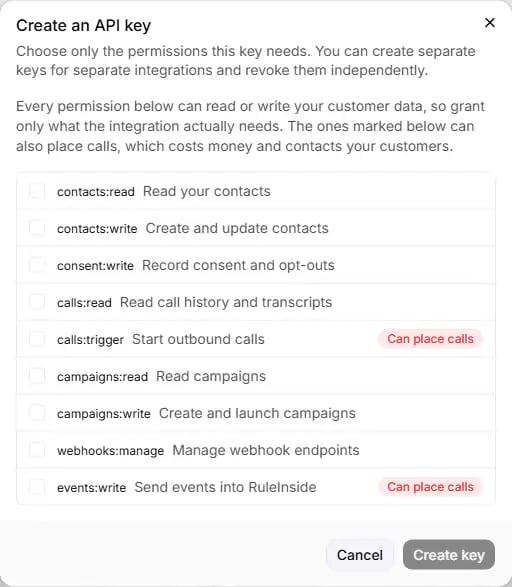
Create an API key: tick only the permissions this key needs.
1
Click Create API key
Owner only. The Create an API key dialog opens.
2
Tick the permissions
Choose only the permissions this integration needs (see the table below). Create key is available once at
least one is ticked.
3
Click Create key
It reads “Creating…” while the key is made. If it fails, you see “Could not create the key.”
4
Copy the key, then click Done
The Copy your API key now dialog shows the full key, starting with
ri_sk_live_. Click Copy (it
changes to Copied), store the key safely, then click Done.The permissions
Every permission can read or change your customer data, so grant only what the integration actually needs. Permissions marked Can place calls can also start calls, which costs money and contacts your customers.
The plugin download permission (
plugin:download) is not offered here. Create it as a licence key on the
Plugin tab instead.
You cannot change the permissions of an existing key. Create a new key with the permissions you want, move your
integration to it, then revoke the old key.
Using a key
Send the key in theAuthorization header of every request:
- Keys created here are always live keys, starting with
ri_sk_live_. - A key has no expiry date. It stops working when you revoke it, or while your account is not active.
- Each key can make a set number of requests a minute, depending on your plan. Above that, the API answers
429with aRetry-Aftertime to wait before trying again.
Revoke a key
Click Revoke on the key and confirm with Revoke key (“Revoke this API key?”). You see “API key revoked.”, or “That key was already revoked, or no longer exists.”Common questions
Which permissions does my integration need?
Which permissions does my integration need?
Only the ones it uses. Anything that can start calls is marked Can place calls: grant those only to an
integration that must place calls.
I lost my API key
I lost my API key
It cannot be shown again. Create a new key, switch your integration over to it, then revoke the old one.
My integration is suddenly refused
My integration is suddenly refused
Check whether the key was revoked (the line below the list counts revoked keys), whether your account is active,
and whether the integration is over its requests a minute (it then gets
429).Some keys here have a plugin:download badge. What are they?
Some keys here have a plugin:download badge. What are they?
They are licence keys for the WordPress plugin. Revoking one stops plugin updates for the store that uses it.
See WordPress plugin.