

Choosing the agent
At the top of the page, the Agent bar shows which agent’s calls you are looking at. The Calls page lists the calls of one agent at a time.- The bar shows the agent’s name, with a Managed badge if it is your store’s default agent. If no agent is chosen yet it reads Select agent.
- Open the list to pick another agent. Your default agent carries the word managed, and a tick marks the current one. The last item, Manage agents…, opens the Agents page.
- Your choice is remembered in this browser for 30 days and the page reloads with that agent’s calls.
- Any member can switch agent: it only changes what you see.
The call list
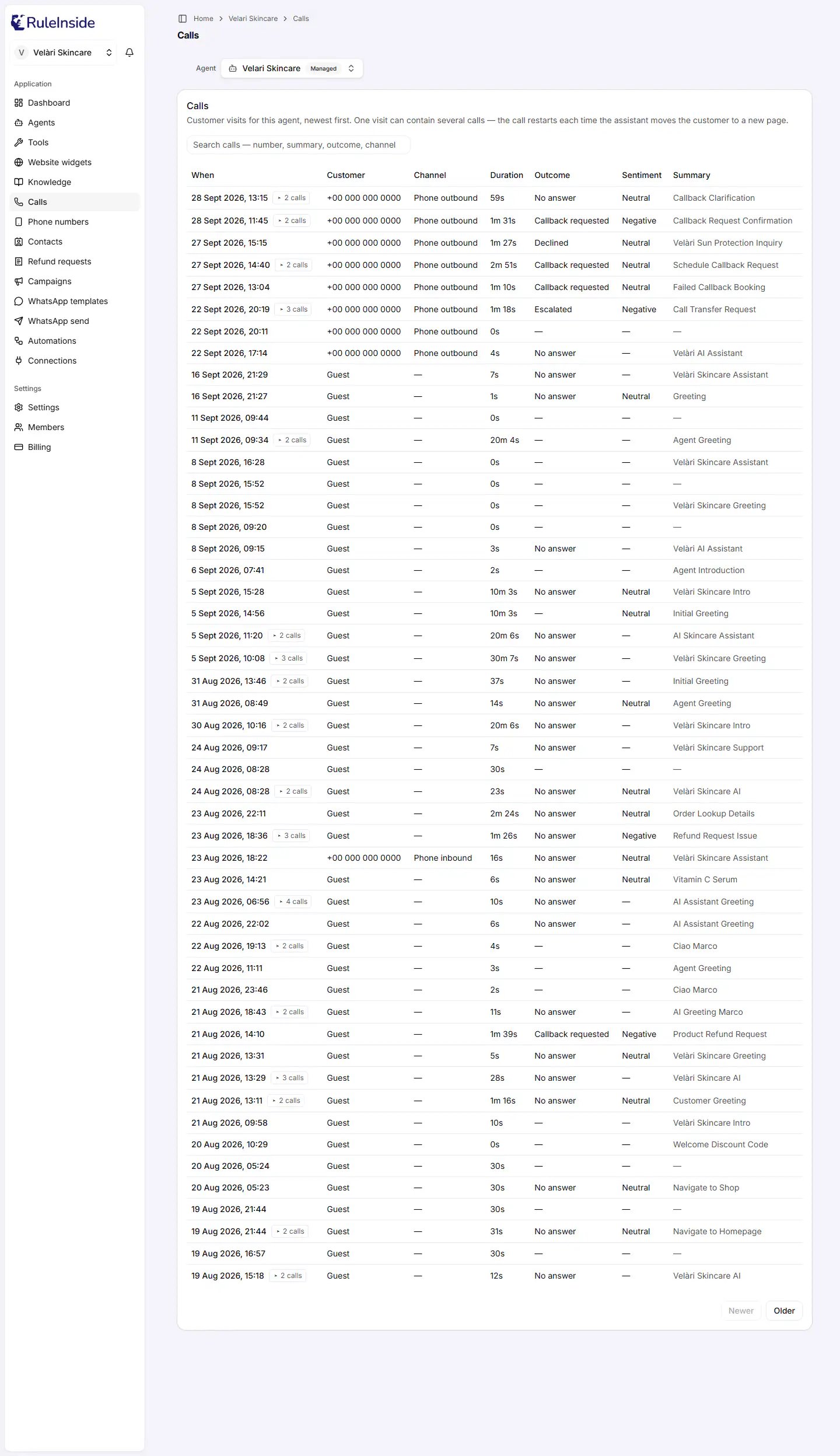
The Calls page: one row per customer visit, newest first.
Columns
Loading in two steps
To show the list faster, the page first shows the rows, then fills in Customer, Outcome and Sentiment a few seconds later. While they load, those cells show a small pulsing grey bar. If a cell then shows a faint dash with the hover text “Not loaded for this row”, that detail could not be loaded this time (for example because new calls arrived in the meantime). It does not mean nothing was recorded. Refresh the page to load it again.Visits: calls grouped together
When your assistant moves a shopper to another page of your store, the call ends and a new one starts. One visit to your website can therefore become several short calls. Phone calls from the same number close together are grouped the same way.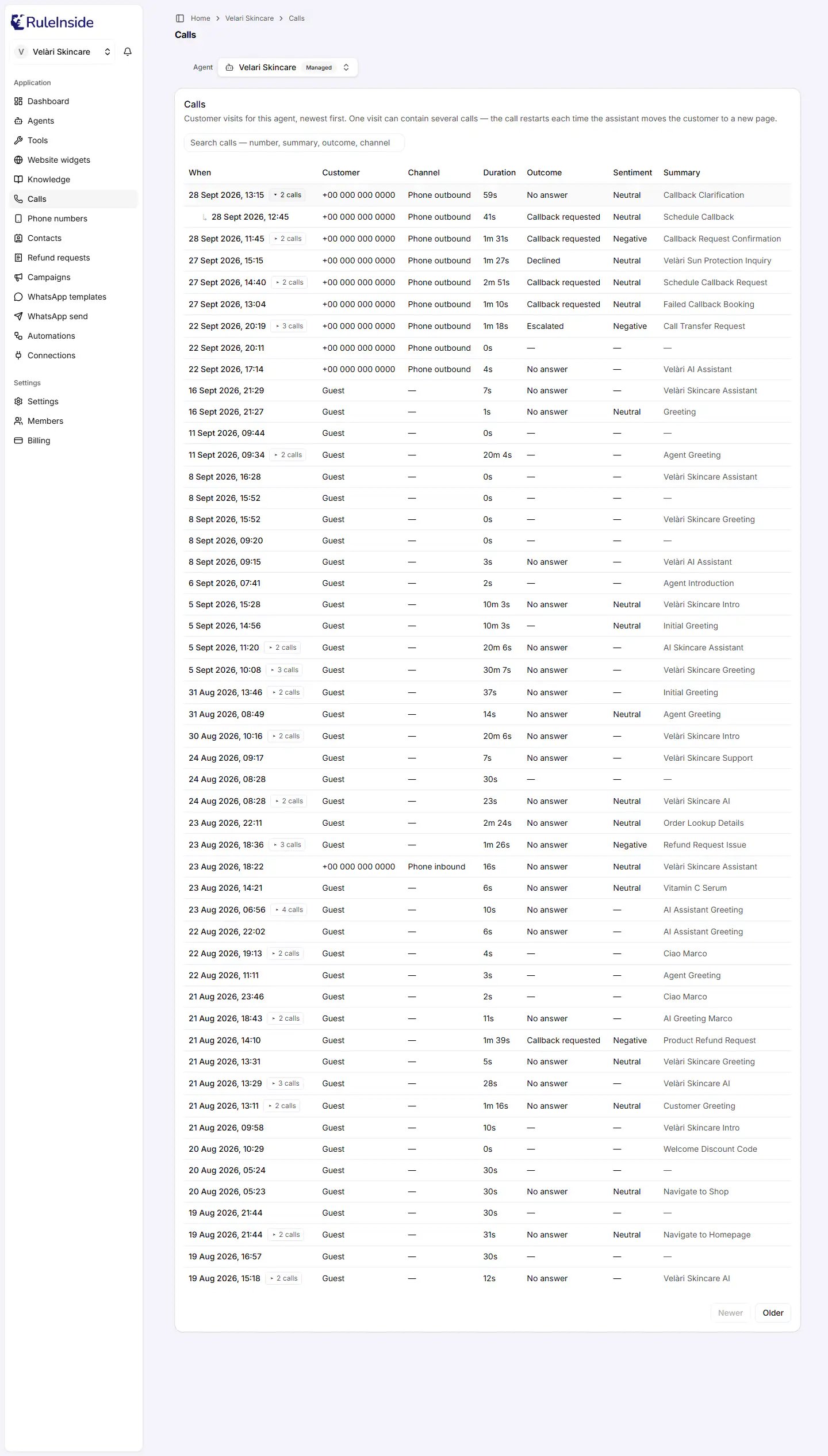
A visit expanded: the earlier calls appear indented under the newest one.
- A row with a small button such as ▸ 2 calls (or 3, 4 and so on) stands for a whole visit. Hover over it to see “Show the earlier calls in this visit: the call restarted each time the assistant moved the customer to a new page”.
- Click the button to show the earlier calls underneath, indented with an arrow. A “3 calls” visit opens to three rows in all. Each earlier call has its own link. Click again (“Hide the earlier calls in this visit”) to close it.
- The visit row shows the newest call’s time, link and channel. Outcome, Summary and Customer come from the newest call that has one. Sentiment is the newest real judgement in the visit. Duration is the total of the visit’s calls.
Searching
The search box reads “Search calls: number, summary, outcome, channel…”.- It searches only the calls on the current page, as you type, and ignores upper and lower case.
- It looks in the date and time, the customer, the channel, the outcome, the sentiment, the call’s status and the summary.
- Outcomes and channels are matched as single words. Search for callback or phone rather than “Callback requested” or “Phone outbound”.
- Visits are regrouped after a search, so a visit where only some calls match shows a smaller number of calls.
- When nothing matches, the page shows, for example, “No calls match “shoes”.”
Newer and Older
At the bottom right, Newer and Older move through your call history. There are no page numbers.- A page holds about 50 visits. It can hold a few more, because a visit is never split across two pages.
- Newer is greyed out on the first page; Older is greyed out when there is nothing older. When the first page is also the last, neither button appears.
- Your position is kept in the page’s web address, so refreshing, the browser’s Back button and a shared link all land on the same page.
- Switching agent takes you back to the first page.
Messages on the Calls page
A call’s page
Click a call’s date to open its page, titled Call. Press Back to calls to return to the list. A call that does not belong to your store, or that does not exist, shows “Page not found”. The page is made of the cards below, from top to bottom. A card with nothing to show is left out.Recording
The Recording card has an audio player and the note “Recorded with customer consent. Accessible only to your team.” It appears only when a recording exists for the call. The audio loads when you press play. If the player shows an error, the recording was deleted at the caller’s request, no audio was kept for this call, or there was a temporary problem: try again in a moment.Sentiment over the call
A coloured strip shows how the customer’s mood moved through the call, from Start of call on the left to End of call on the right. Each segment is one message from the customer: green for Positive, grey for Neutral, red for Negative. In the middle, Overall: shows the overall trend when it is available. Hover over a segment to see its label, a score from -1 (most negative) to 1 (most positive), and the start of what the customer said. RuleInside scores only what the customer said, not the agent, using an AI model, once per call. The strip is not shown when:- the customer sent fewer than two messages with real words in them;
- the call opened with a voicemail greeting that RuleInside recognises;
- the caller objected to being recorded;
- the scoring could not be completed at that moment.
This strip is a different measure from the Sentiment column in the call list and the Sentiment line under
Data collected, which are a single judgement of the whole call. They can disagree: for example, a strip
that turns red and then green can sit next to an overall “Neutral”.
Details
Summary
A written summary of the call. Not shown when the call has no summary.Data collected
One line for each piece of information your agent is set up to collect, with its value. For example Outcome, Sentiment, Lead email, Lead interest, Lead phone and Recording objection. Any custom fields your store has appear here too. A field with no value shows a dash. A yes-or-no field shows “True” or “False”.Evaluation
One block for each evaluation criterion set on your agent (for example “Issue resolved”): its name, a result (Success, Failure, or grey for any other value) and an explanation underneath. Not shown when your agent has no criteria.Transcript
The whole conversation, message by message.- The agent’s messages are on the left in grey, labelled Agent. The customer’s messages are on the right, labelled Customer. Each shows its time into the call, for example “0:11”.
- After an agent message’s time, a figure such as ”· 1.41s” is the Response latency: how many seconds the agent took to respond on that turn.
- interrupted (amber) marks a message that was cut off.
- Actions the agent took, such as looking up an order or transferring the call, appear as rows with a wrench icon: the action’s name, its type, how long it took, and “ok” (green) or “error” (red). Open one to see Request (what the agent sent) and Response (what came back), and the error message if it failed.
- Knowledge-base lookups appear as a short row with a book icon, at the moment the agent checked your knowledge base.
- When there is no transcript, the card reads No transcript for this call.
Notices on a call’s page
When a caller objects to being recorded
If a caller says they do not want to be recorded, the recording and the transcript of that call are deleted. The call stays in your list, marked Recording deleted at the caller’s request, with its outcome and duration.Your store’s privacy notice should tell customers that calls may be recorded. Set the agent’s
recording notice so callers hear it.
Common questions
Why does the Calls page show a different number of calls from the Dashboard?
Why does the Calls page show a different number of calls from the Dashboard?
The Calls page reads the live call log for the one agent selected at the top, and groups calls into visits.
The Dashboard counts every call RuleInside has recorded for your store, all agents together.
They will not match exactly. For your total, use the Dashboard’s Calls figure.
Why is the Channel column empty for website calls?
Why is the Channel column empty for website calls?
The Calls list labels only phone calls, as Phone inbound or Phone outbound. Calls from your website widget
show a dash in Channel. A call’s own page, and the Dashboard’s Recent calls, show these calls as Widget.
Why are there so many very short calls?
Why are there so many very short calls?
Each time your assistant moves a shopper to another page of your store, one call ends and another starts, so short
calls are normal. They are grouped into one visit: click ▸ 2 calls (or similar) to see them together.
Why does the customer show as Guest?
Why does the customer show as Guest?
No phone number is attached to the call, for example because it came from your website.
A call just ended and is missing, or has no summary yet.
A call just ended and is missing, or has no summary yet.
The list reads your calls live, and a call’s summary and outcome appear only once its analysis has finished, a
short time after the call ends. Refresh the page.
Why are Customer and Outcome a faint dash?
Why are Customer and Outcome a faint dash?
Those details are loaded in a second step, which did not return that row this time. Refresh the page.
I can't find a call from another agent.
I can't find a call from another agent.
The list shows one agent at a time. Choose the other agent in the Agent bar at the top.
Why doesn't my search find Callback requested?
Why doesn't my search find Callback requested?
Search for a single word, such as callback. Outcomes and channels are matched as one word each. The search also
covers only the calls on the current page; use Older to search further back.
Why does the sentiment strip disagree with the Sentiment column?
Why does the sentiment strip disagree with the Sentiment column?
They are different measures. The strip follows each of the customer’s messages; the column is a single judgement
of the whole call.
Why can't I hear the recording?
Why can't I hear the recording?
No recording exists for that call, the caller objected to being recorded, or there was a temporary problem. Try
again in a moment.
Who can listen to recordings?
Who can listen to recordings?
Every member of your team can open a call and play its recording. The note under the player reads “Recorded with
customer consent. Accessible only to your team.”
Data collected shows a Lead phone, but the Dashboard did not count a lead.
Data collected shows a Lead phone, but the Dashboard did not count a lead.
The Dashboard’s Leads captured counts only calls that left an email address.