

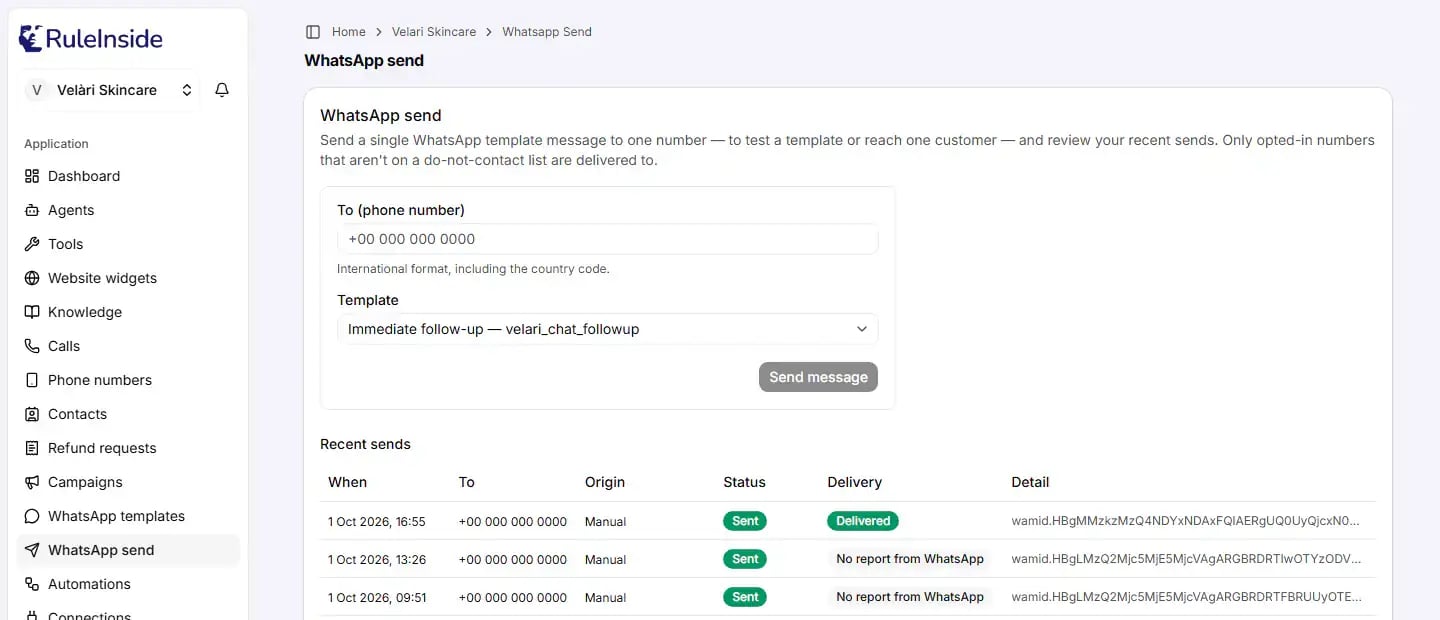
WhatsApp send: the composer at the top, your recent sends below.
Before you send
Check these four things first. A send that fails any of them is not delivered.An enabled message template
A saved contact with this number
+ (for example +15551234567).WhatsApp consent recorded
Your store's calling consent confirmed
Sending a message
Enter the number
Choose the template
Fill in the variables
Click Send message
Click Send now
Every field
Only the account owner can fill in and send this form.+ and the country code.
What the page shows instead of the form
- You have no enabled WhatsApp message template yet. Register a message template, or enable an existing one, under WhatsApp templates. Call permission templates cannot be used to send a message.
- We couldn’t load your WhatsApp templates right now. Refresh the page; contact support if it keeps happening.
- This workspace isn’t linked to a store yet. No form and no log are shown. Contact support.
- A member who is not the owner sees a note that only account owners can send WhatsApp messages. The Recent sends log is still visible to them.
Buttons and the confirmation
What happens after Send now
RuleInside checks your account is active, finds the enabled template, finds the contact by number, runs the checks described in Why a send is suppressed, fills in the variables, picks the sending number, and tries to send straight away. The checks run again just before the message goes out. A message appears at the bottom of the screen with the result:- This account is not active; outbound WhatsApp is disabled. Your account is suspended, on hold or not yet set up. Contact support.
- No WhatsApp account with messaging enabled + an assigned agent is available for this client. On Phone numbers, check that your WhatsApp number has Messaging enabled switched on and an agent assigned.
- No enabled WhatsApp message template configured for purpose … The template you chose is no longer enabled. Enable it under WhatsApp templates.
Recent sends
Under Recent sends you see your newest 100 WhatsApp sends, newest first. The log covers every WhatsApp message your store sends, not only the ones sent from this page: automatic follow-ups, event follow-ups, campaigns and manual sends. Every member can see it. If nothing has been sent yet it says No WhatsApp sends yet. If the log cannot be loaded, refresh the page and contact support if it keeps happening.Status
Delivery
Delivery reports come from Meta, so they appear only when your WhatsApp number is connected through Meta (it shows the Connected through Meta badge on Phone numbers). For any other number, Delivery always shows No report from WhatsApp.Why a send is suppressed
These checks apply to every WhatsApp message your store sends: manual sends, follow-ups and campaigns. If a check cannot be completed at that moment, the message is not sent.- Your account is active. A suspended account, or one not yet set up, sends nothing.
- Your store has confirmed its calling consent under Settings › Calling consent, for the country it trades in.
- The person has not opted out of WhatsApp. A number with no saved contact counts as opted out.
- The number is not on your WhatsApp do-not-contact list.
- The contact has WhatsApp consent recorded. Consent to calls is separate and does not count.
- The weekly marketing limit. For a template whose Meta category is Marketing, a contact receives at most 4 marketing WhatsApp messages in any rolling 7 days, across campaigns, follow-ups and manual sends. Messages that are queued, sending, retrying, sent or unconfirmed count; suppressed and failed ones do not. Utility and Authentication templates are not counted or limited.
- Marketing quiet hours. A Marketing template is sent only during the calling hours where the person is (your store’s calling hours, or a campaign’s own). Outside them the message waits as Queued until the hours open. If the contact has no time zone, or the calling hours are not valid, it also waits and says so. A message that waits only because the contact has no time zone, and was queued 7 or more days ago, is not sent: its status becomes Failed and Detail says why. An immediate follow-up (a reply in a chat the shopper started) does not wait when it goes within 24 hours of that chat; after that, it waits like any other Marketing message. Utility and Authentication templates do not wait.
- Marketing stopped. If WhatsApp refused an earlier Marketing message because the person told WhatsApp to stop
marketing messages from your business, that number gets no more Marketing templates from your store: the send is
Suppressed with the reason
marketing_stopped. This is checked when the message is queued and again just before it goes out. Utility and Authentication templates still go. If the person turns your marketing messages back on in WhatsApp, Meta tells RuleInside and the stop is lifted. A stop recorded after they turned them back on stays. This applies to a number connected through Meta. - Checked again at the last moment. Opt-out, do-not-contact and consent are checked again just before the message goes out, so a STOP that arrives while a message is waiting stops it.
- WhatsApp is blocking your account. For a number connected through Meta, if Meta blocks your account from sending (for example because no payment method was added), messages wait as Queued with a detail beginning “held: Meta is blocking this WhatsApp account from sending”. RuleInside checks again every 15 minutes and sends them once Meta allows it. A message that has waited 7 days or more is marked Failed instead of being sent late. Fix the account in Meta’s WhatsApp Manager; the Phone numbers page shows what Meta reports.
- Pace. RuleInside sends at most 200 WhatsApp messages per store per hour.
Reasons you may see
STOP and START
A customer who replies STOP to your WhatsApp messages is opted out of WhatsApp messages and calls from your store, and any message waiting for them is suppressed when its turn comes. You cannot reverse an opt-out from the portal: only the customer can, by replying START. See STOP and START for the details.Common questions
My send says Suppressed: no_consent, but the person is my customer.
My send says Suppressed: no_consent, but the person is my customer.
My send says Suppressed: opt_out, but they never opted out.
My send says Suppressed: opt_out, but they never opted out.
+15551234567), record WhatsApp consent, and send again.It says Queued, not sent yet (held: outside the calling hours ...).
It says Queued, not sent yet (held: outside the calling hours ...).
It says Sent, but the customer did not get it.
It says Sent, but the customer did not get it.
It says Unconfirmed. Should I send it again?
It says Unconfirmed. Should I send it again?
It says Failed with unresolved template params.
It says Failed with unresolved template params.
How many marketing messages can one person get?
How many marketing messages can one person get?
Why don't I see my template in the list?
Why don't I see my template in the list?
Can I send to many people at once?
Can I send to many people at once?
Does sending cost money?
Does sending cost money?
Can a team member who is not the owner send?
Can a team member who is not the owner send?
Can I type my own text instead of using a template?
Can I type my own text instead of using a template?